
This page describes all the capabilities of our AI Assistant and how to utilize to the maximum.
Accessing AI Assistant
First, the AI provider for the Assistant has to be set, which is done in the administration.
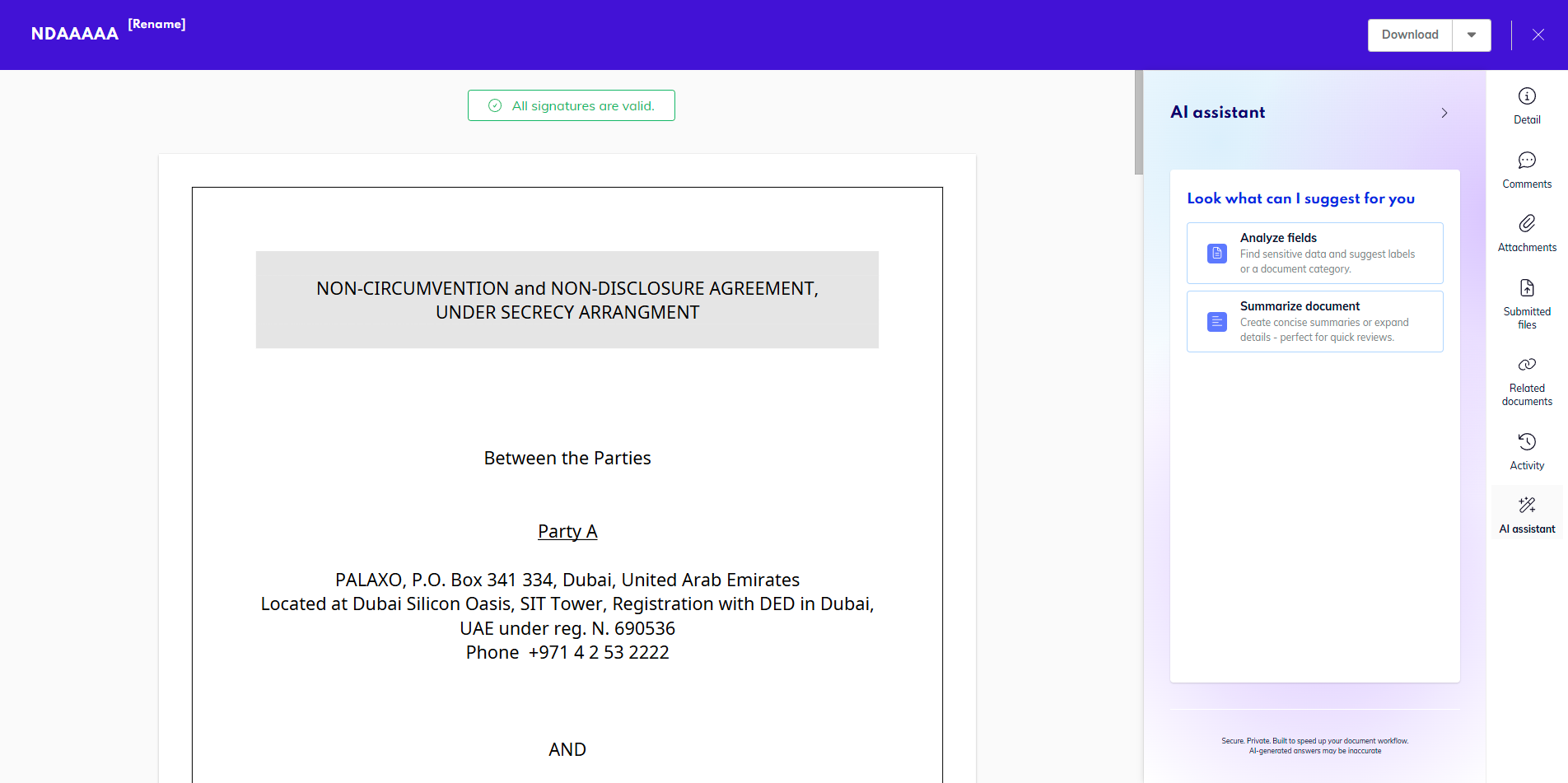
Then, AI Assistant is accessible from the document preview.
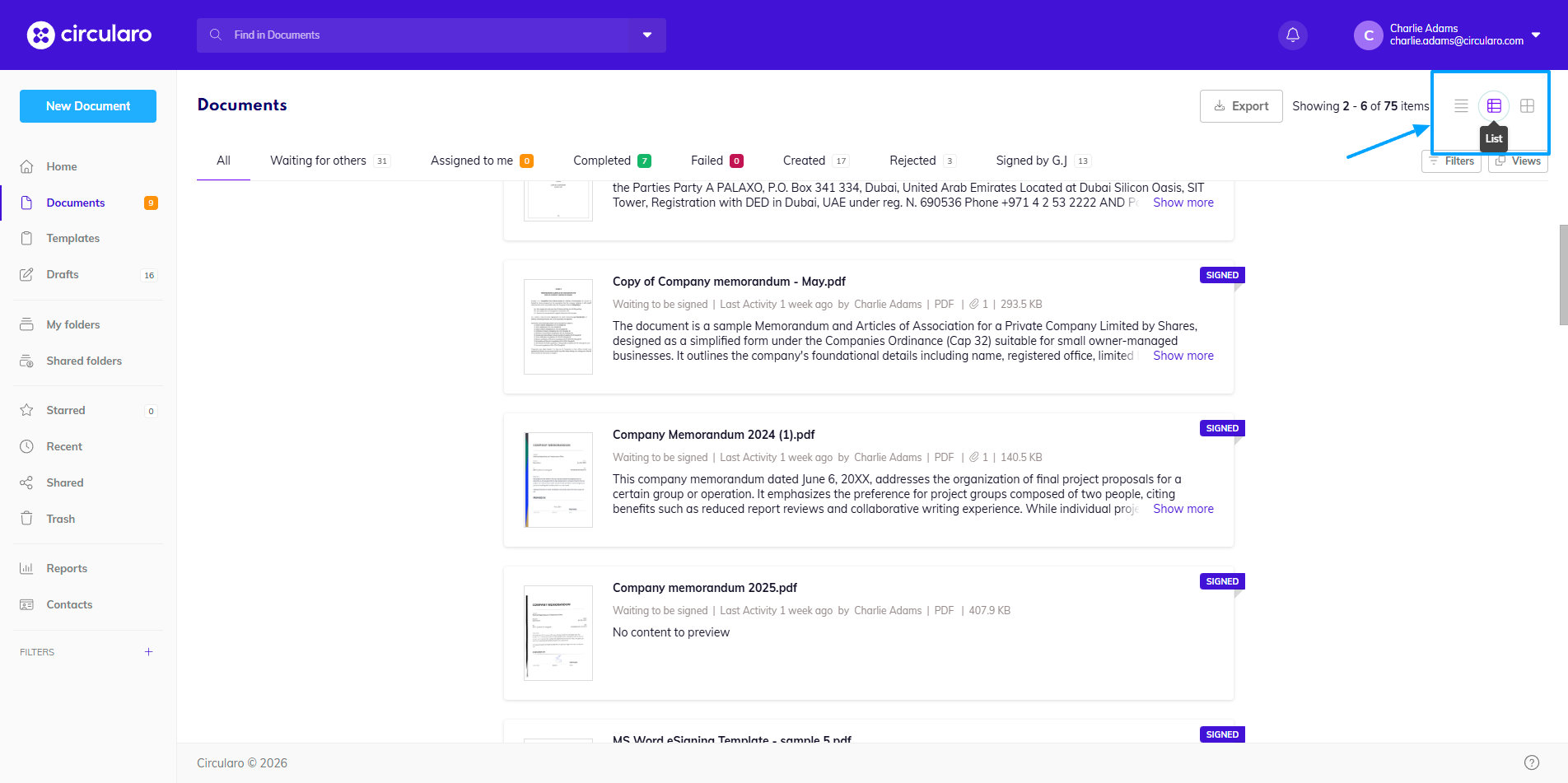
Or in the List view in Documents.
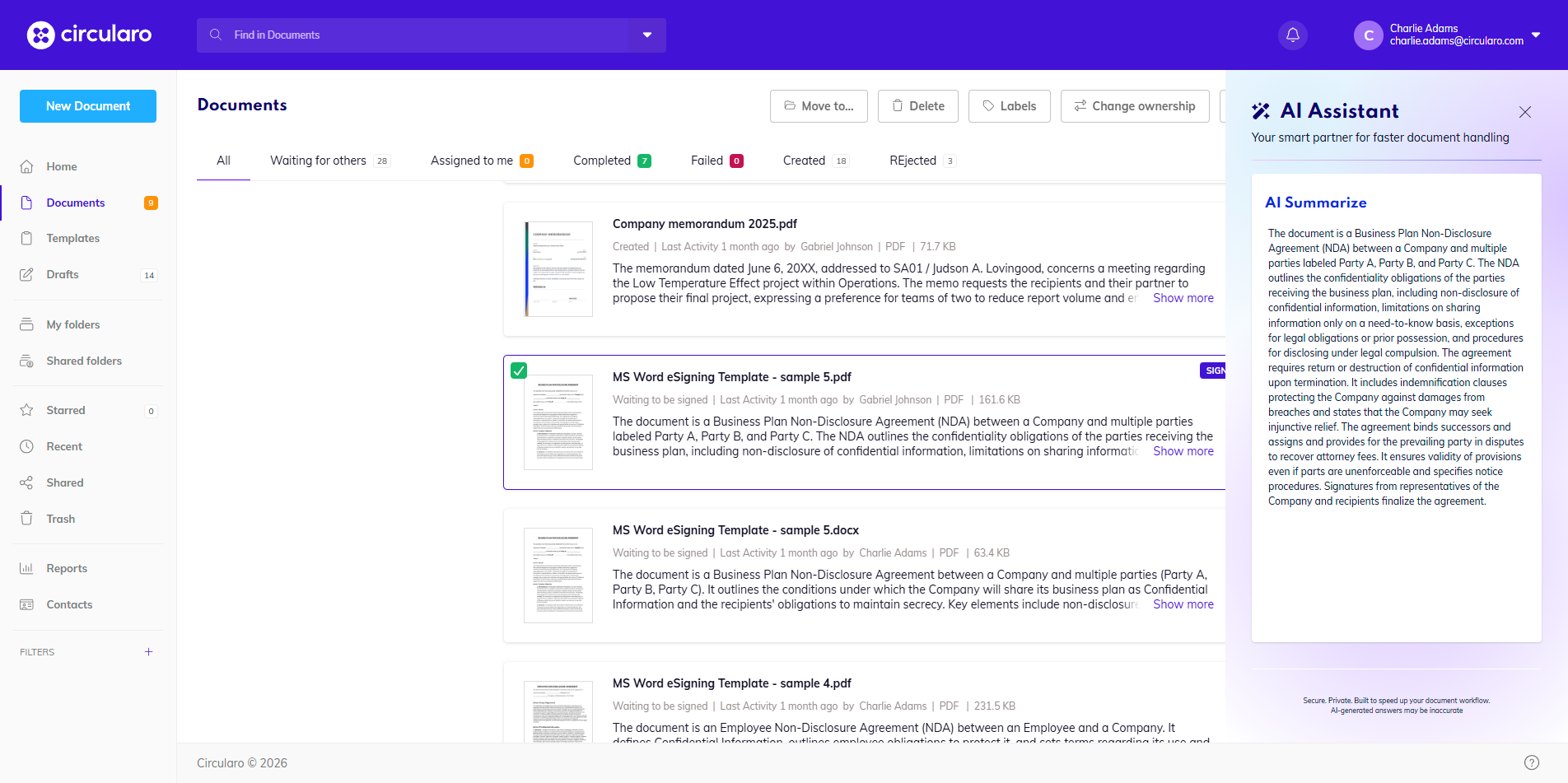
By clicking Show more by each document, you can see its summary without having to open the preview of each individual document.
Document summary
For every document, you can generate a summary of the document’s contents. This can serve as a quick overview without having to go over the entire text, as well as document highlights for the most important parts.
When the assistant is opened in preview, simply select the option Summarize document. The assistant will analyze the document and create a summary.
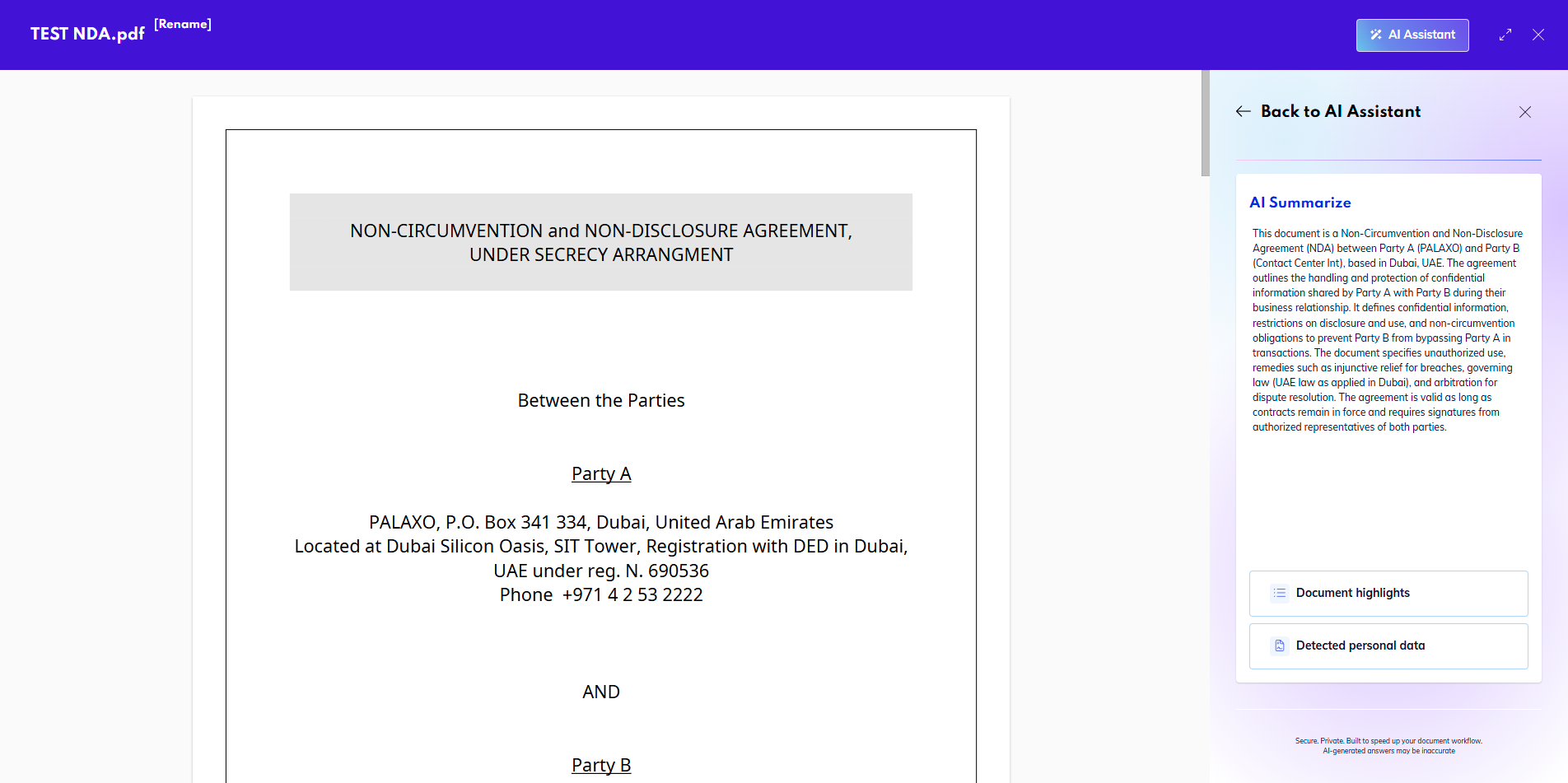
The summary created will always be in the language you have set as default, regardless of the language of the document. This way, you can be aware of the contents of documents in a language you don’t speak.
So, for example, your app can be in Arabic and you receive a document in English - the summary will be created in Arabic for ease of use.
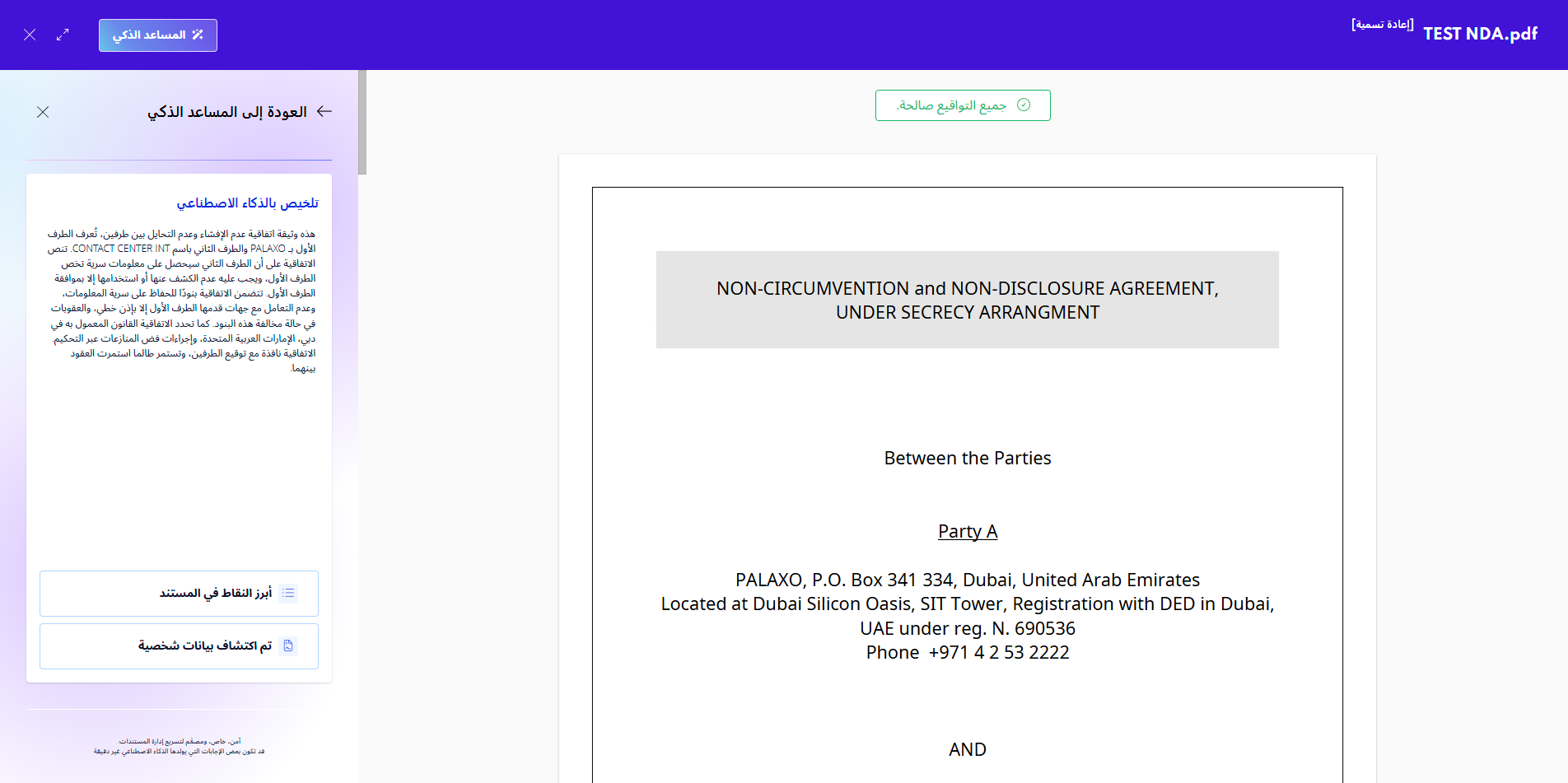
Document Highlights
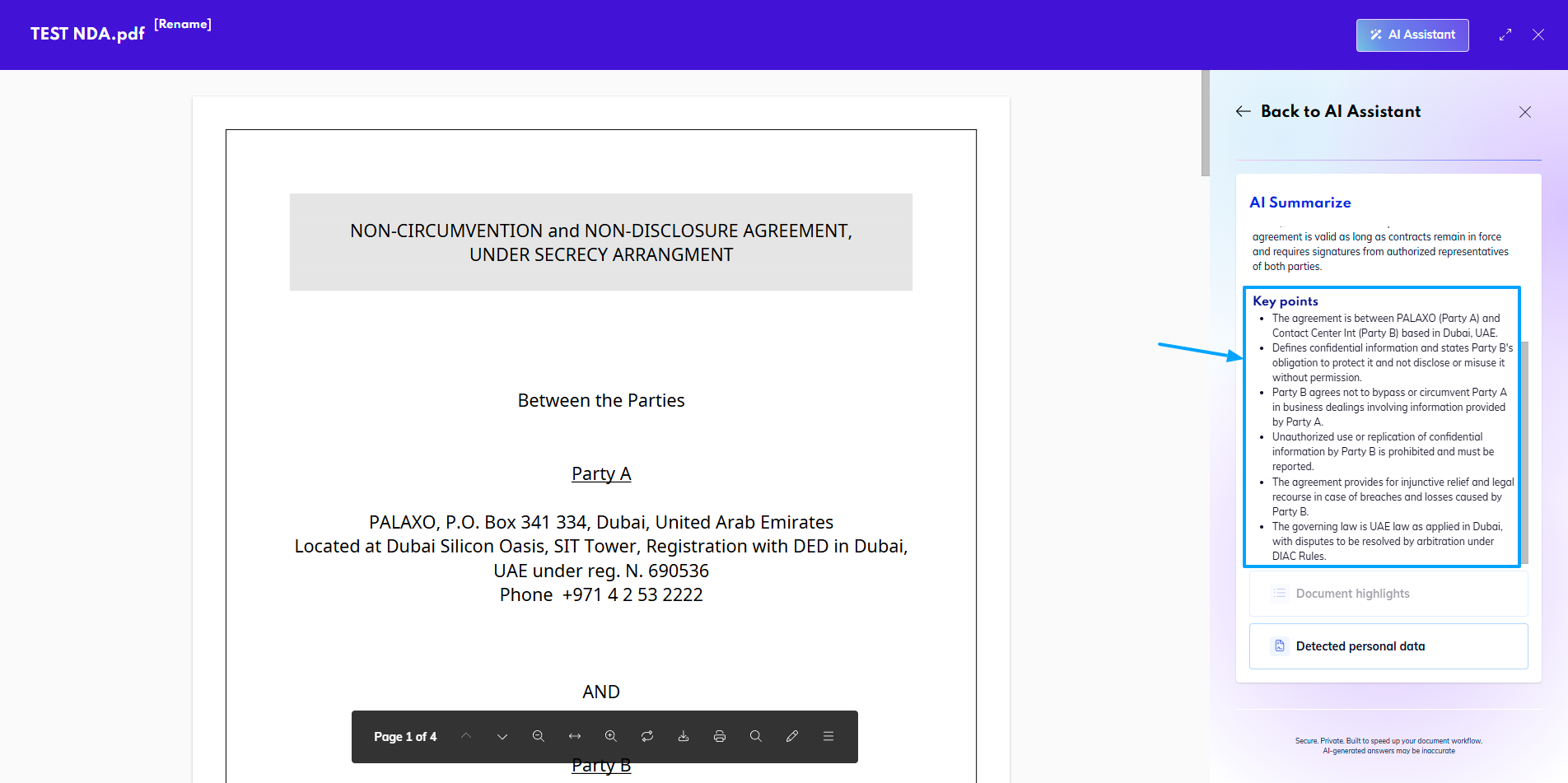
You can ask the Assistant to create highlights or key points of the contents. This will be available below the actual summary of the document.
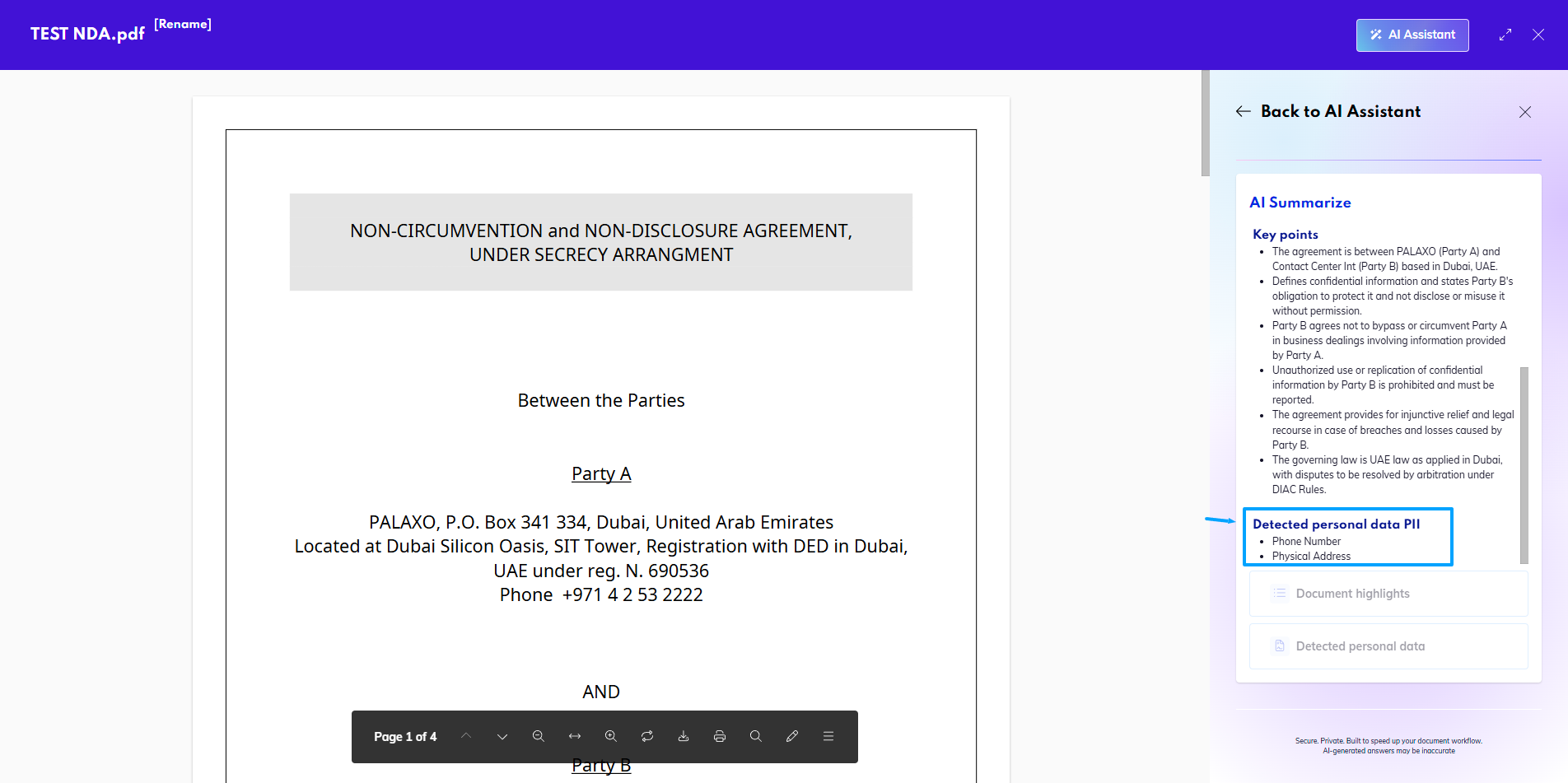
Personal data
Below the summary you can also choose to detect personal data - PII (Personally Identifiable Information). The Assistant will give you the type of personal data that can be found in the document - for example names or a physical address, or phone numbers.
Analyzing fields and labels
You can also have the assistant analyze the document and suggest labels that can be attached (if the label did not exist before, the system will create it for you if you choose to apply it), a category (it will select out of those, that are available in your organization), sensitivity of the document, and PII - Personally Identifiable Information.
You can choose which of these you want to apply - if you think the category is incorrect, or some labels are inaccurate, you can only apply those that suit the document.
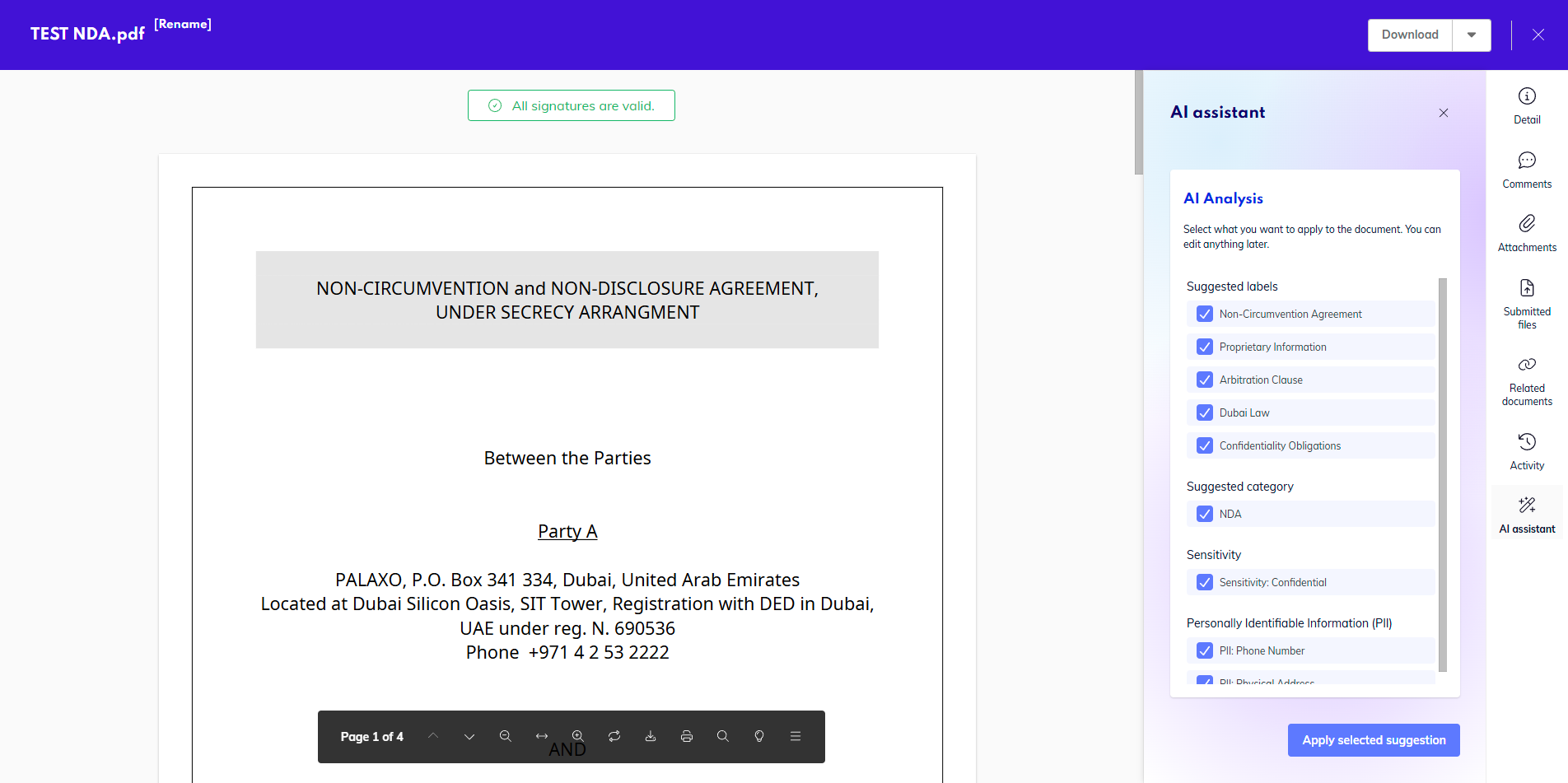
Once you are happy with the selection, just click Apply selected suggestion.
In the document detail you will be able to see everything you had applied.
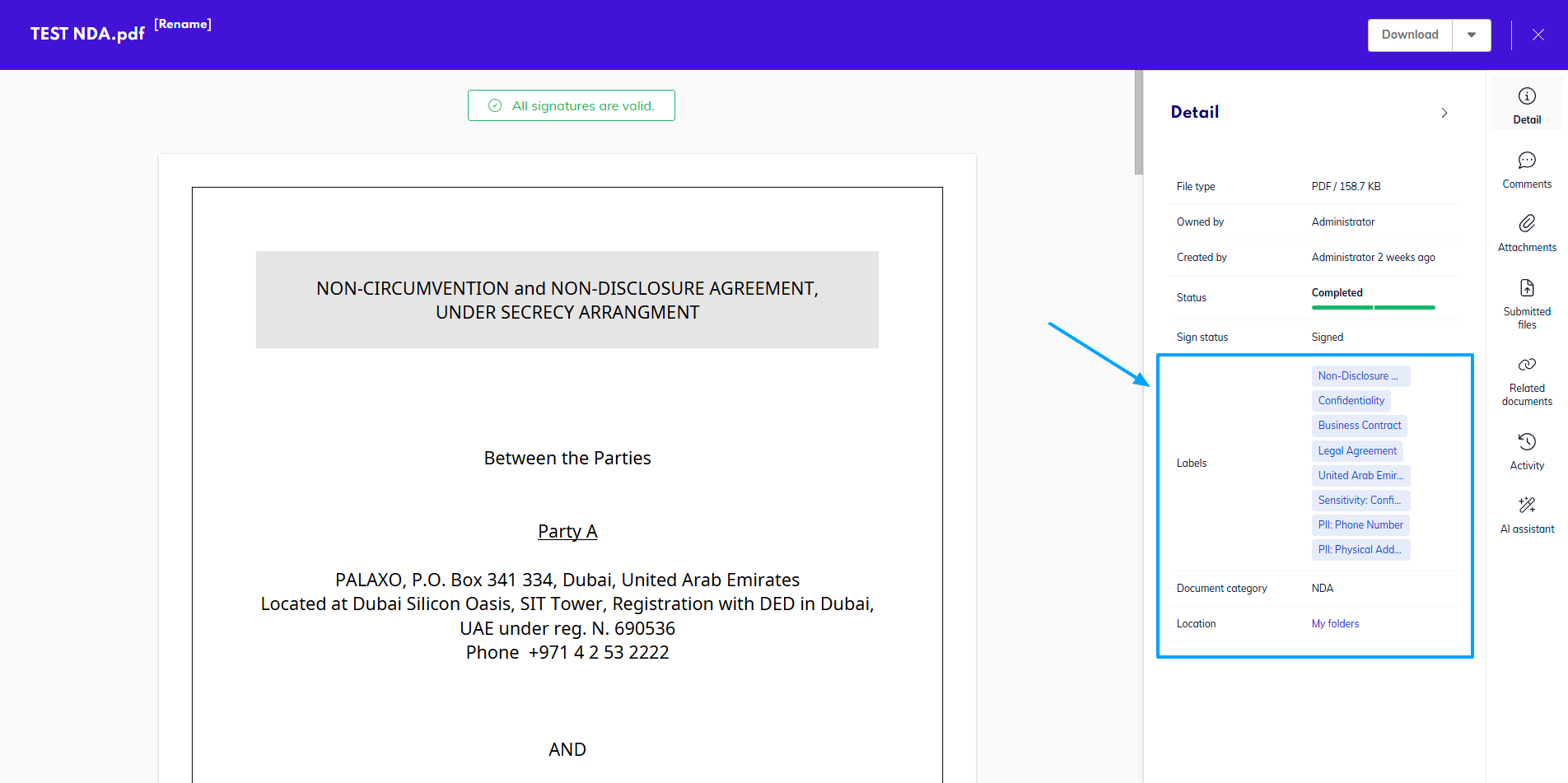
If your interface is in another language, the labels will be created in your chosen language.
Unfortunately, at this time, the sensitivity and PII labels are only in English and will not be translated to the language of your interface.