
This feature is available as an add-on from the Enterprise edition.
Prerequisites
-
Enterprise application registration in MS Entra ID
Configuration steps
-
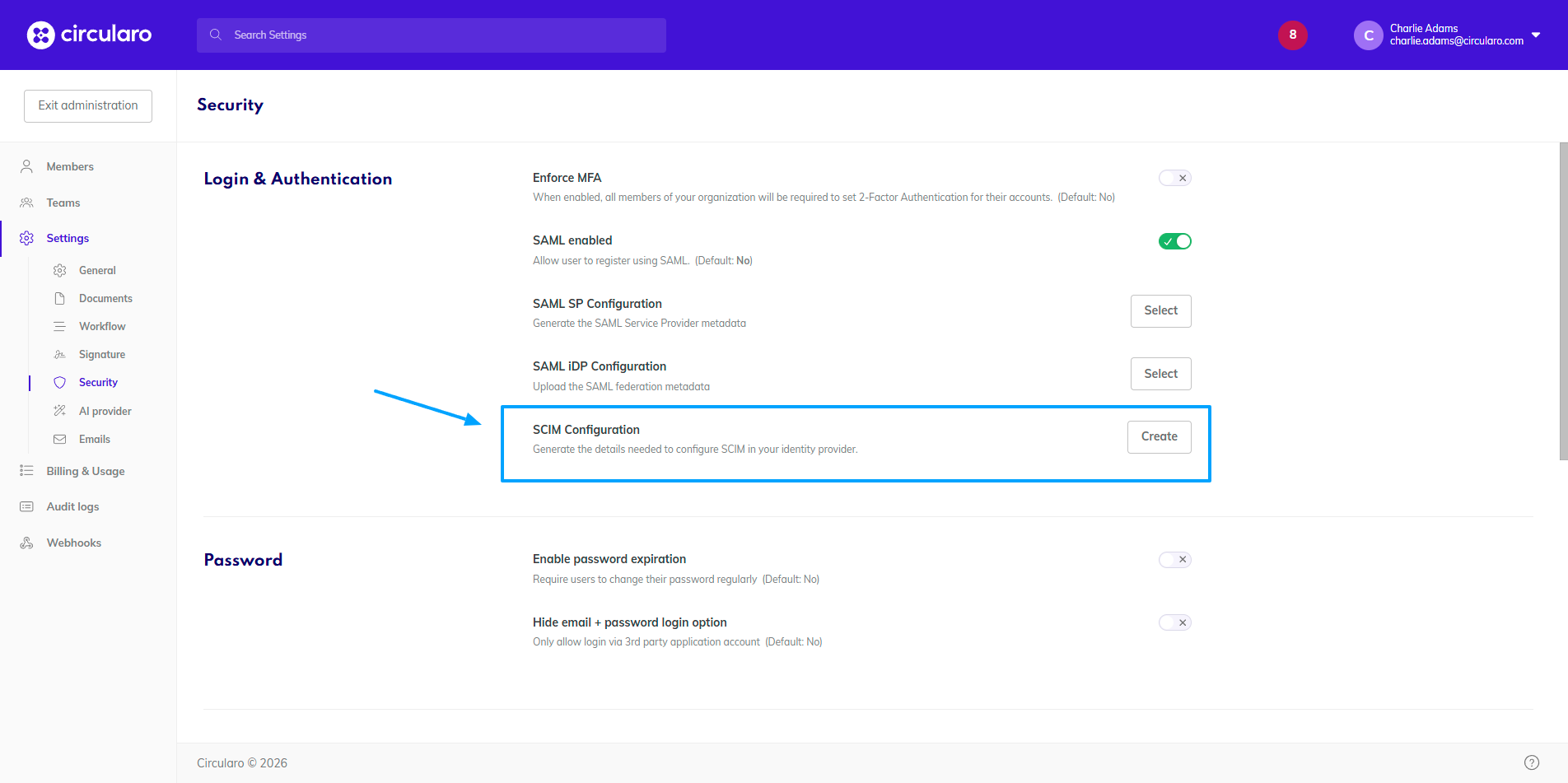
Navigate to Administration -> Settings -> Security -> SCIM Configuration.
-
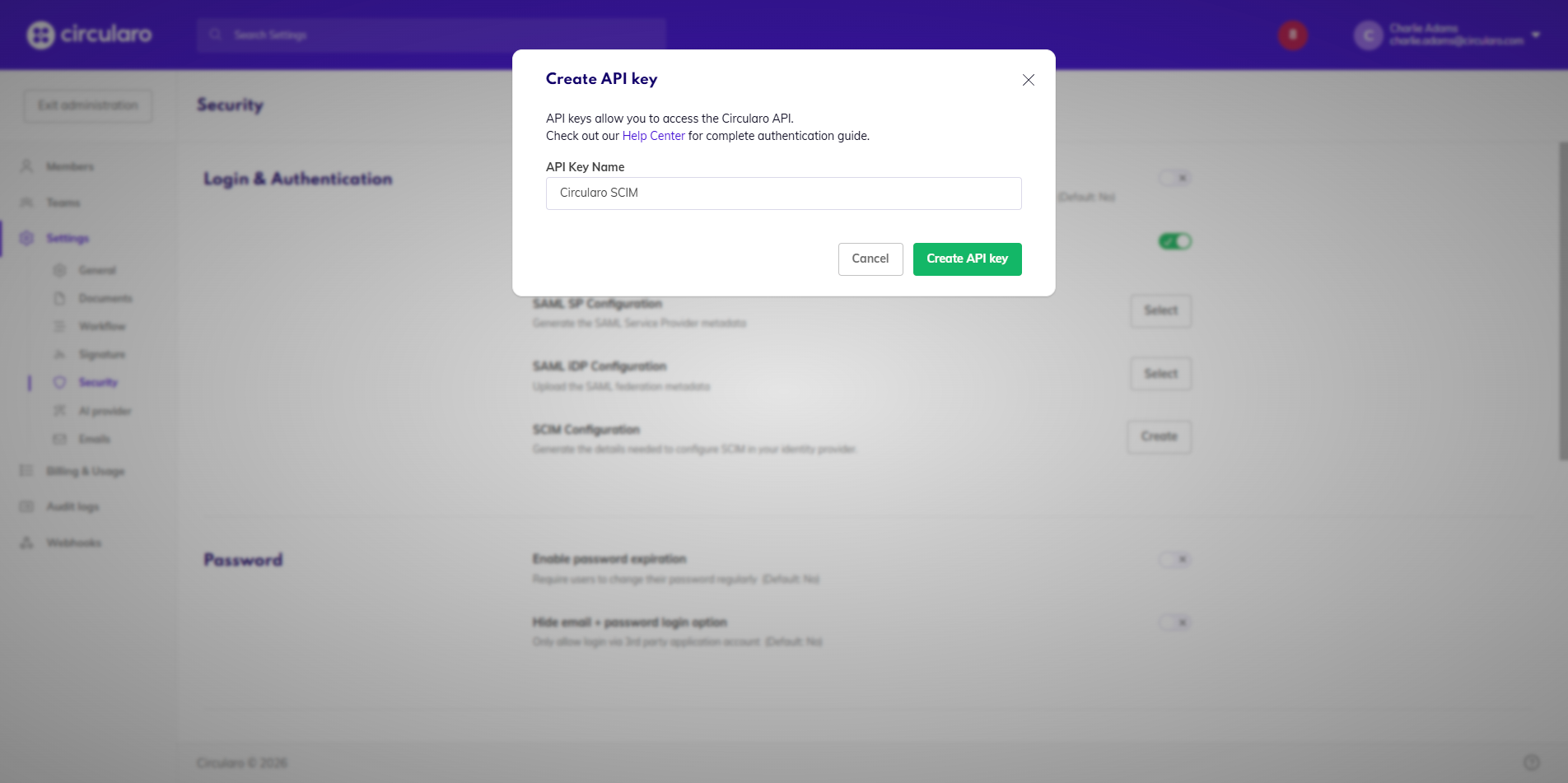
Enter a name for the API key that will be used for SCIM and click “Create API key”.
-
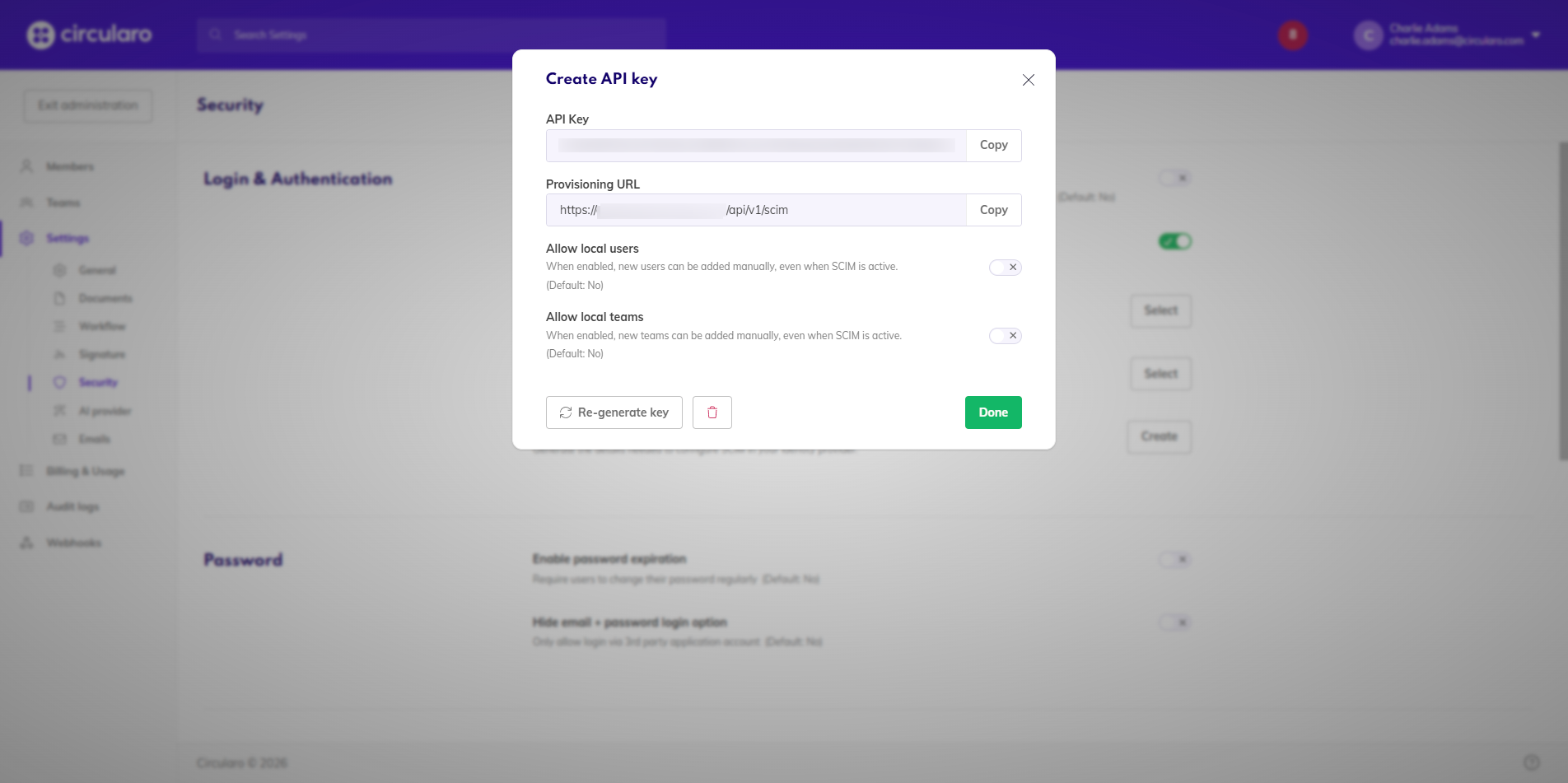
Copy the API Key and Provisioning URL, Optionally, you can also configure whether local users/teams should be allowed. Click on “Done”.
-
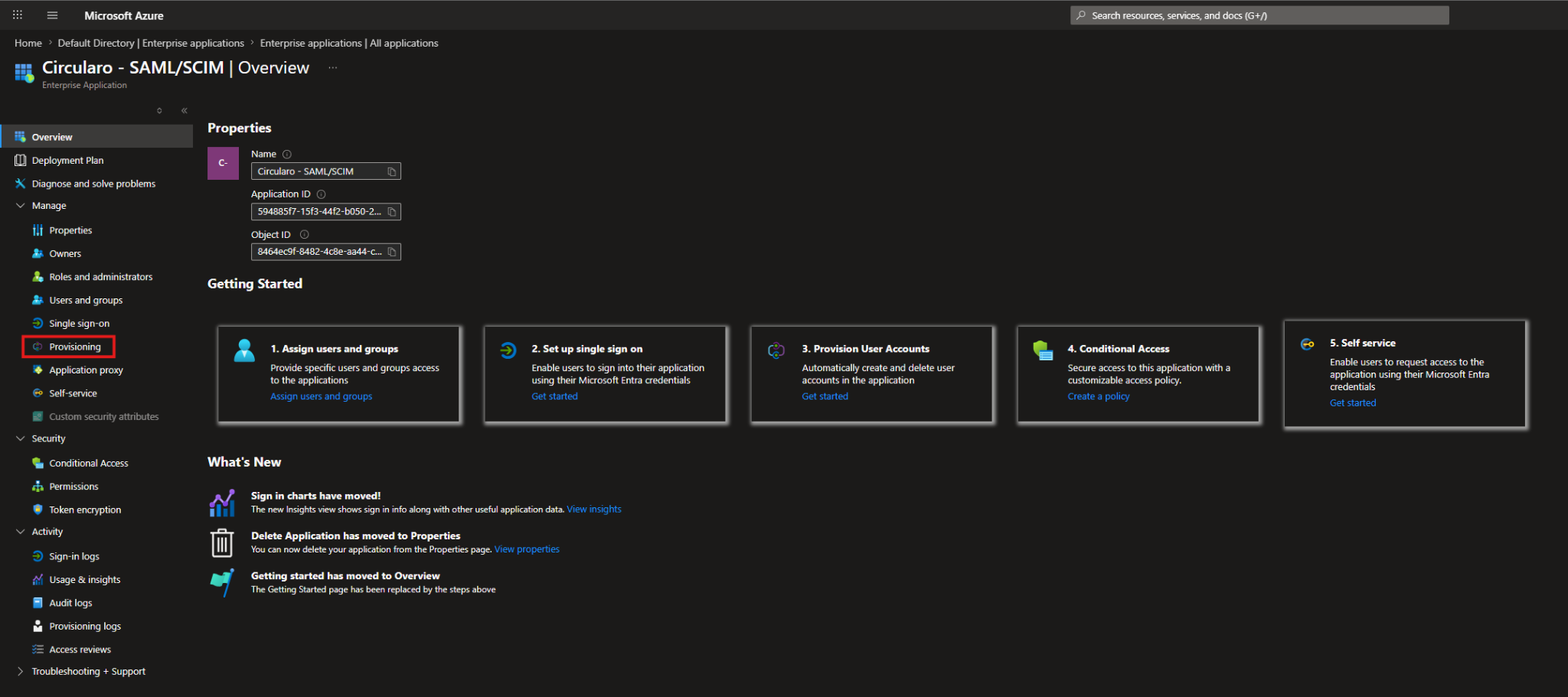
In MS Entra ID, navigate to your enterprise application -> Provisioning.
-
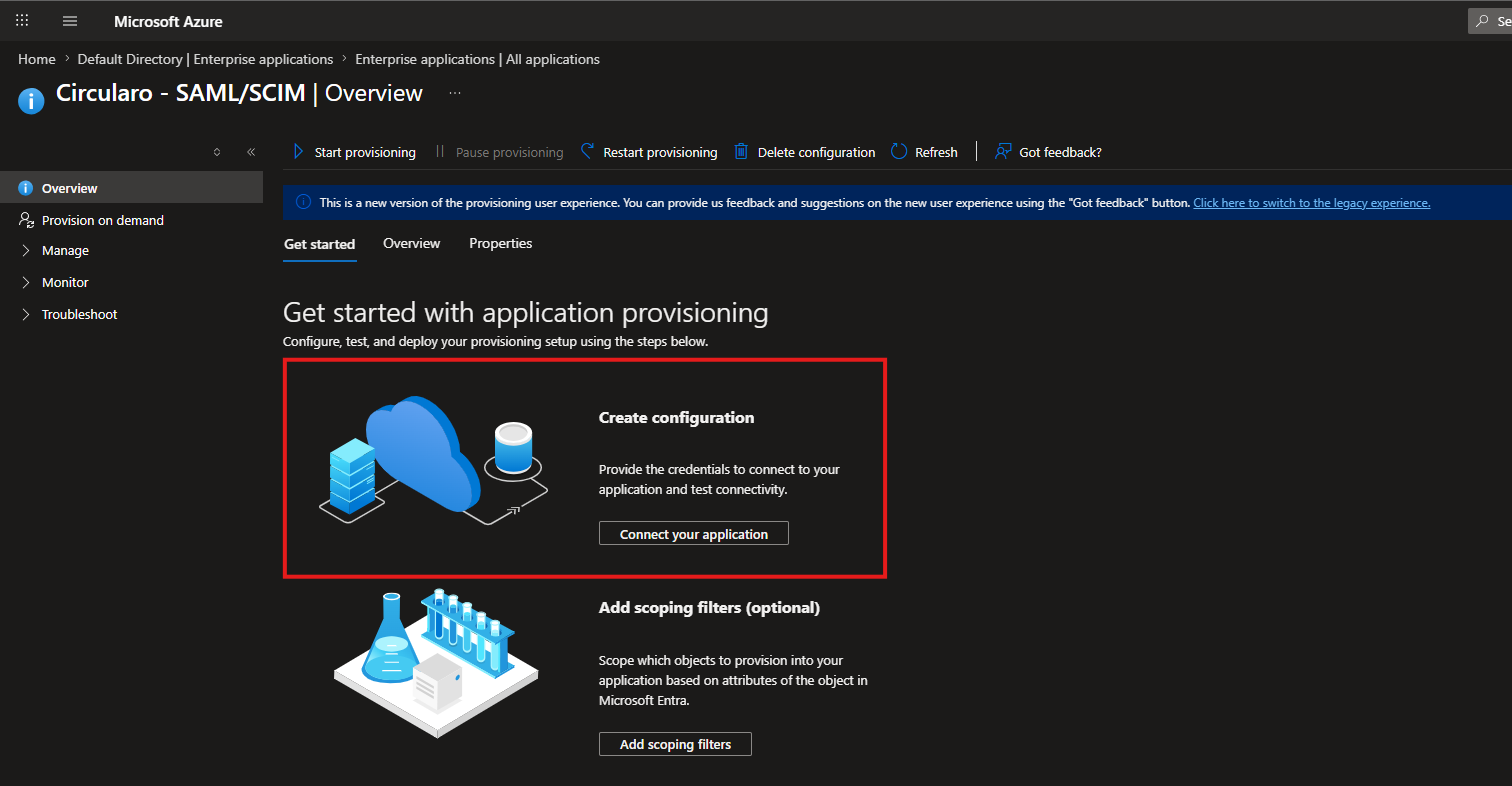
Select “Create configuration” -> “Connect your application”.
-
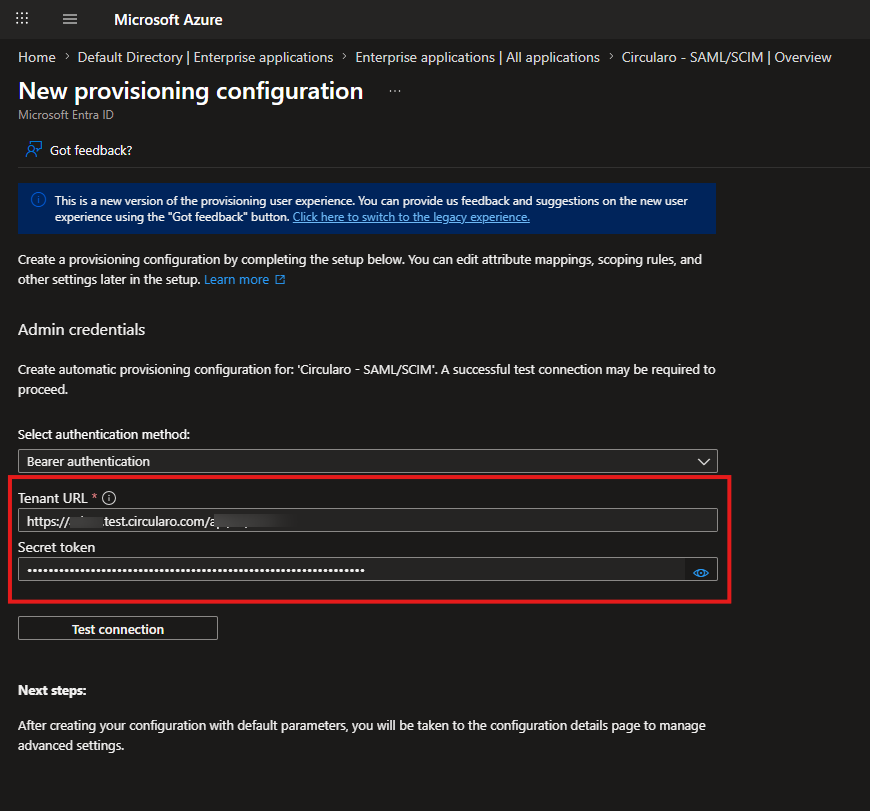
In the “Tenant URL” paste the “Provisioning URL” you copied from Circularo, for the “Secret token” enter the “API Key” from Circularo.
-
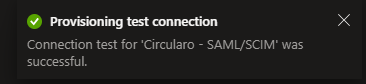
Click on “Test connection”. If everything was configured correctly, you should receive a success message.
-
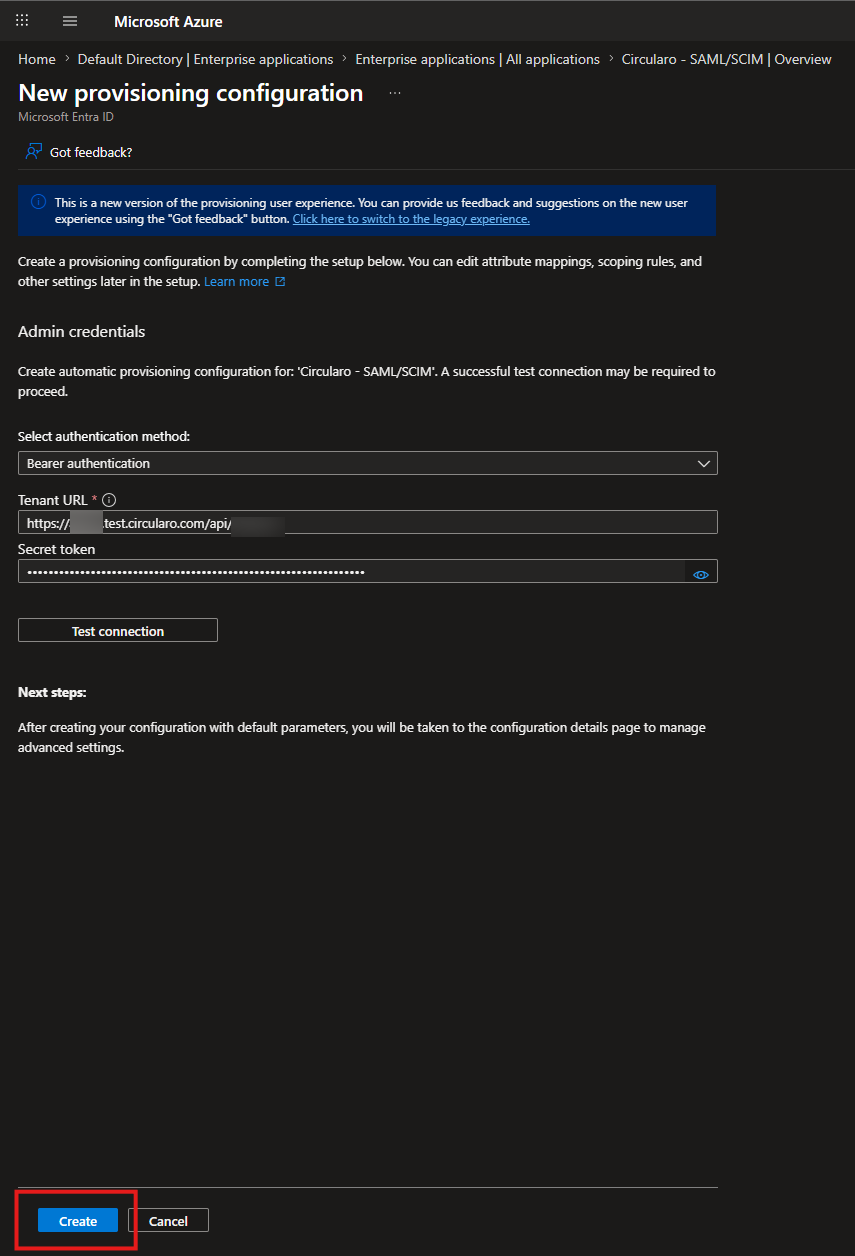
Click the “Create” button to save the configuration
-
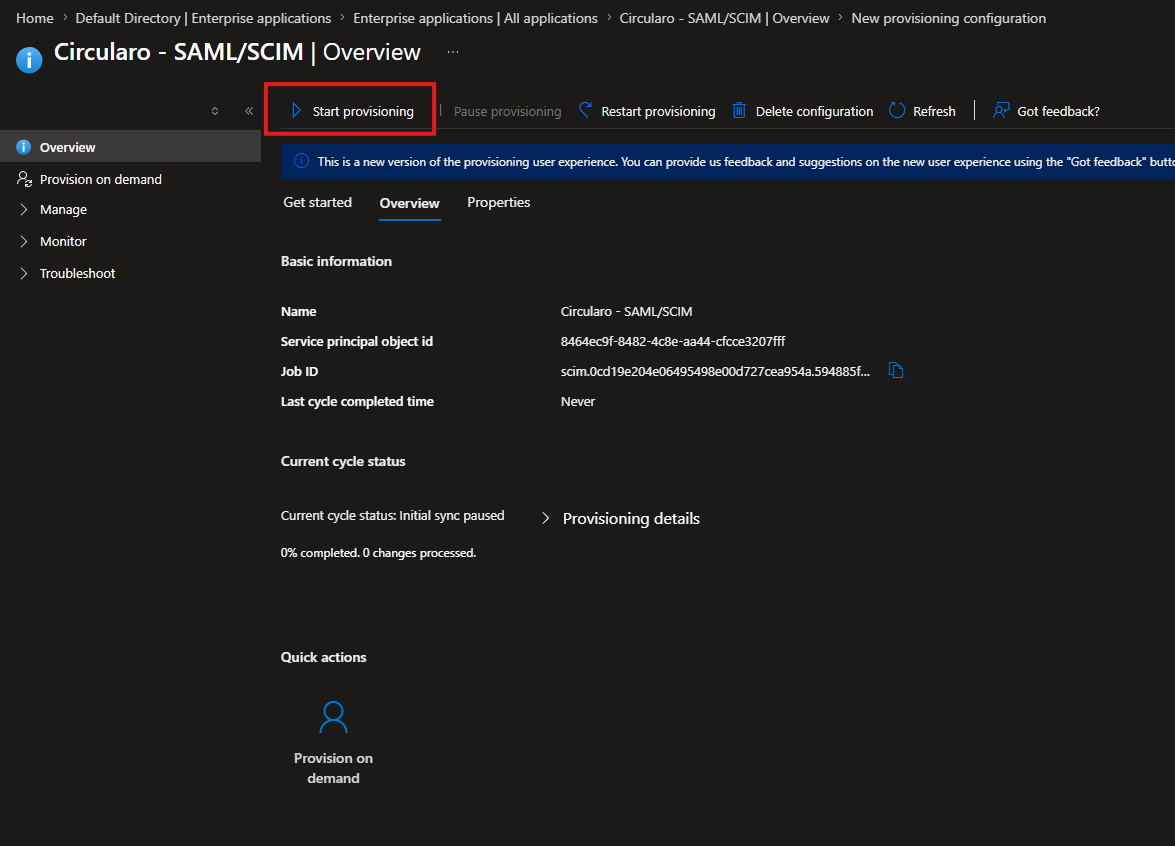
Finally start the provisioning by clicking the “Start Provisioning” button in the “Overview” tab
-
Now the users and teams assigned to your enterprise application will synchronize automatically to Circularo based on your MS Entra ID configuration. You can also manually synchronize selected account by using the “Provision on demand” feature.