
In Circularo, there are two types of stamps that can be placed on a document - personal and organizational stamps.
Your personal stamps represent you as an individual, the same way a signature does.
Organizational stamps represent your company or organization rather than specifically you. As such, access to these stamps can be restricted by your organization’s admin based on your company’s policy. If you cannot see organizational stamps in your account, you were not granted access to them.
You can save one or more stamps under each section with the possibility to easily set one of them as your default. Your stamp can be virtually any image you would like to place on your document to seal it digitally.
Even if you are not authorized to use the organizational stamps yourself, you may still request another user who is to place it on a document you send to them.
Available actions
These actions are available for both personal and organization stamps.
Upload new stamp & Set transparency
-
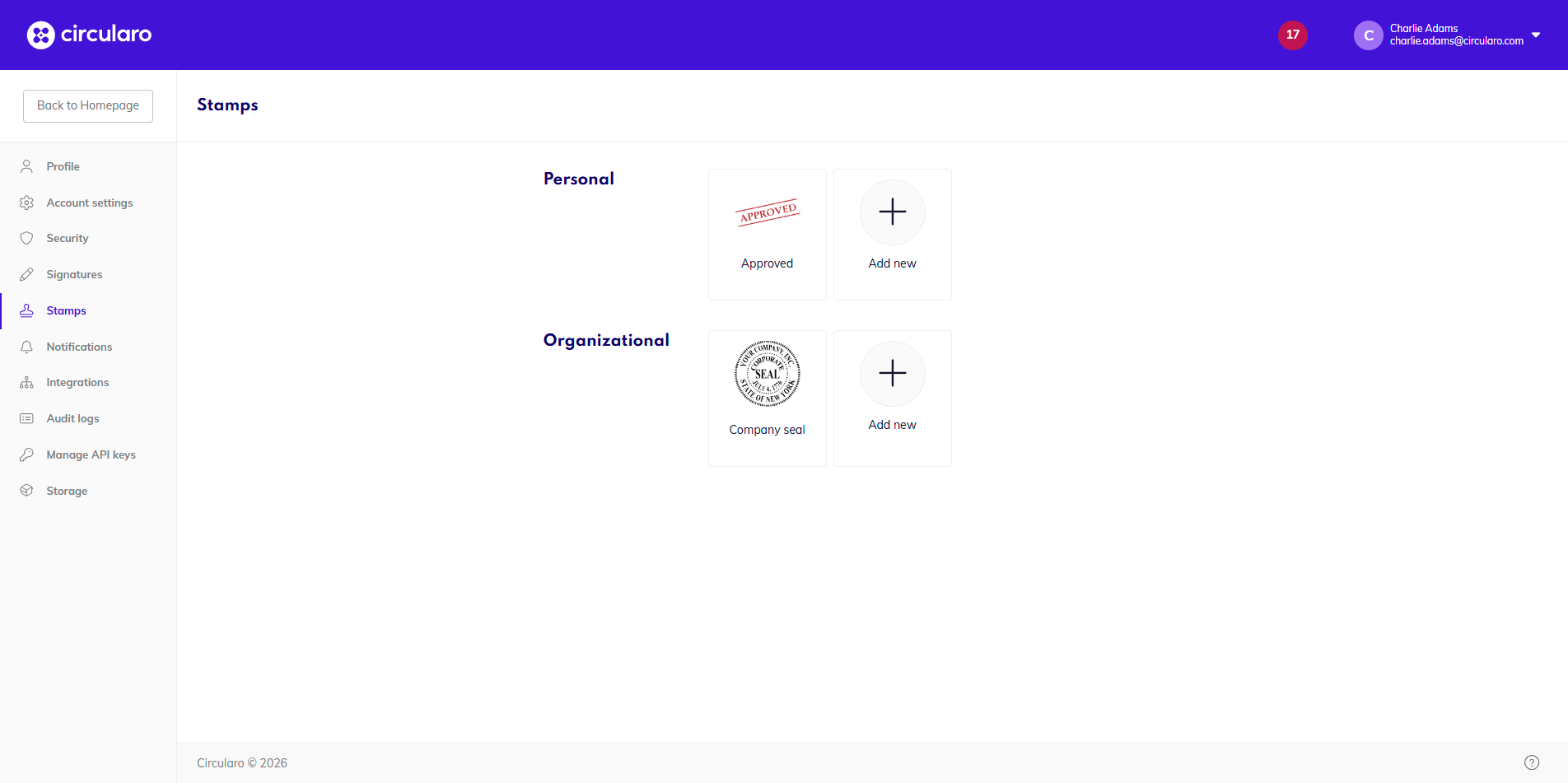
Go to the Stamps tab in My Account
-
Click on the Add new button
-
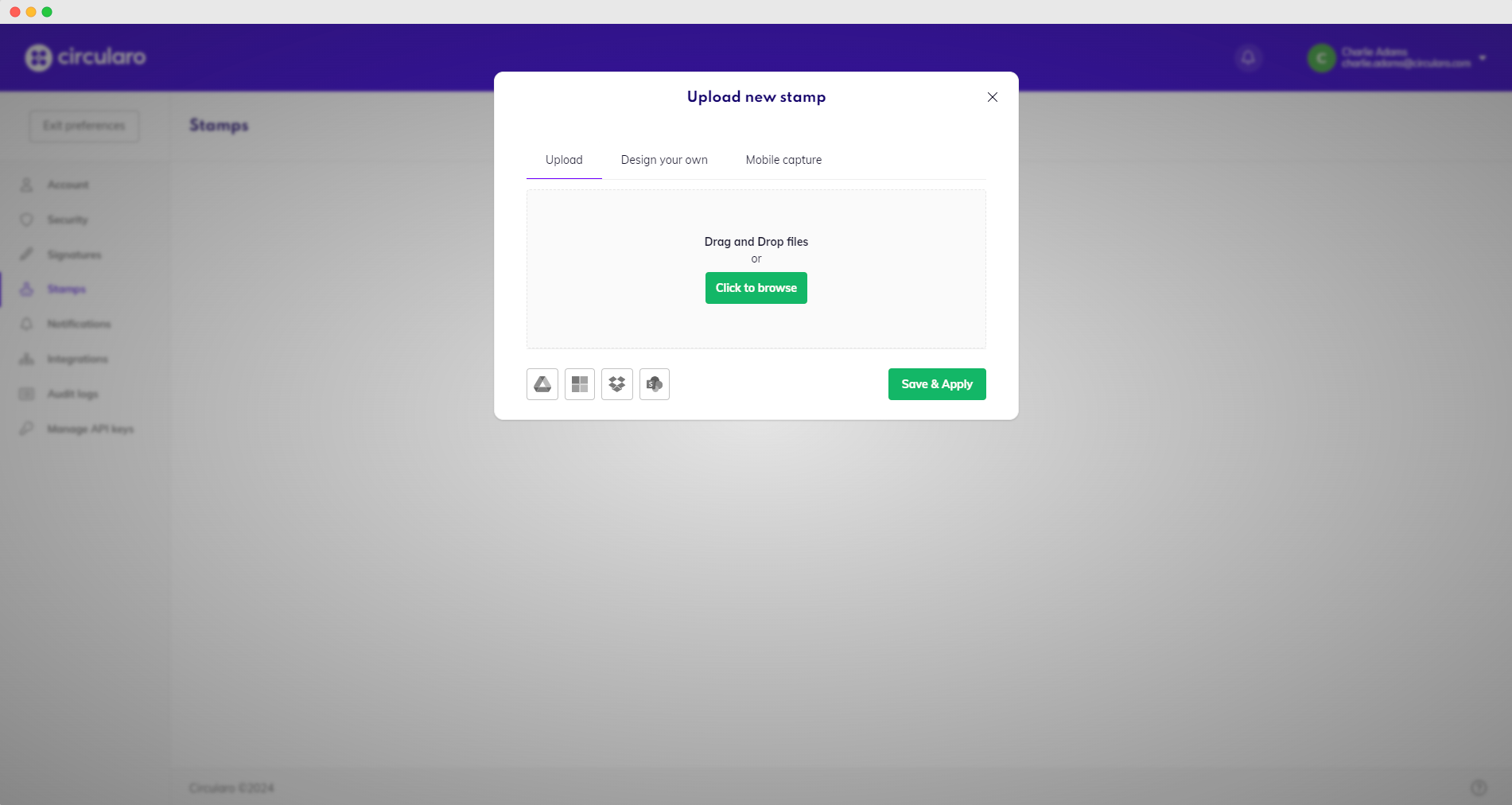
Drag & drop an image or upload it from your PC
-
Crop image
-
Edit
-
Remove background
-
Save
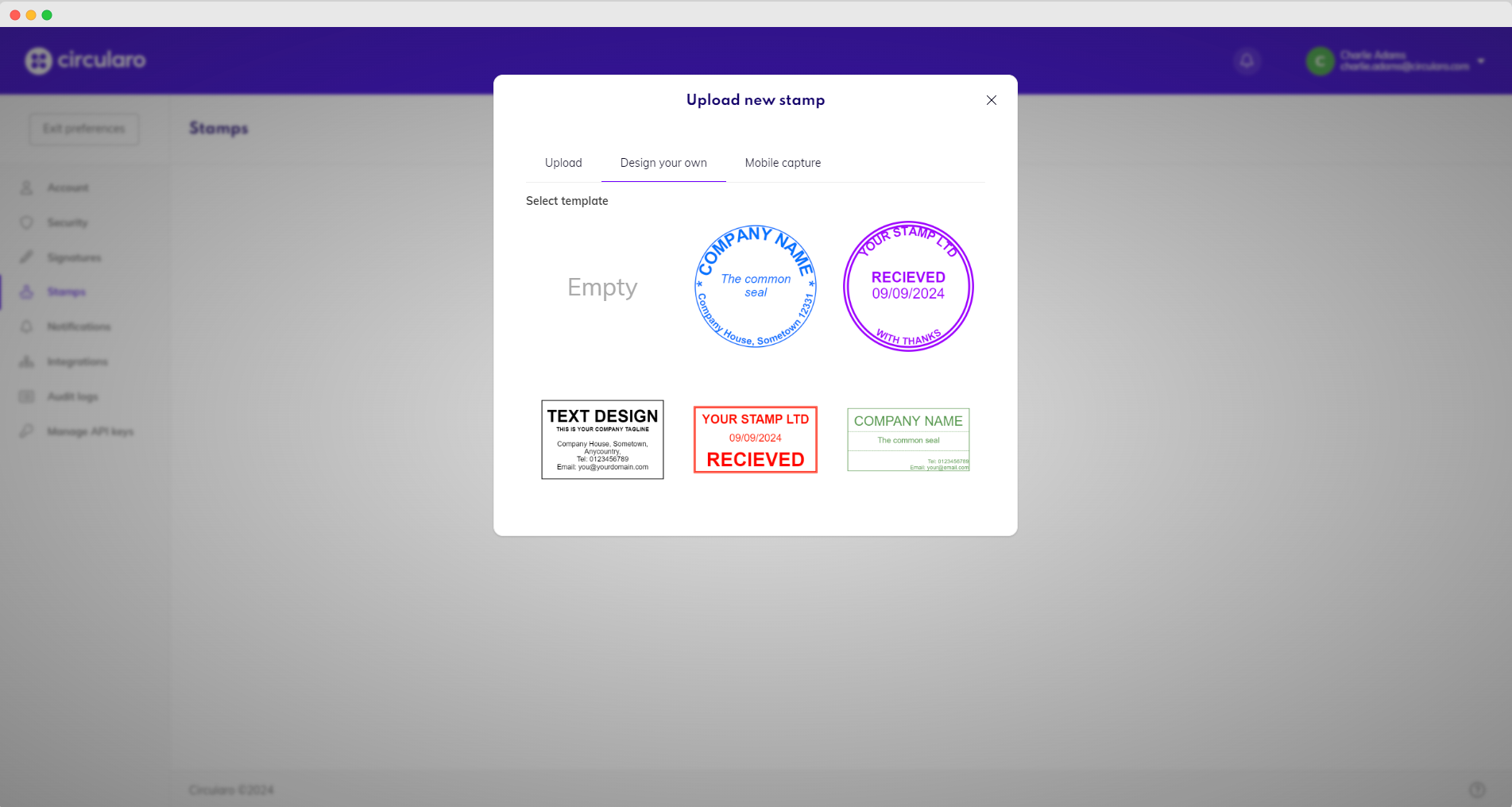
Design your own
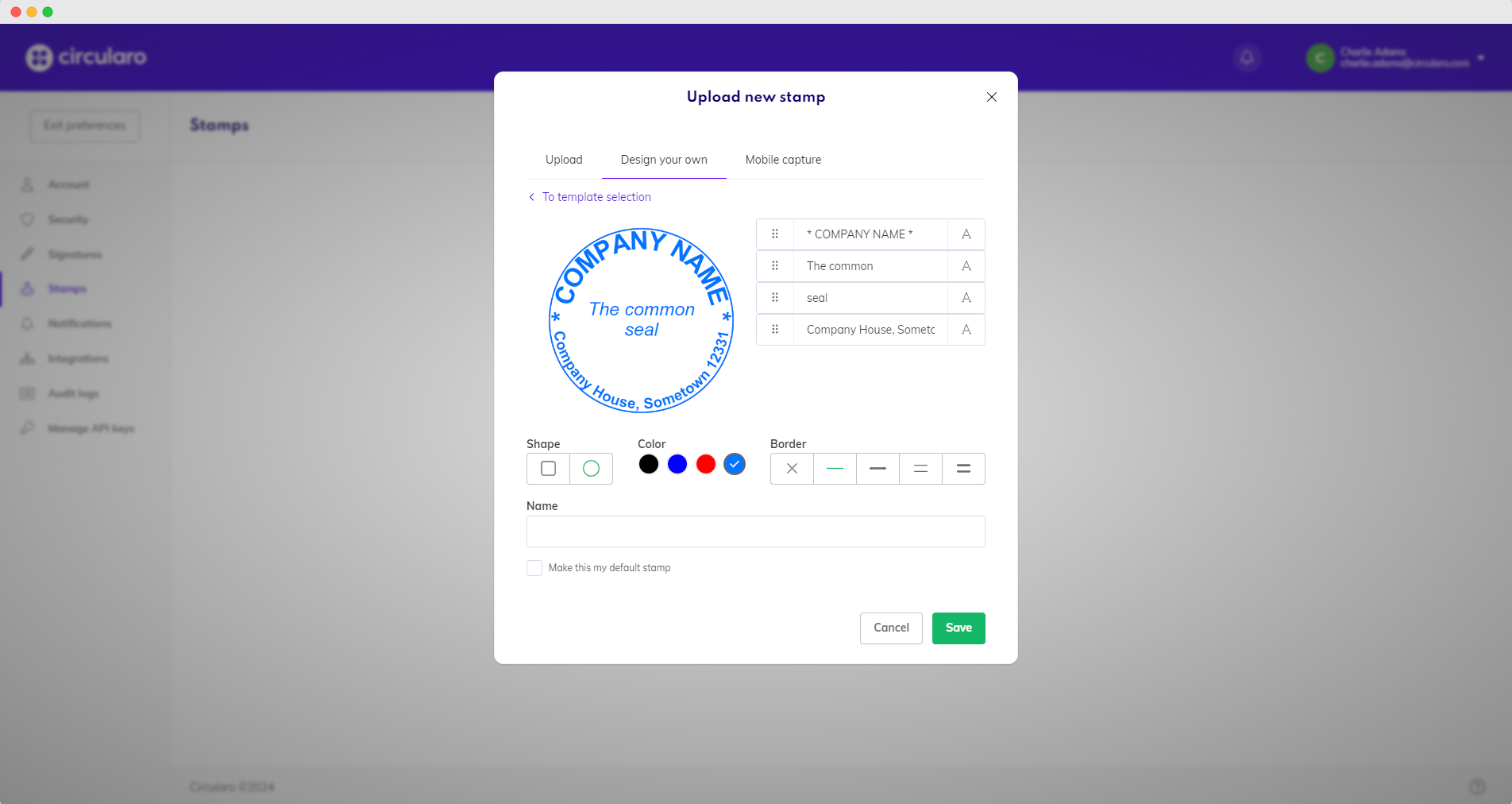
You can select one of the predefined stamp designs and edit its shape, color, border, and text fields.
Mobile capture
There is also an option to create a stamp with your mobile device.
-
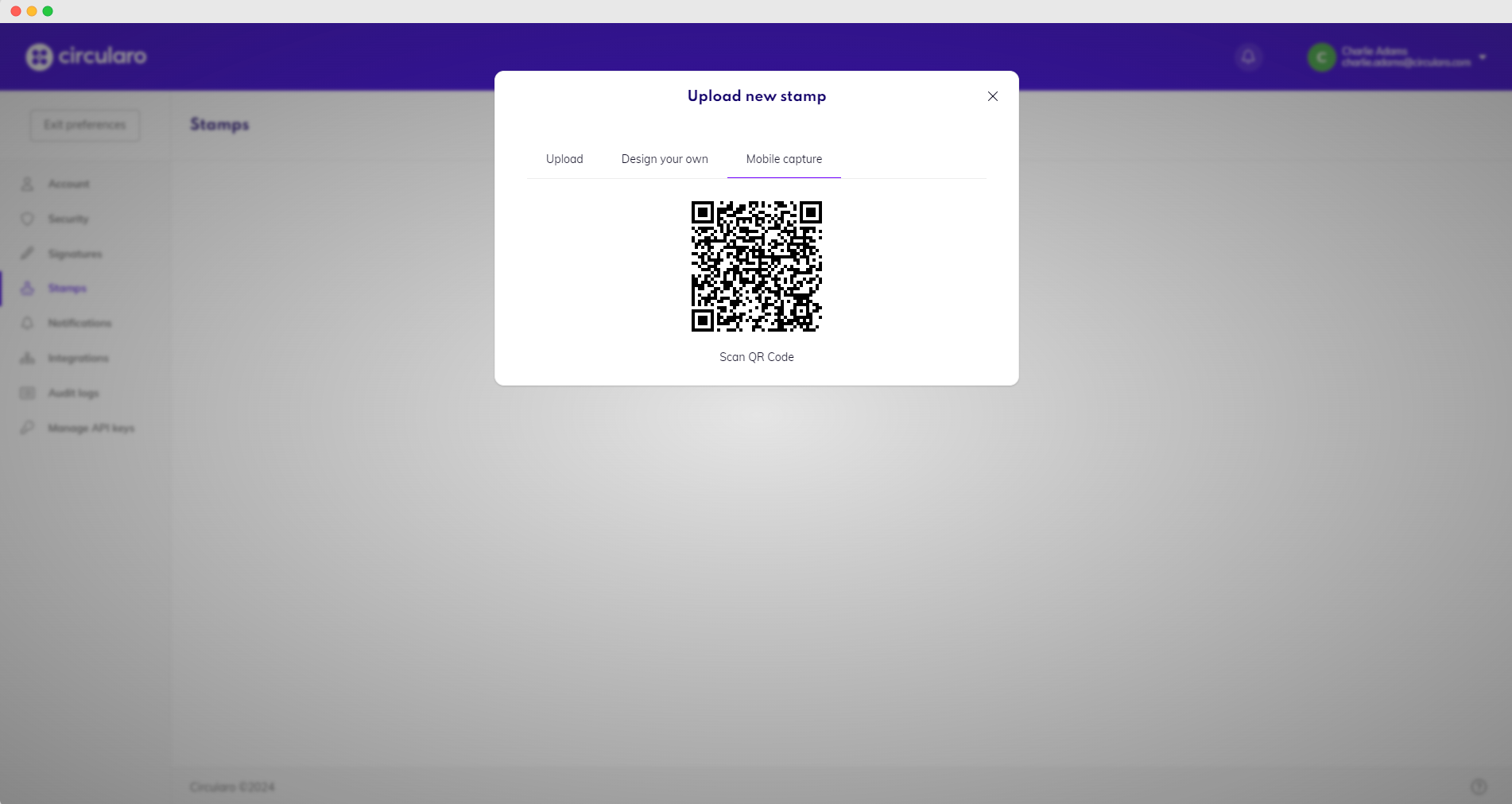
Select the Mobile capture option.
-
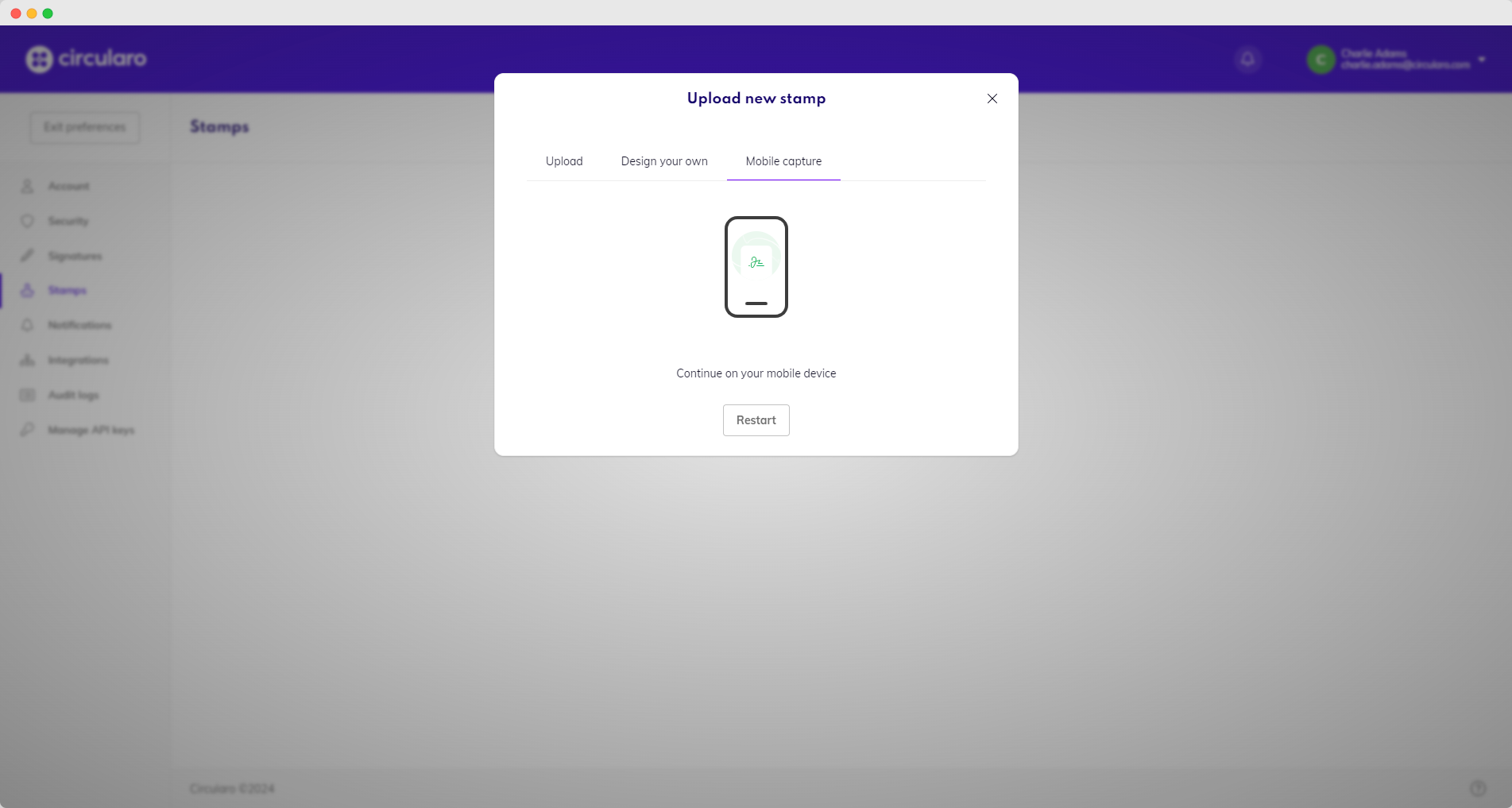
Scan the QR code with your mobile device.
-
Upload a picture of your stamp, or use the camera to take a picture of it.
-
Crop the picture.
-
Remove background and set your preferred color of the stamp.
-
Save & Apply.
-
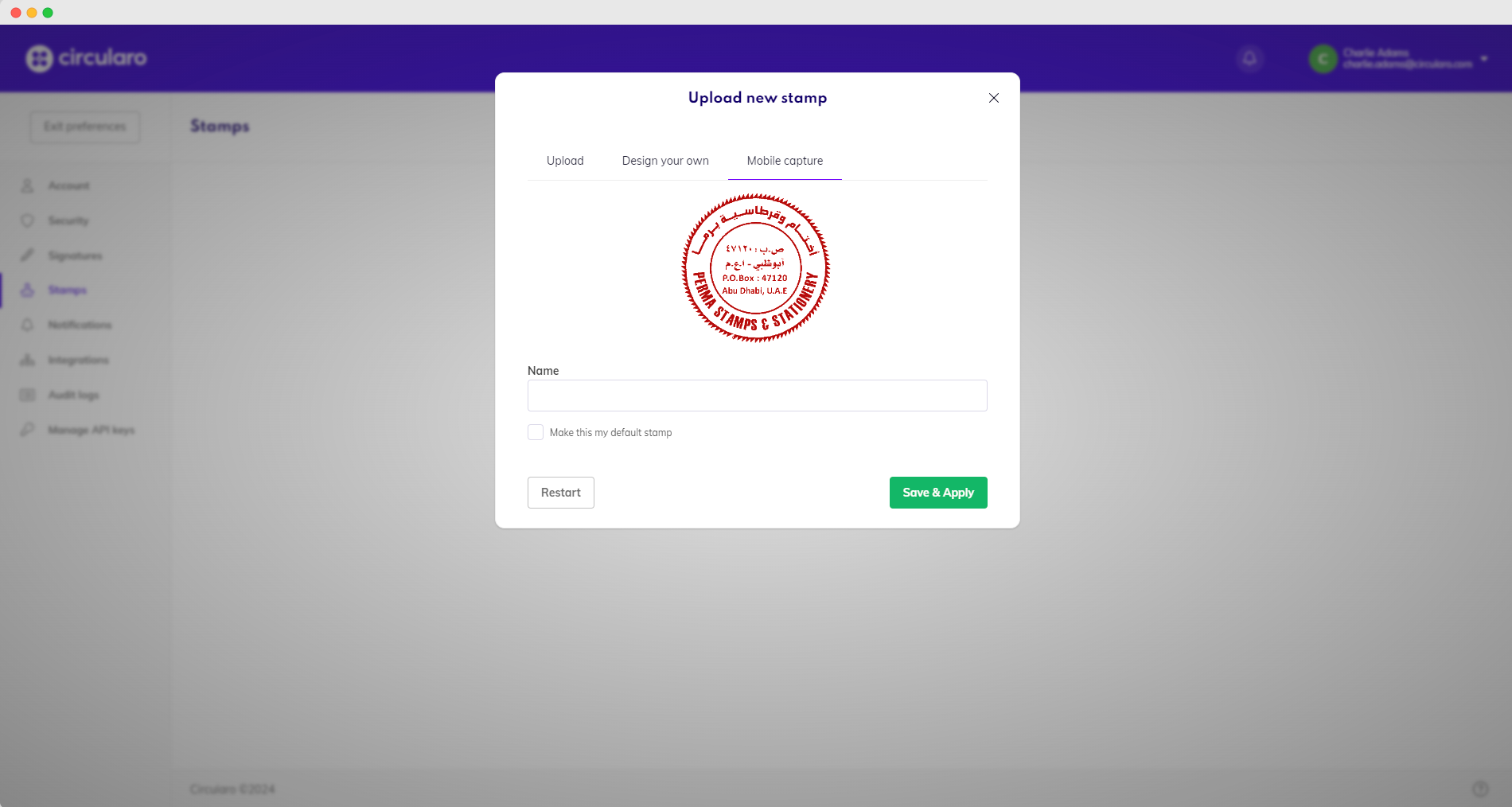
Your stamp automatically uploads to your computer - create a name for your stamp.
-
Save & Apply.
-
You can now use the stamp any time you need.