In this chapter, you will learn how to search for documents with ease and filter out content using advanced search filters.
Basic Search
Basic search will be done in a local context by default (in your opened folder, your inbox, your sent documents...). To search through all documents in the system, use the Search documents button on the top of the page.
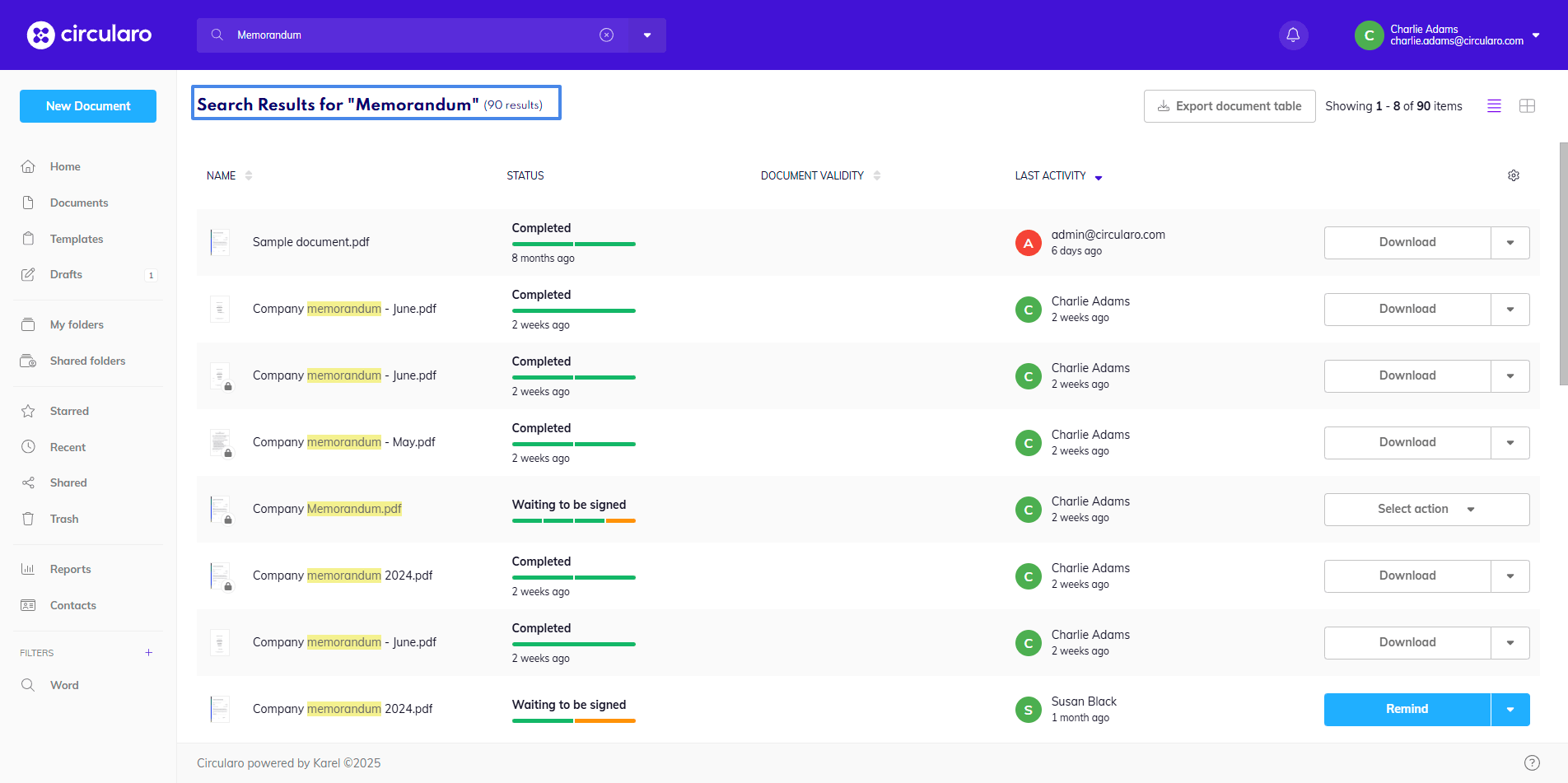
Basic search looks for matches in all metadata values in all documents.
Advanced Search
Advanced search allows you to find documents based on specific values. It can be accessed by clicking the arrow on the right side of the search bar.
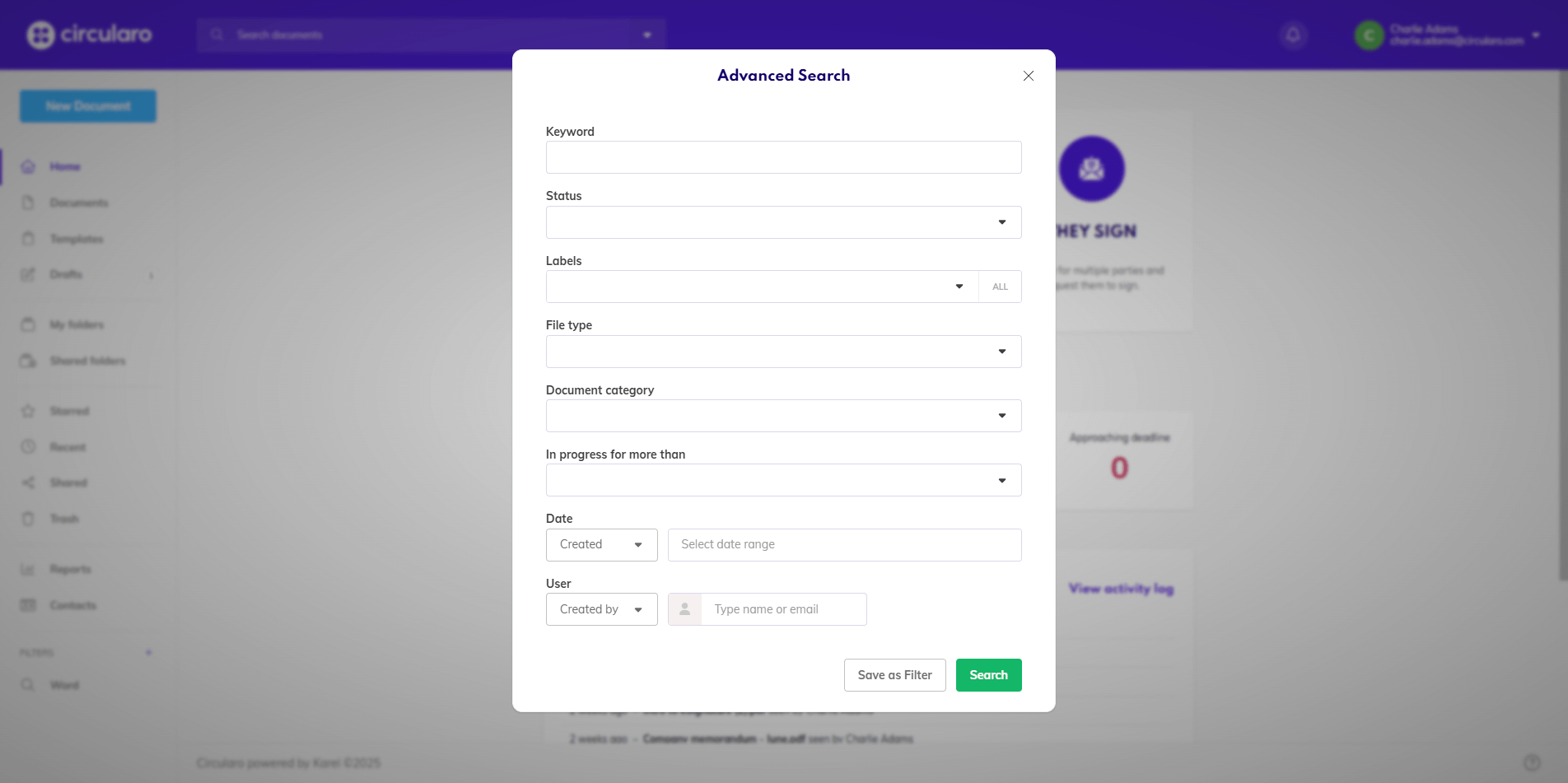
Following search fields can be used and combined to search for any document.
-
Keyword - Look up documents containing a specific word
-
Status - Find documents based on their status
-
Labels - Search for documents that have a certain label attached to them
-
File type - Filter out specific format types
-
Document category - Filter out documents in specific categories
-
In progress more than - Search for documents based on the period of time they have been pending for so far
Date - Find documents based on a specific date, choose from following options:
-
Created
-
Reviewed
-
Accepted
-
Approved
-
Signed
-
Rejected
-
Deadline
-
Completed
-
Document validity
-
Seen
-
Action requested
-
Shared
User - Find files related to a specific user, choose from:
-
Created by
-
Waiting for
-
Reviewed by
-
Accepted by
-
Approved by
-
Signed by
-
Shared with
-
Rejected by
Fulltext search
While the capabilities of the advanced search on its own are quite great, they often rely on specifics that you might not know when searching up something. To use our fulltext search to the fullest, it’s best to switch to List view - it shows different details of your documents, and properly shows the results of the fulltext search.
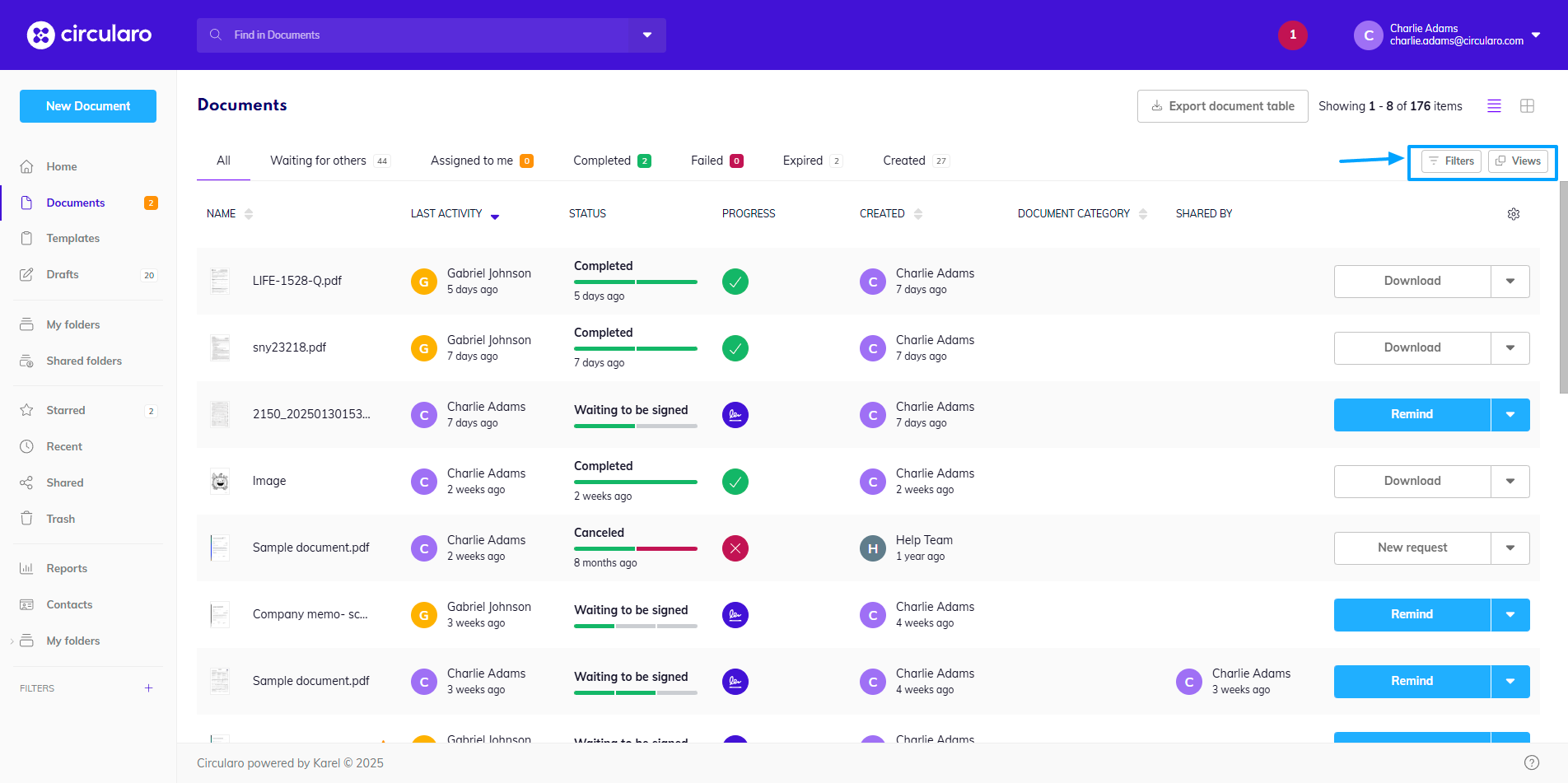
By default, your documents are in Table view, but it’s quite easy to change this. Go to your documents or folders, and in the top right corner, right below your name, are the icons for different views.
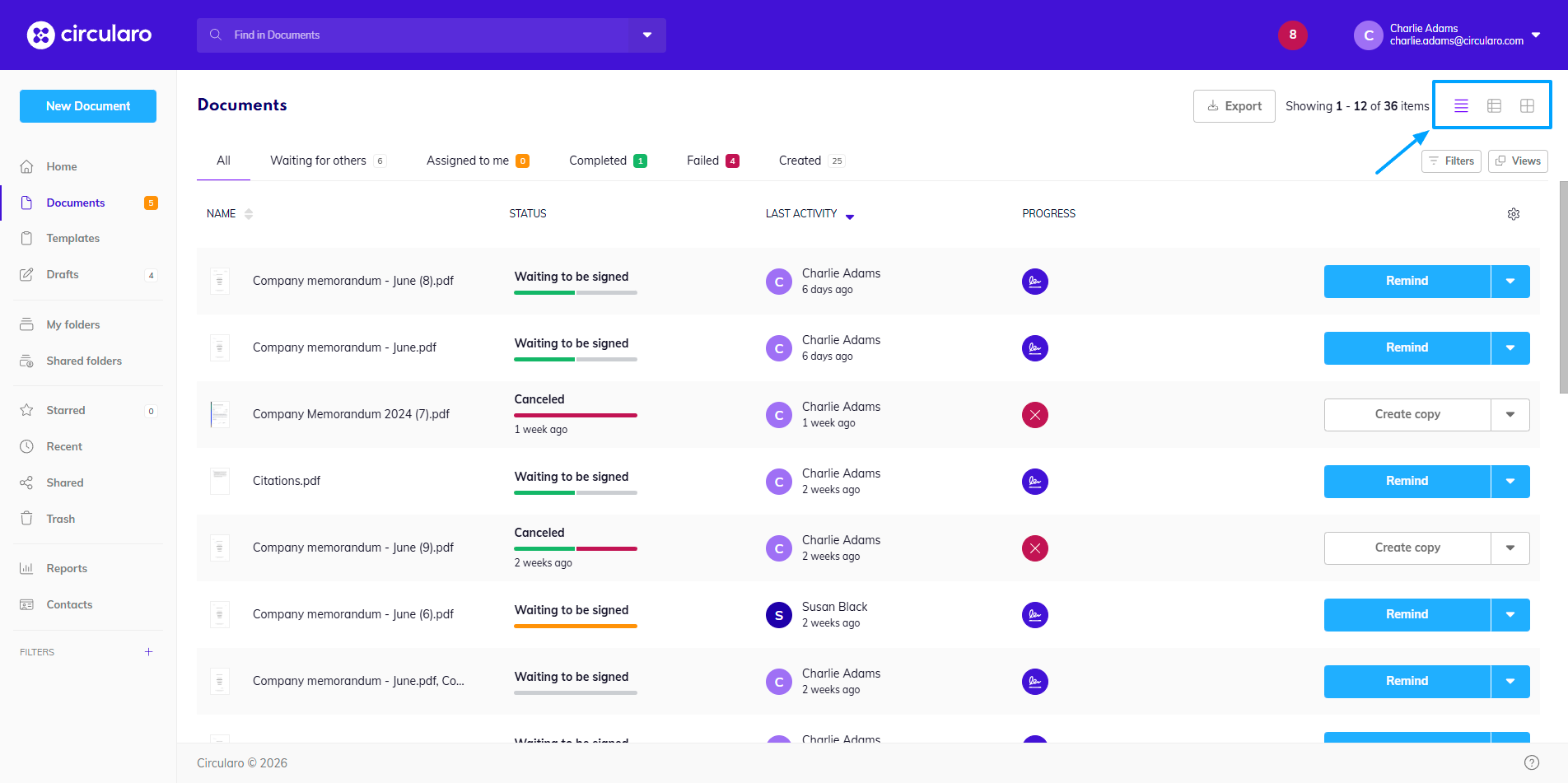
If you select the second button, you will be taken to the list view. If you have the AI Assistant, it will also show the content summary for these documents.
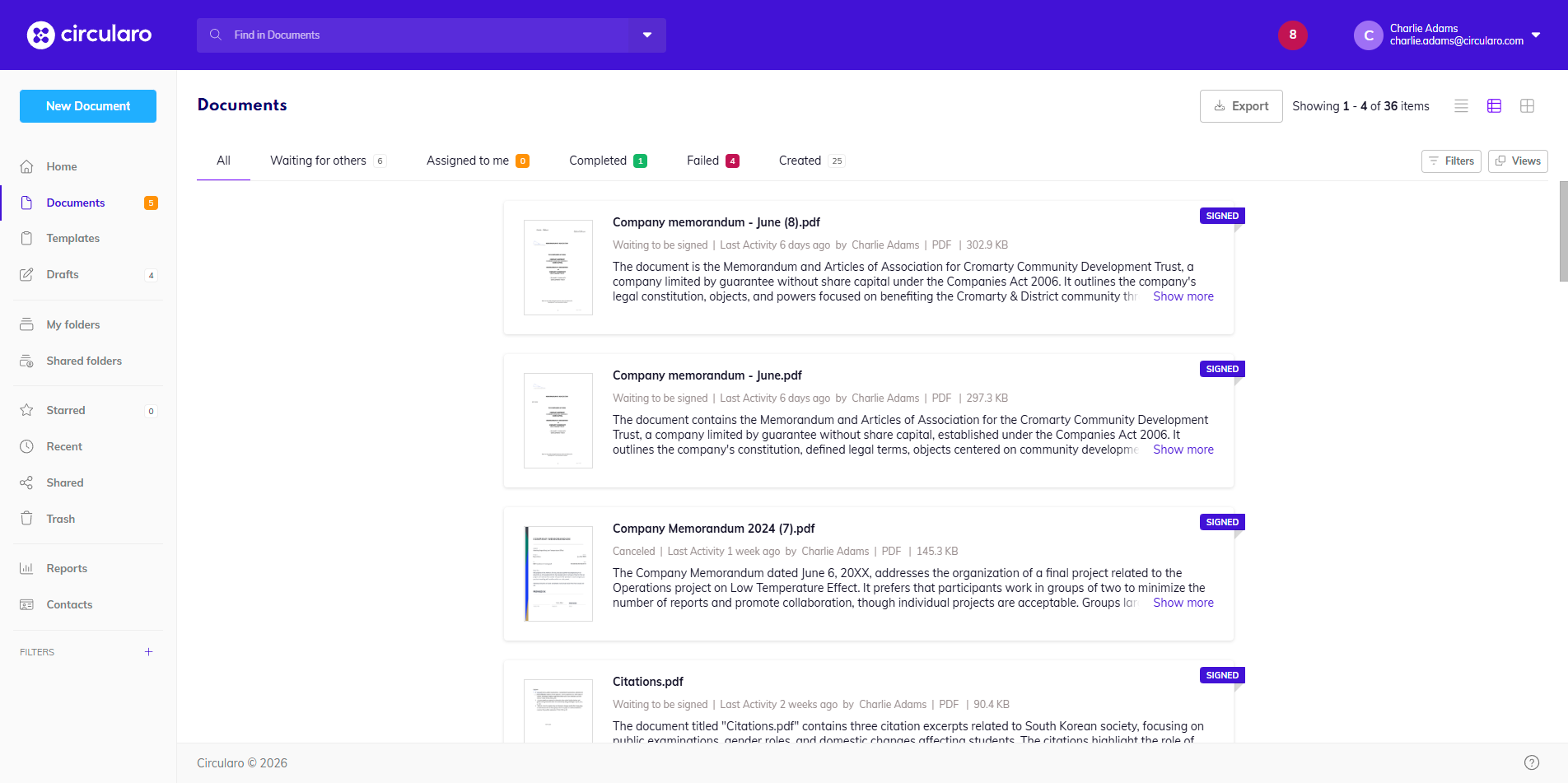
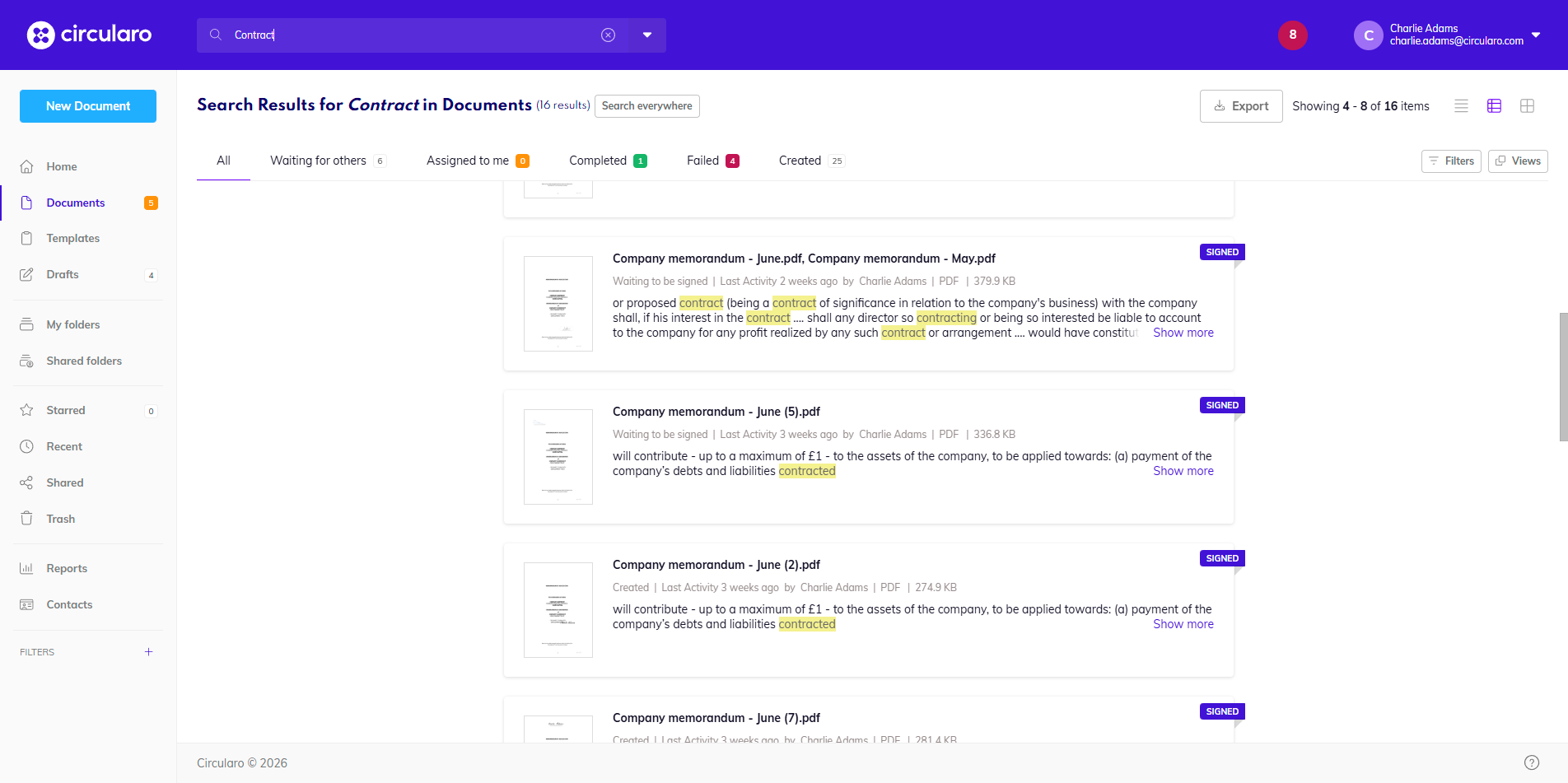
Results of the fulltext search will be shown in context of the document content.
Filters
Availability: Business and Enterprise
There are two ways to filter documents. You can save the search settings as a filter to reuse, in which case the filters can be found on the left, below the Action menu, and can be reused.
Or you can apply filters in documents, Folders, or even Reports, which can also be saved as specific tabs, and edited if necessary.
Filters and Custom Views
You can quickly filter documents based on different criteria in all document views - Documents, Folders, Shared folders, Starred, Recent, and Shared.
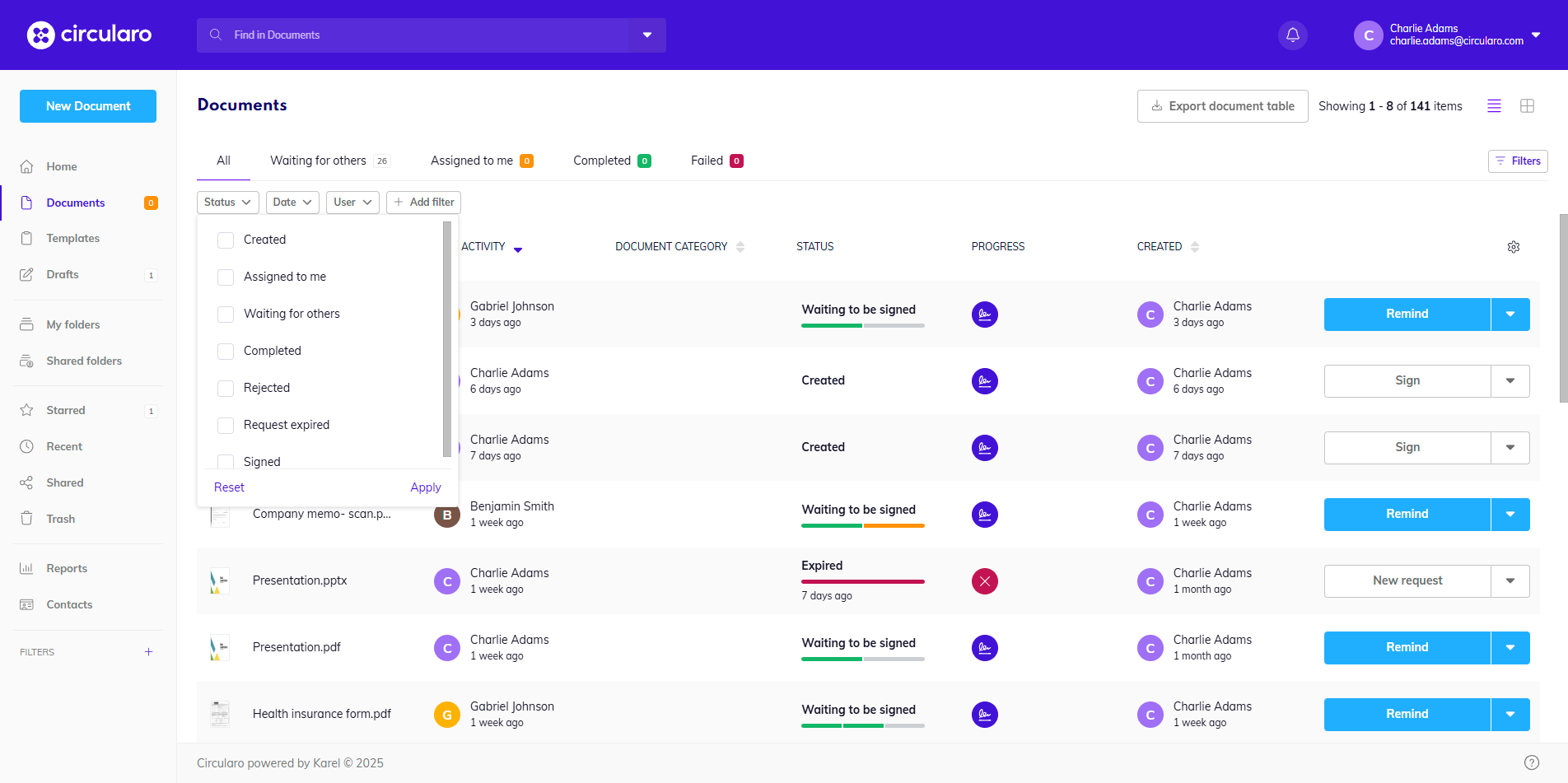
The filters can be accessed in the top right corner right above the document columns - by clicking Filters, the selection will appear below the document tabs on the left hand side.
The available filters include:
Status - filter documents based on its current status
-
Created
-
Assigned to me
-
Waiting for others
-
Completed
-
Rejected
-
Request expired
-
Signed
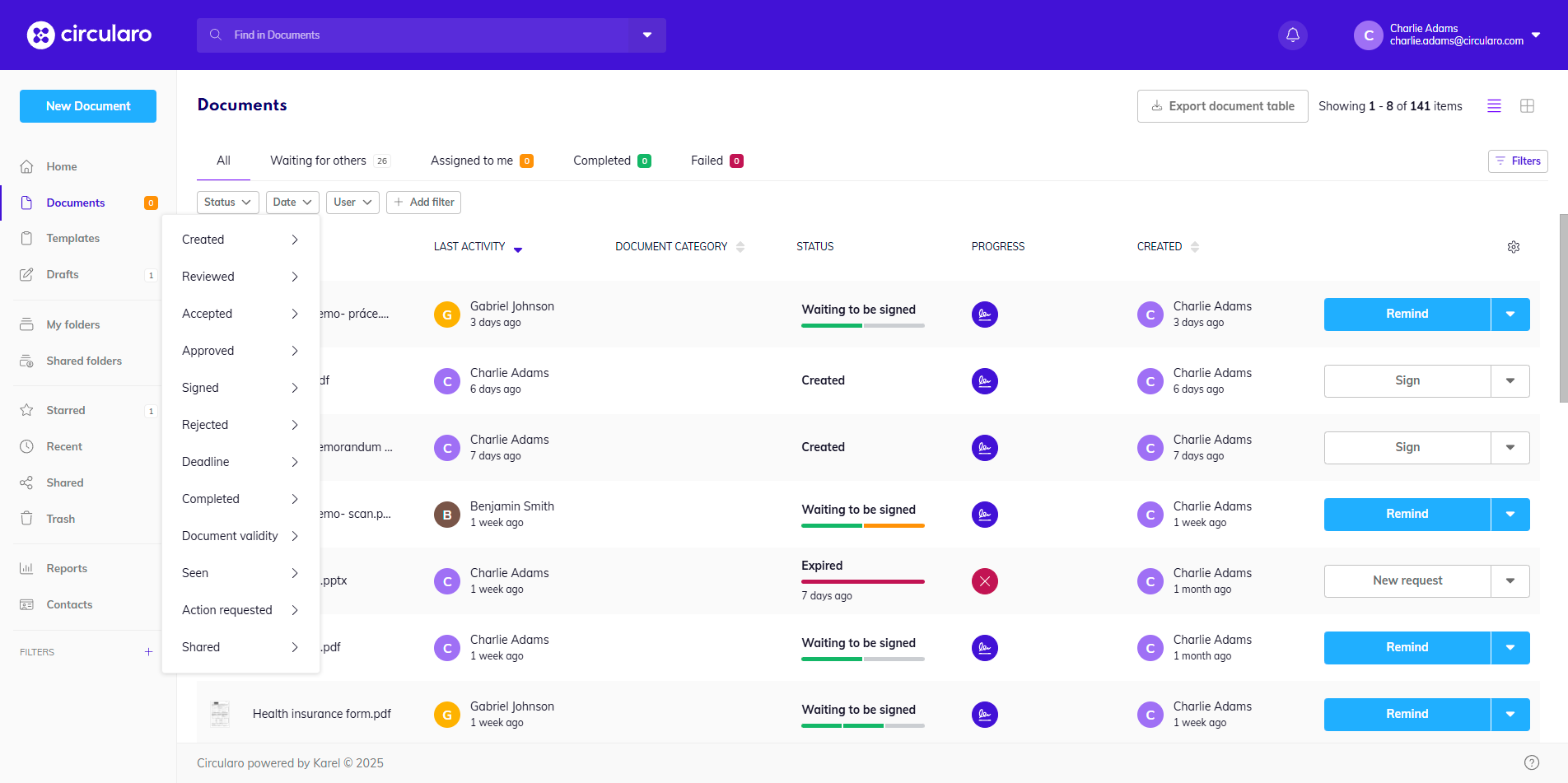
Date - filter by date of a specific action or date range
-
Created
-
Reviewed
-
Accepted
-
Approved
-
Signed
-
Rejected
-
Deadline
-
Completed
-
Document validity
-
Seen
-
Action requested
-
Shared
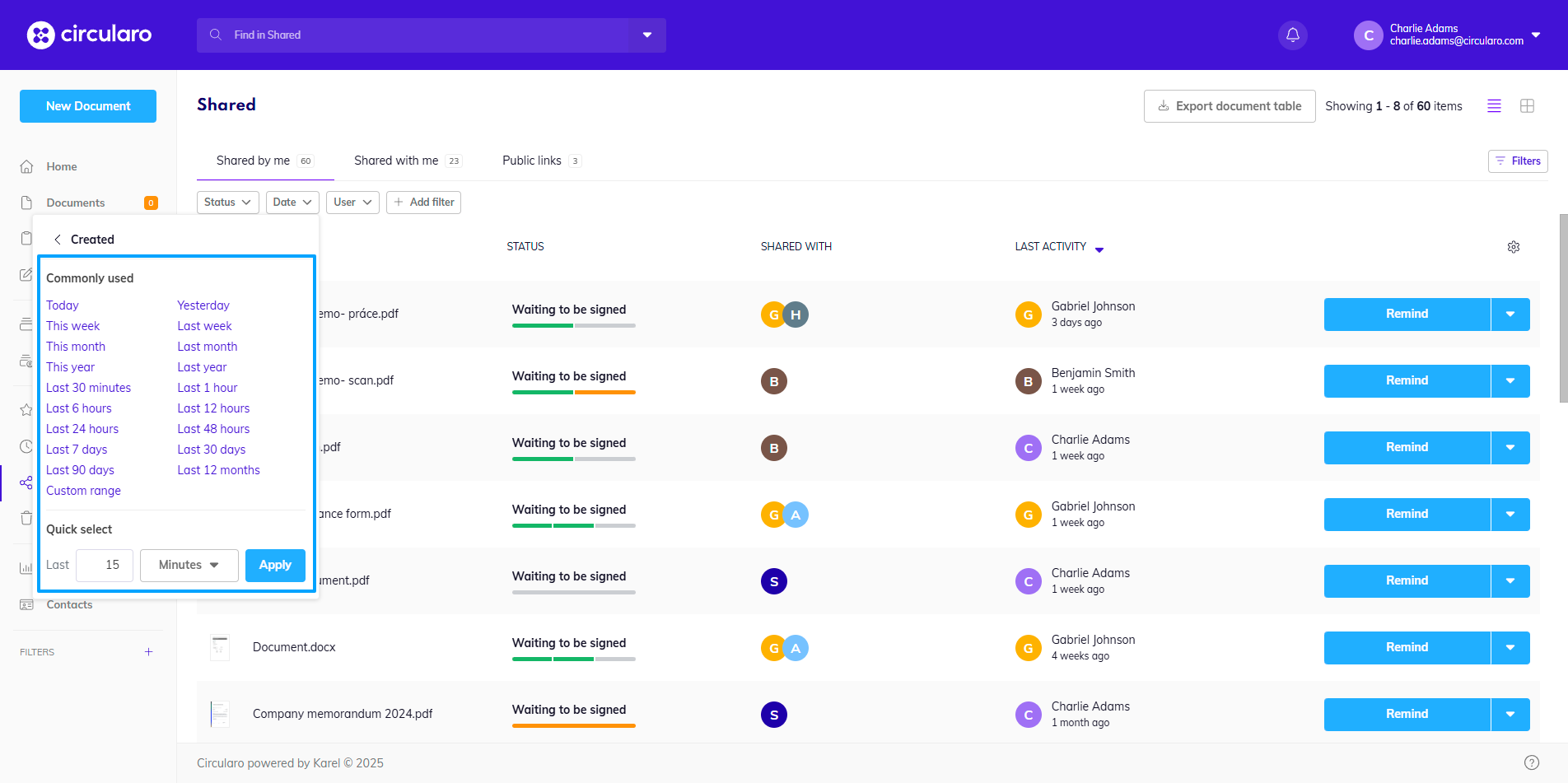
Choices for time ranges are:
Commonly used
-
Today
-
Yesterday
-
This week/month/year
-
Last week/month/year
-
Last 30 minutes/1 hour/6 hours/12 hours/24hours/48 hours/7 days/30 days/90 days/12 months
-
Custom range
Quick select
-
Last (number) minutes/hours/days/weeks/months/years
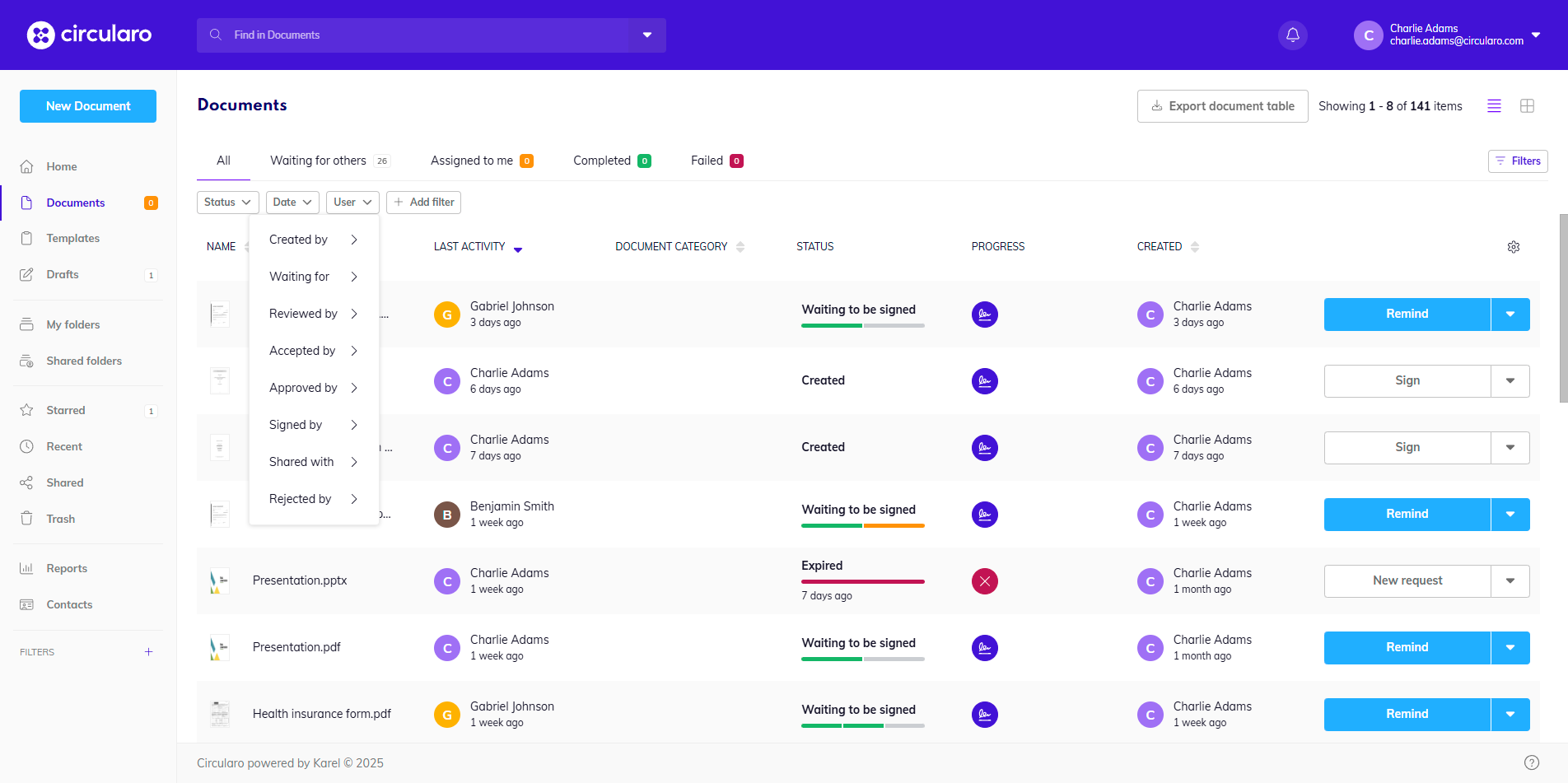
User - filter an action belonging to a specific user
-
Created by
-
Waiting for
-
Received by
-
Accepted by
-
Approved by
-
Signed by
-
Shared with
-
Rejected by
There are also two more filters you can add:
File type - filter only specific types of files uploaded into the system
-
PDF
-
Image
-
Audio
-
Video
-
Word
-
Excel
-
Powerpoint
-
Archive
-
Other
Document category - filter documents assigned to specific document categories defined in your organization
In Folders and Shared folders you can also apply a filter that specifies whether it will search documents only in the current folder you have opened, or also all of its sub-folders.
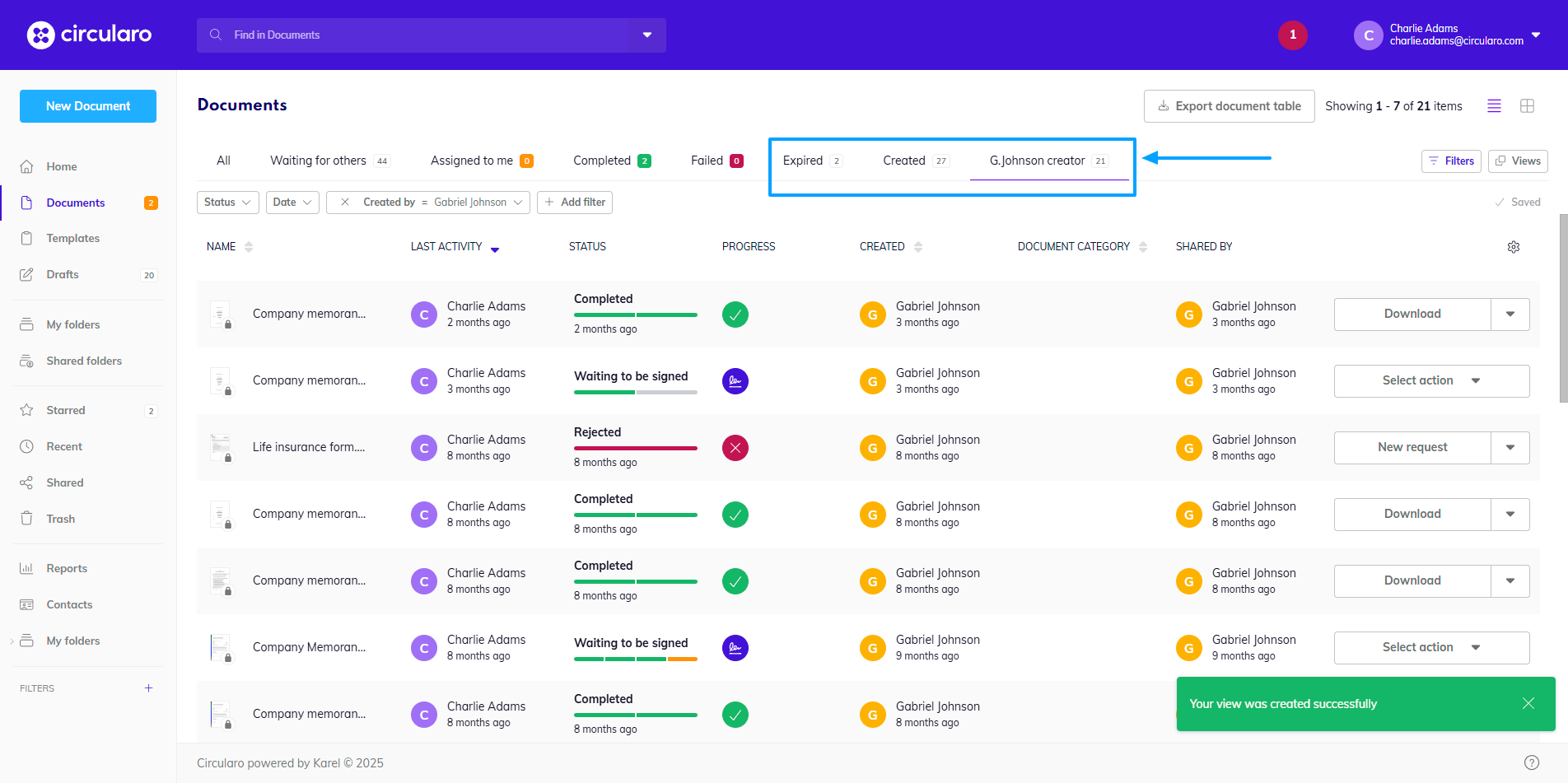
Several filters can be applied at the same time. When you have the filters applied, on the right hand side you can Save as view, which will create a new tab for you.
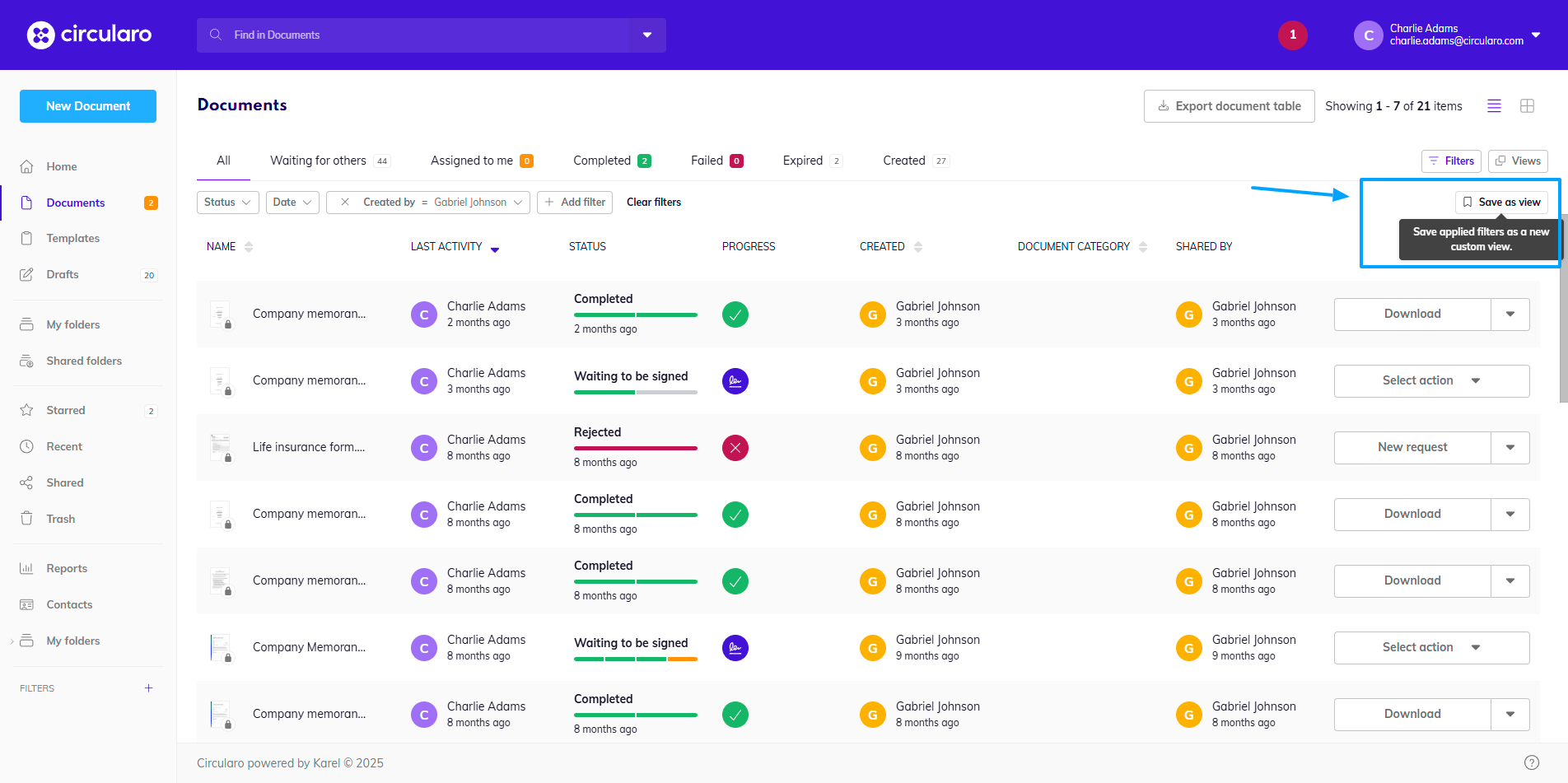
Your new tabs will be next to those that are pre-configured in the system.
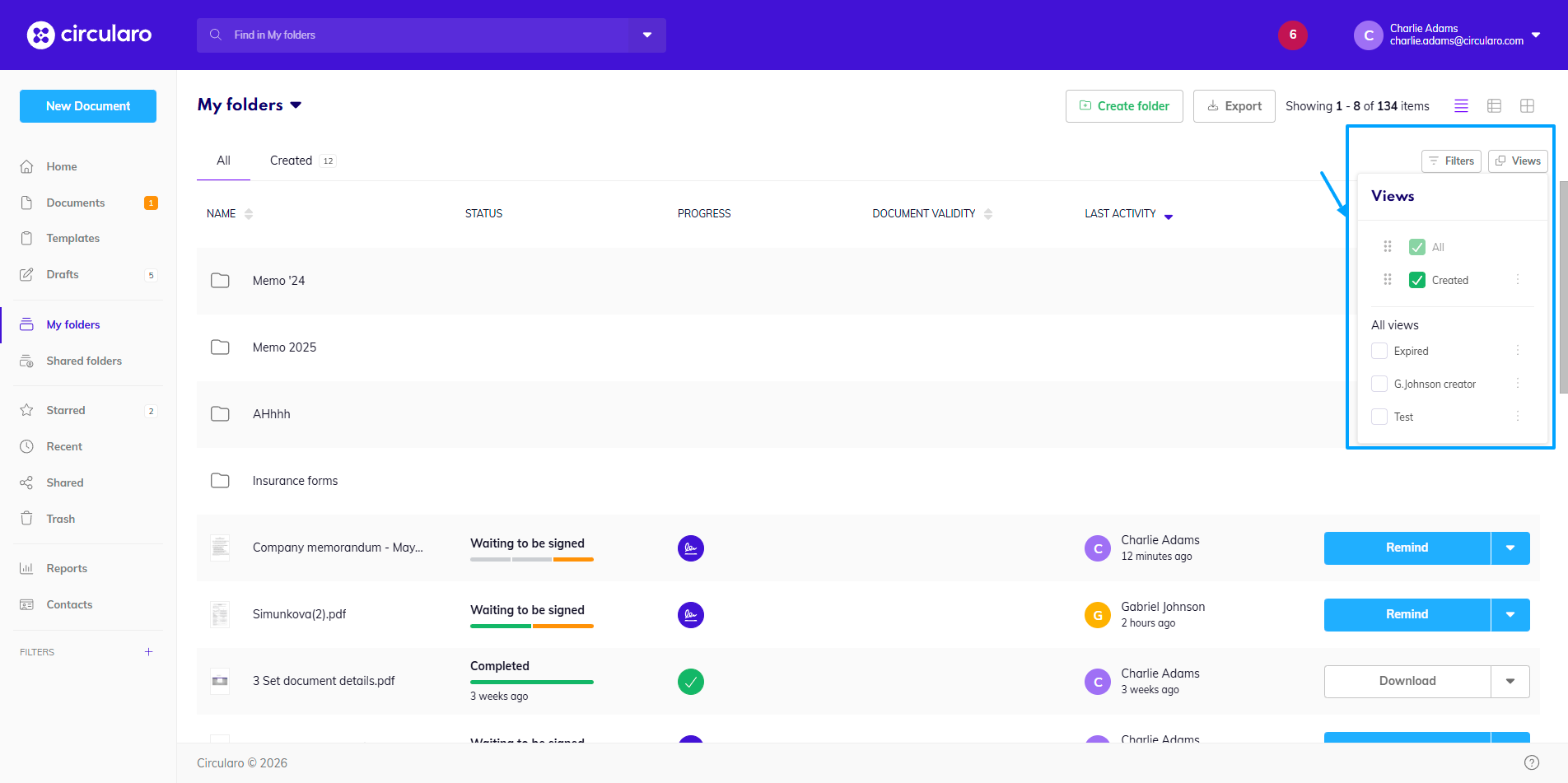
You can also adjust which saved Views are visible at which time. Click on Views in the right corner and tick those that you wish to see.
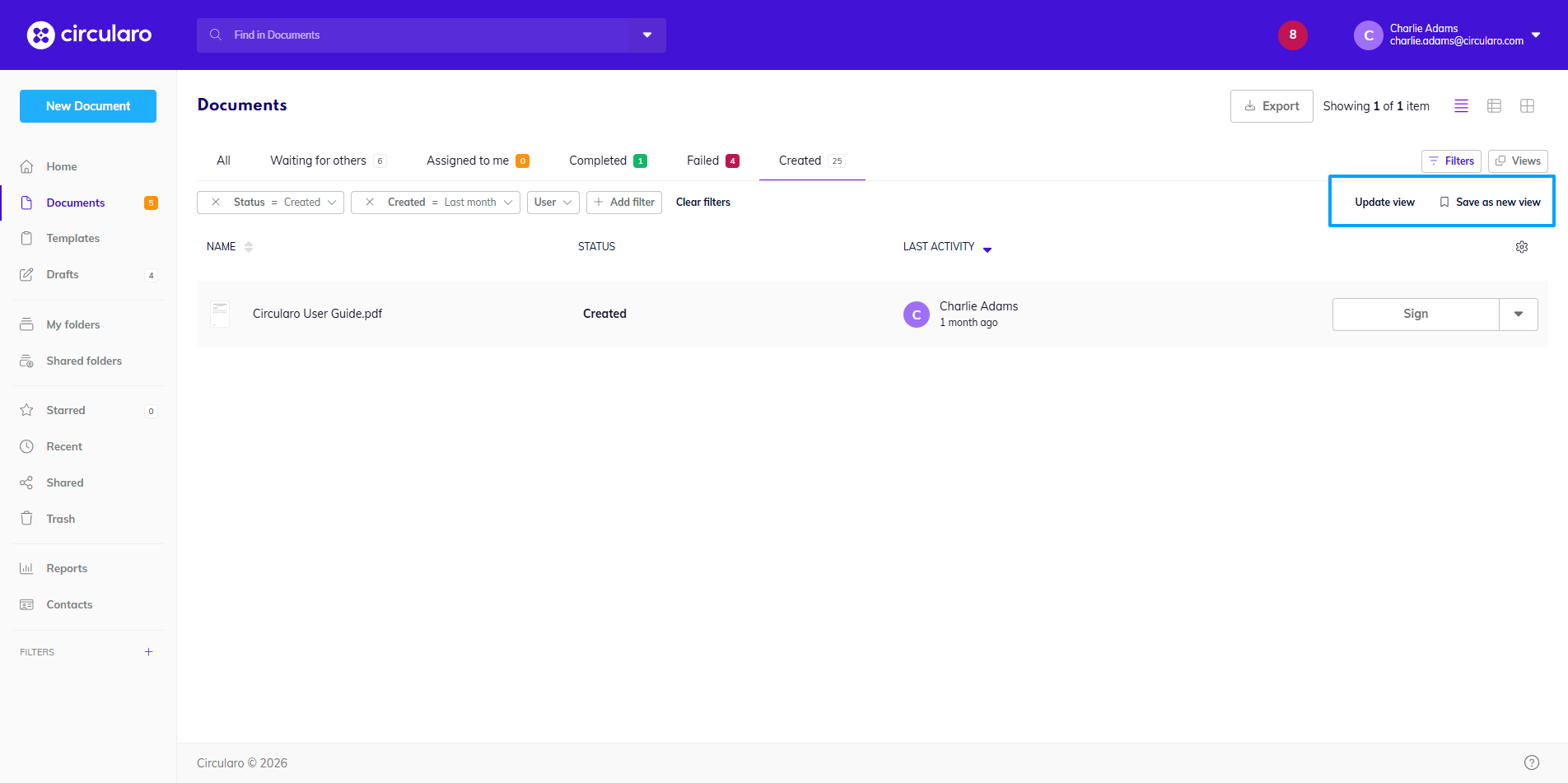
You can even edit the tabs but changing one of the applied filters, or adding a new one. It will offer you a choice to either update the current view, or save the filters as a new view altogether.
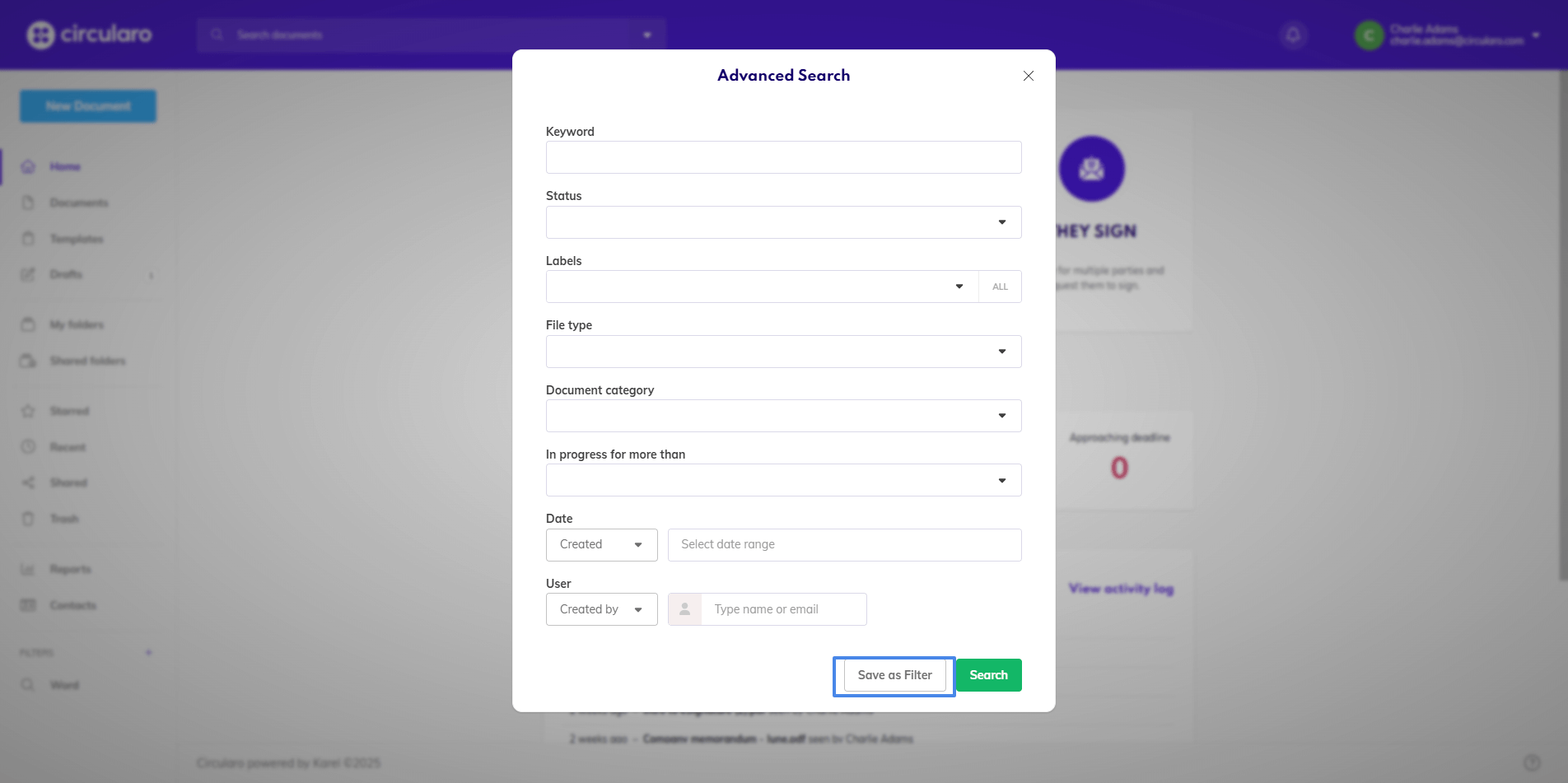
Add a filter from Advanced Search
-
Specify your search criteria using the options available in the Advanced Search.
-
Use the Save as Filter button and name the filter.
The search results will be displayed and the newly created filter will be added to the Action menu on the left.
Once the filter is added, searching for documents based on that specific criteria becomes easy and fast as the results are displayed by simply clicking on the filter name.
Edit, rename & remove a filter
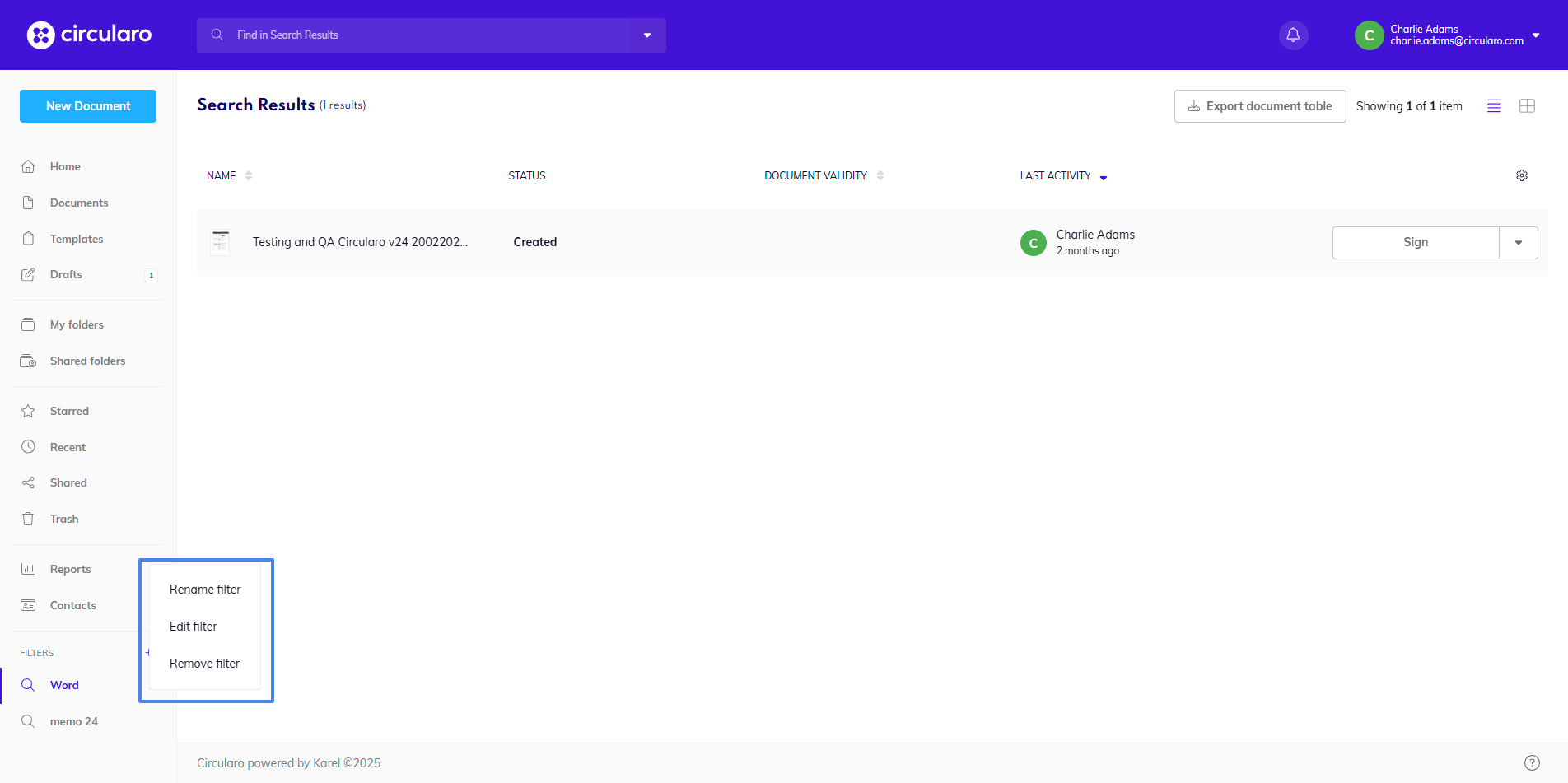
You can edit, rename, or delete a filter by clicking on the small settings icon on the right hand side of the filter name.
Exporting search results
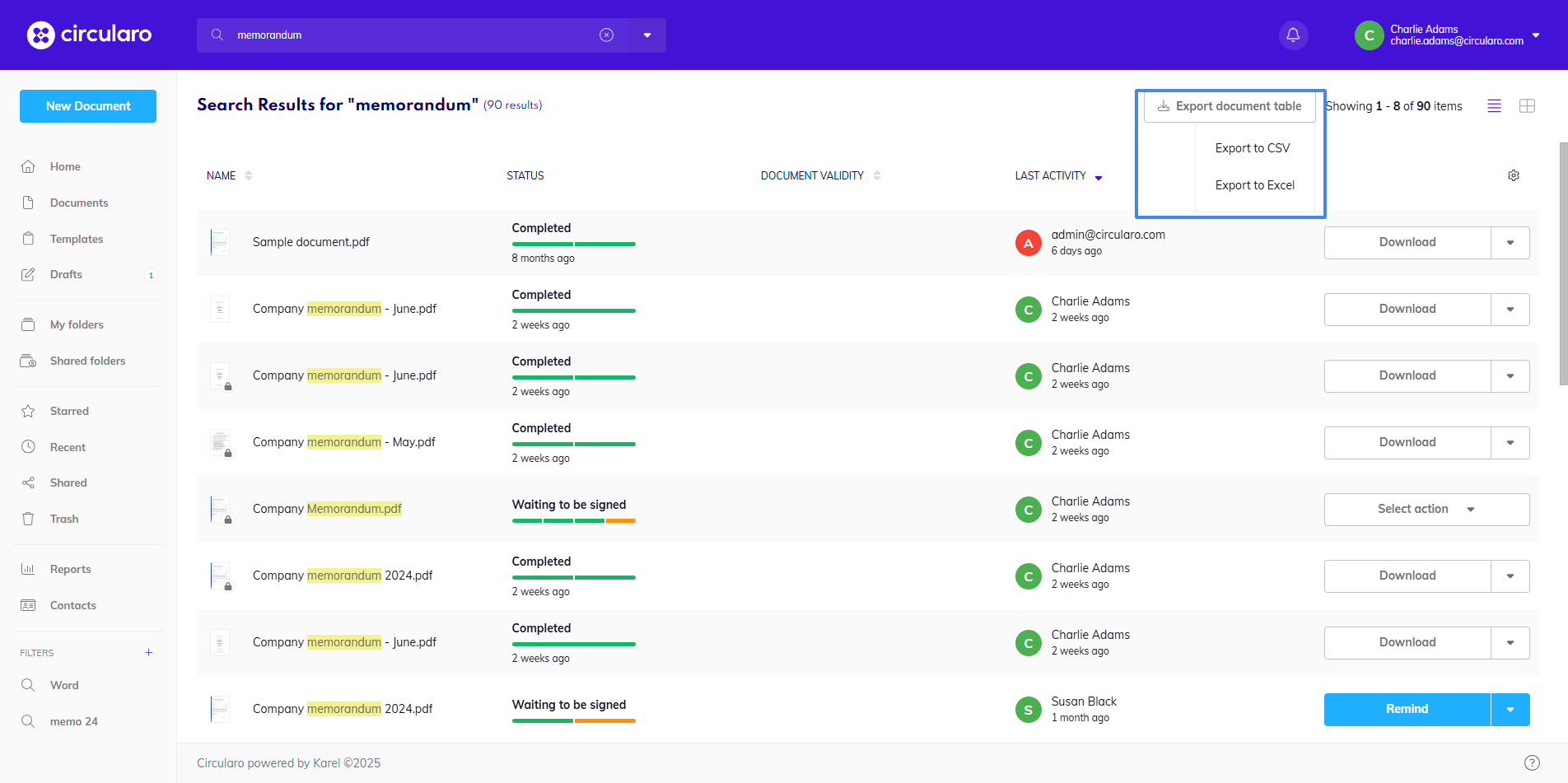
You can export the results of your search in a document table by clicking on the Export document table button in the top right corner of the application. You can choose to export the file in a CVS format or as an excel sheet.
At this time you cannot export full documents that are in your search, you can only export a table with details about those documents. The details include Document ID, document type, date of creation, which user created the document and document title.