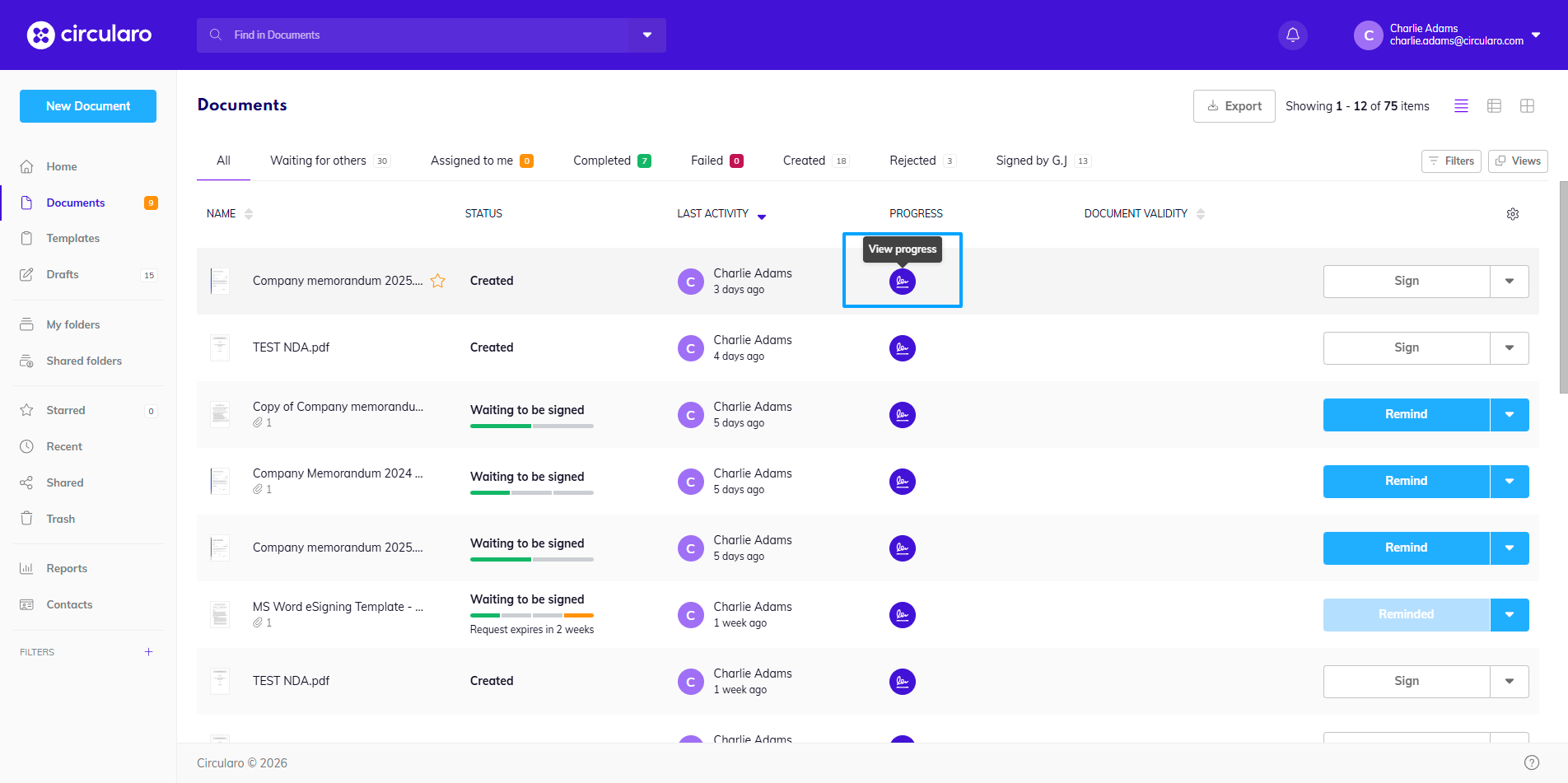
Each document status symbol shows the current status of the document, and doubles as a View progress button.
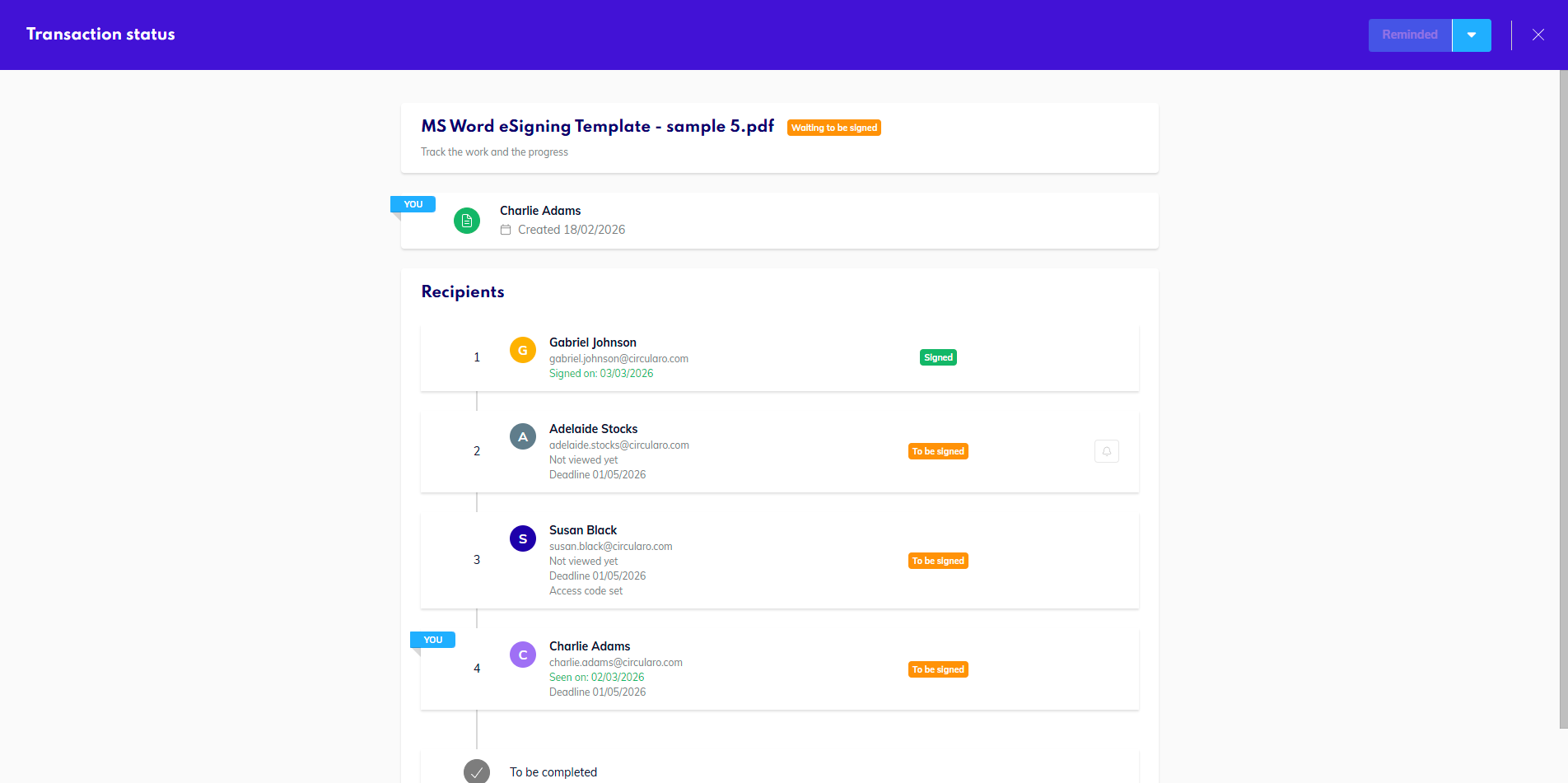
Upon clicking it, you will be redirected to a page showing the entire processing history of that particular document, along with required future actions and action buttons (Sign, Remind, etc.) In the top right corner is also a context menu with all available actions for the document.
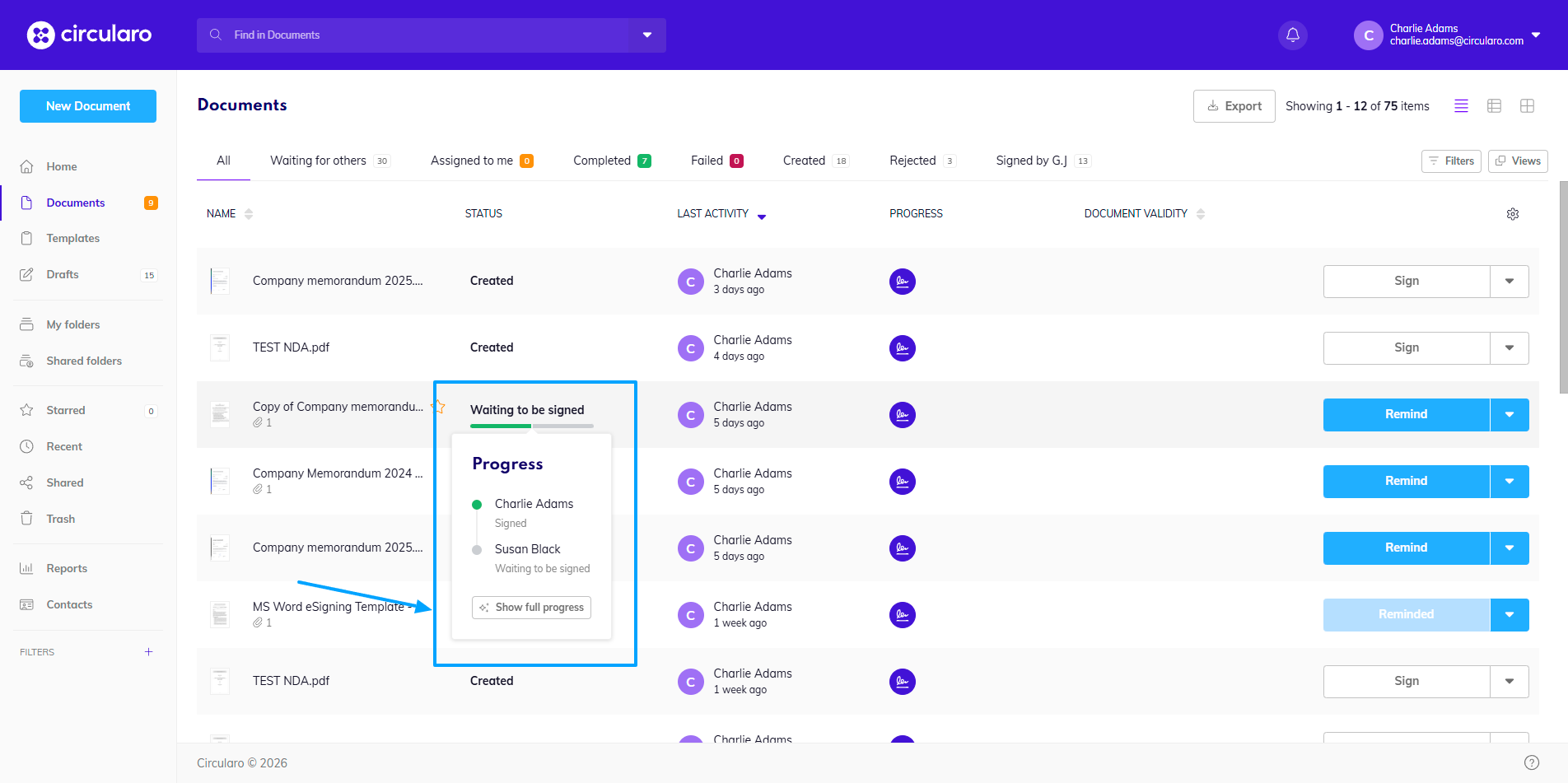
You can also open the progress timeline page by hovering your mouse over the Status bar on the document and clicking “Show full progress”.
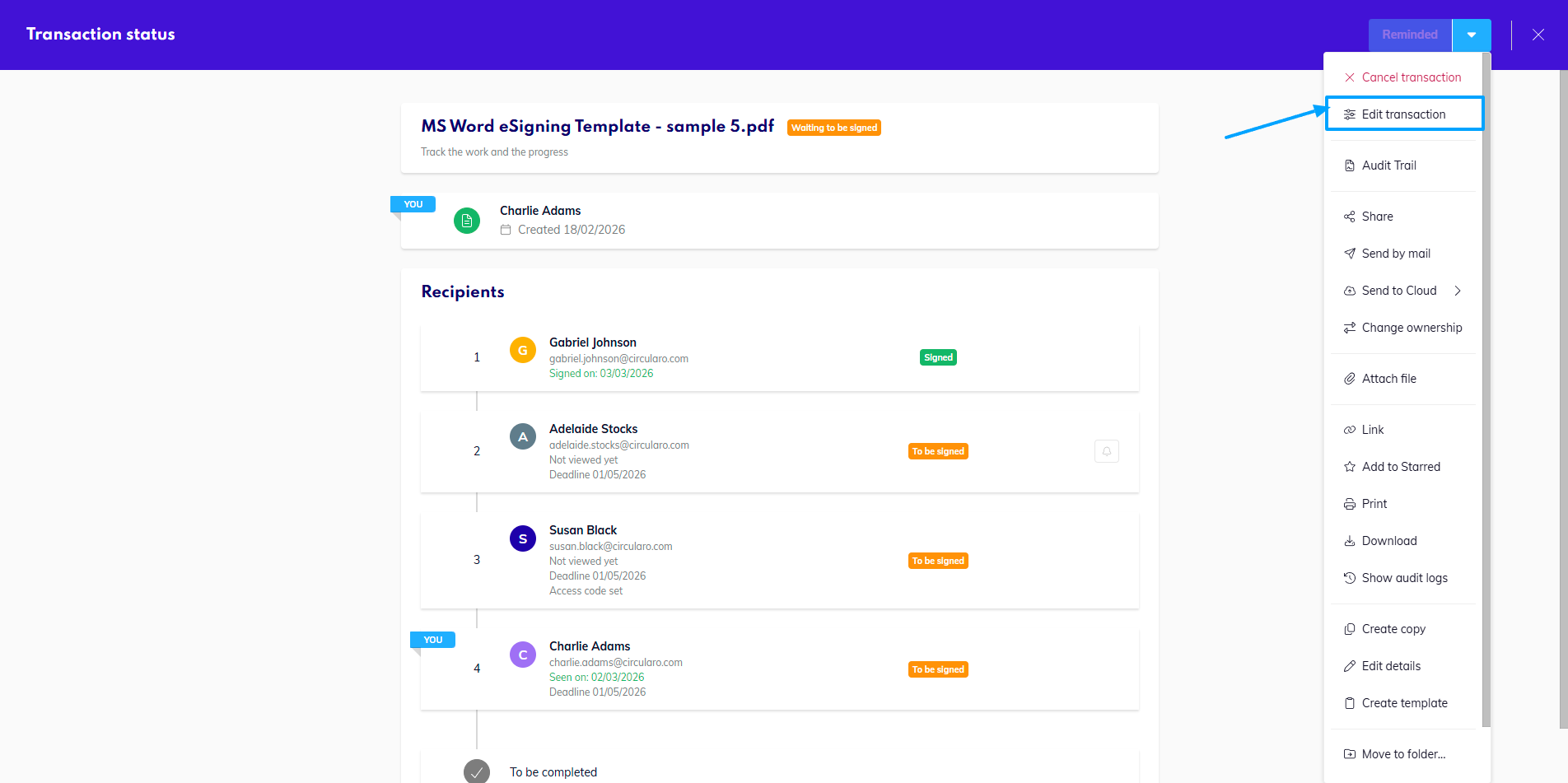
Edit transaction
When you click Edit transaction in the Context menu, you will also be taken to this view - or you can choose to edit transaction from this view itself.