
PDF eSigning Templates
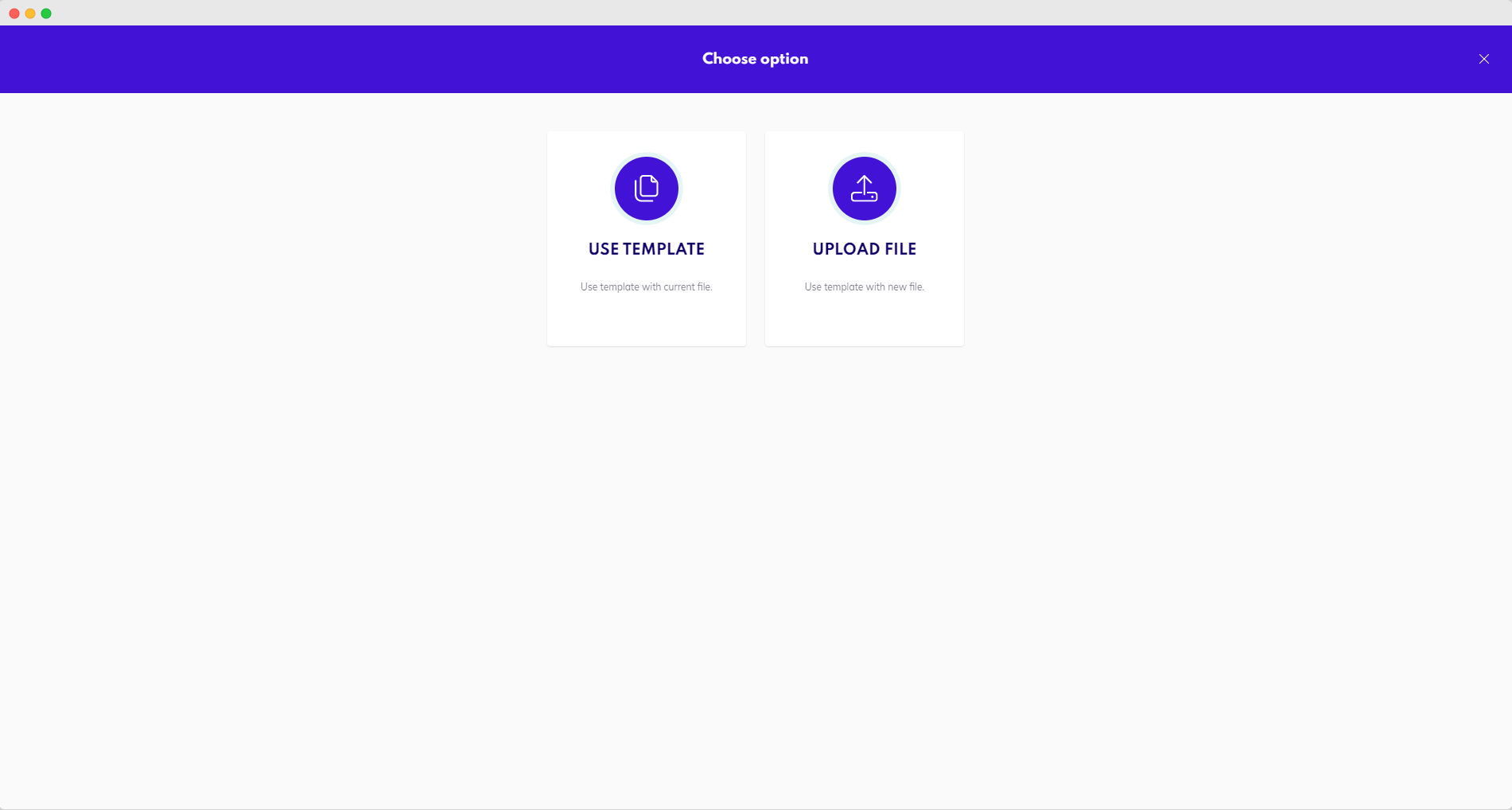
After selecting your template, continue by clicking on the Use template button. On the next page, continue by picking one of these two options:
-
Use Template - Continue with the same document on which the template was based originally when first created.
-
Upload File - Upload a new PDF file that will replace the original content of the template. All template settings, such as signatories or fields, will be preserved.
The position of signing fields in a template is fixed.
When uploading a new PDF document to replace the existing one stored within a PDF eSigning template, keep that in mind. You might need to adjust the positions of the signature fields manually should the uploaded PDF content be different from the original one.
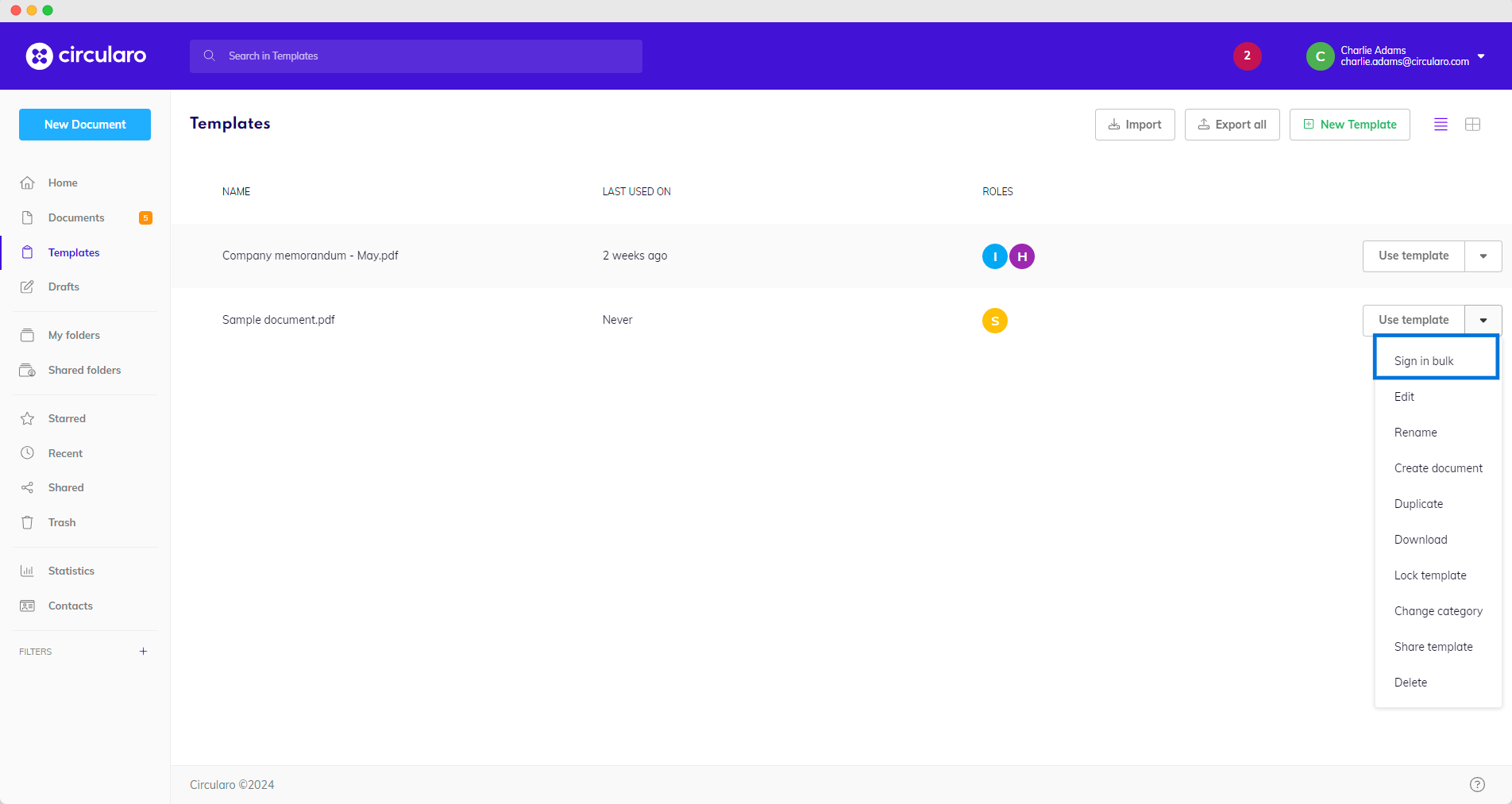
Sign in bulk
This feature is useful when you need to send a document to a large number of recipients. You prepare a template of a document, add recipients in the form of a CSV file, and Circularo sends a copy of the document to each recipient to be signed.
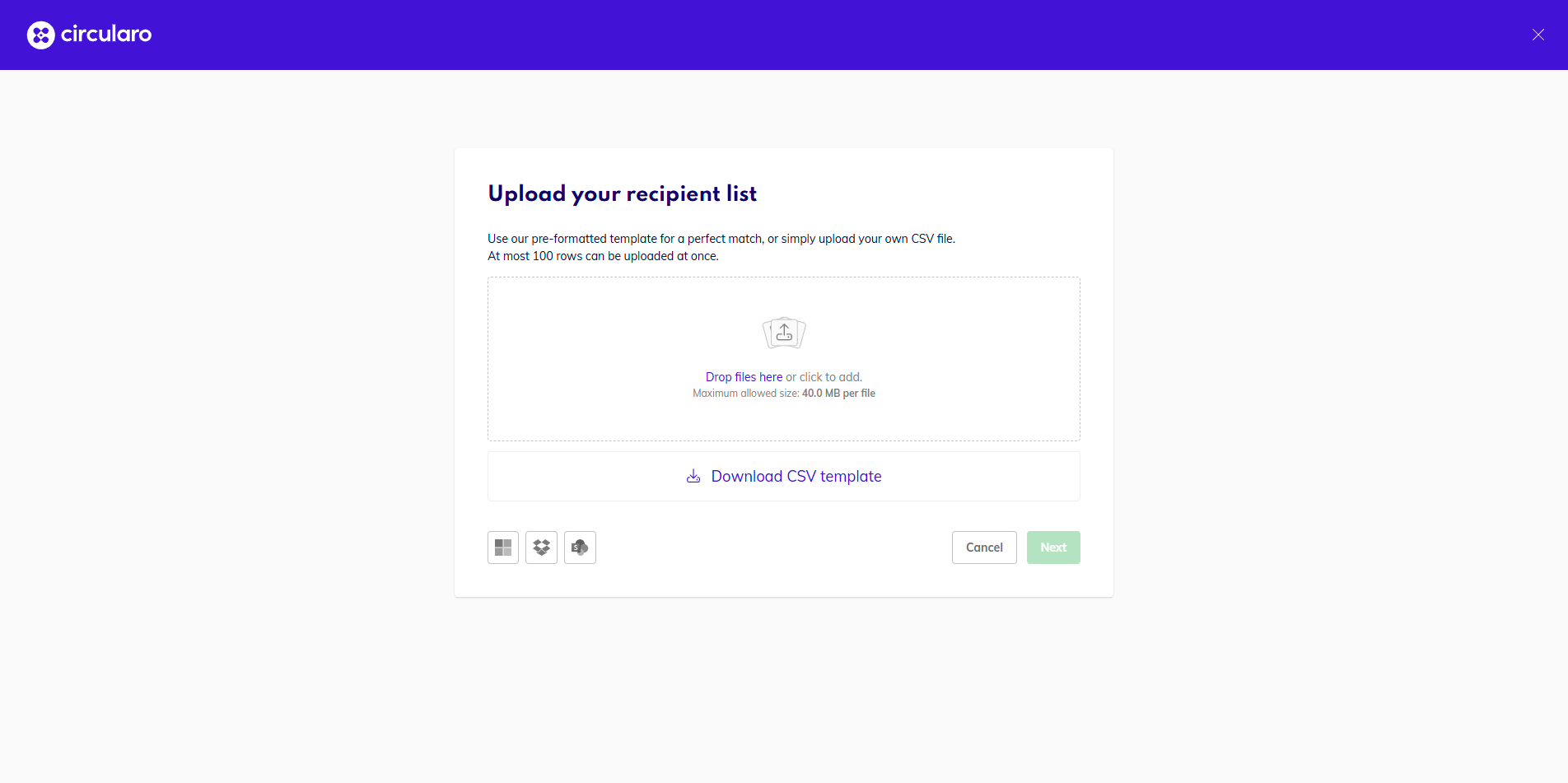
Bulk signing has a limit of 100 rows at a time - meaning you can only initiate 100 transactions at a time.
You will be asked to upload a CSV file containing contact details of all the recipients. Email address is a mandatory requirement for this feature to work, names and other details are optional. You can also download a template, which will contain all columns for every field assigned to specific recipients. Once filled, you can upload it back to Circularo. This option also allows you to skip the mapping step.
You can export a CSV file from your Contacts.
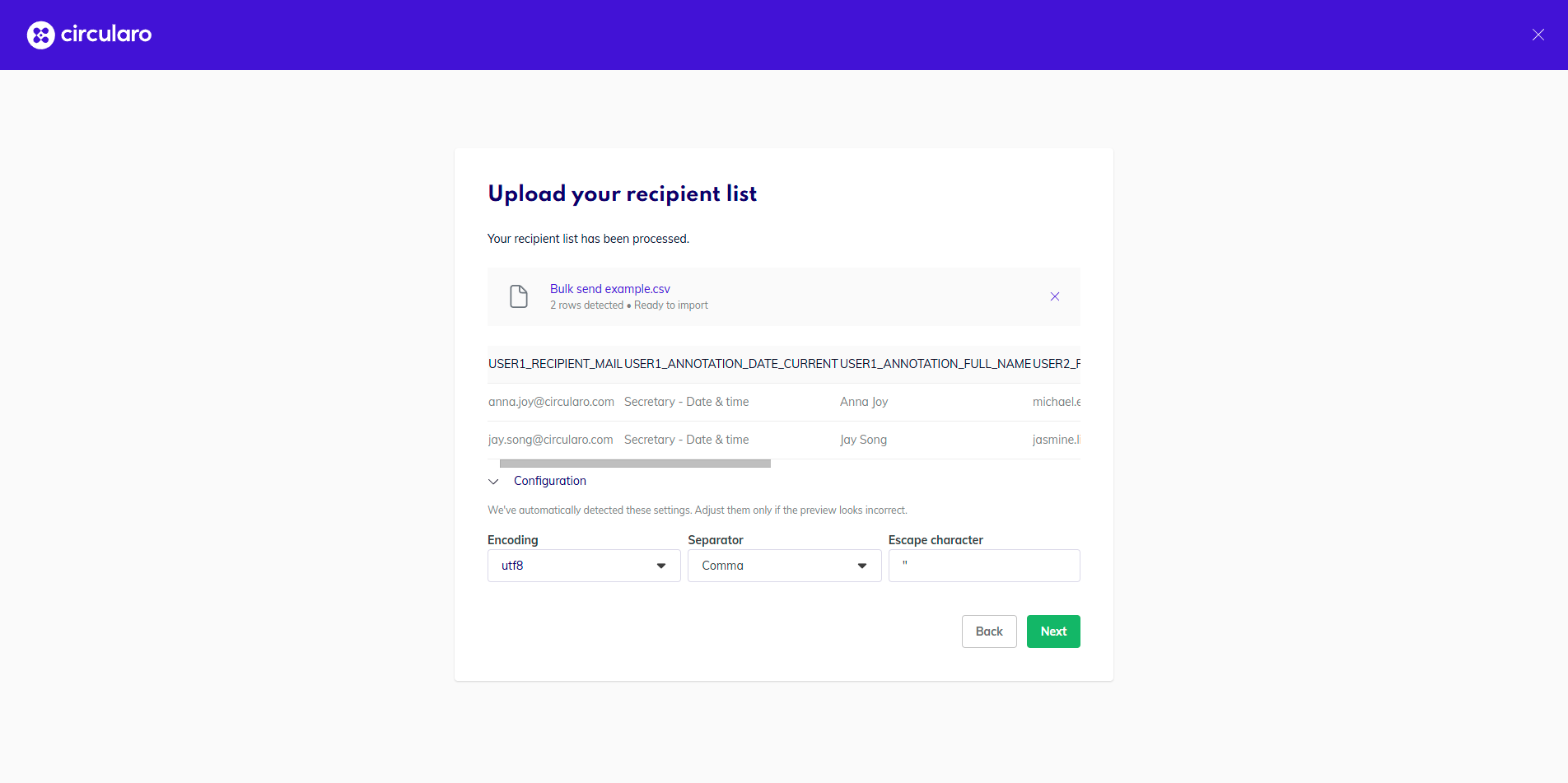
One your CSV is uploaded, you will immediately see a preview. You may also change the configuration - for example change the separator, to ensure the details are parsed correctly.
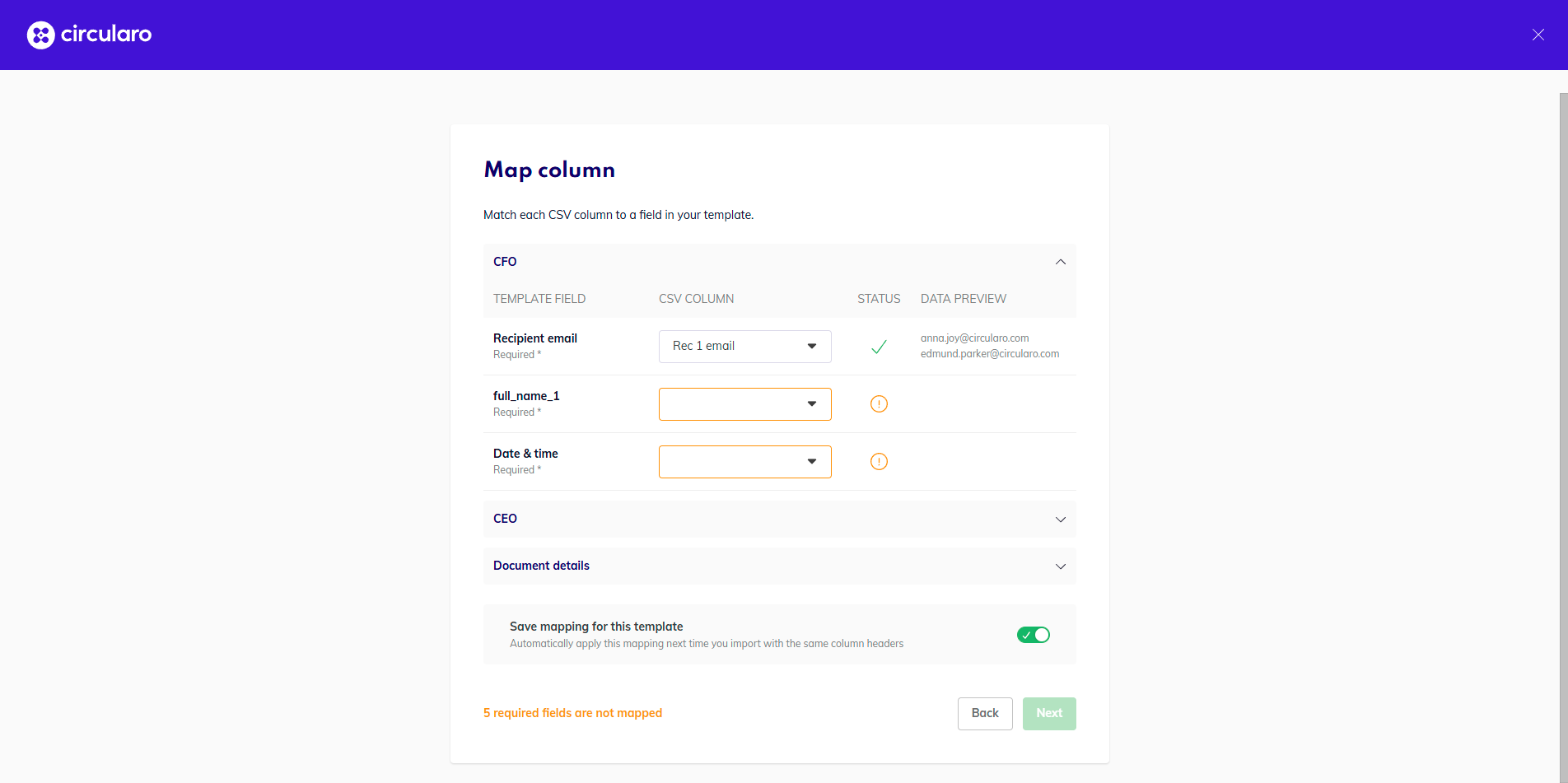
If you did not use the provided template, you will be asked to map the fields. You can also adjust this if necessary when using the template.
You will be able to see a preview of the data once a column is mapped to a field, in which you can check whether it is mapped correctly.
During manual mapping, you will see which fields are required and not yet mapped. For optional fields, if your CSV does not contain the necessary info, you can choose to ignore the field - the annotation will be deleted once the document is initiated.
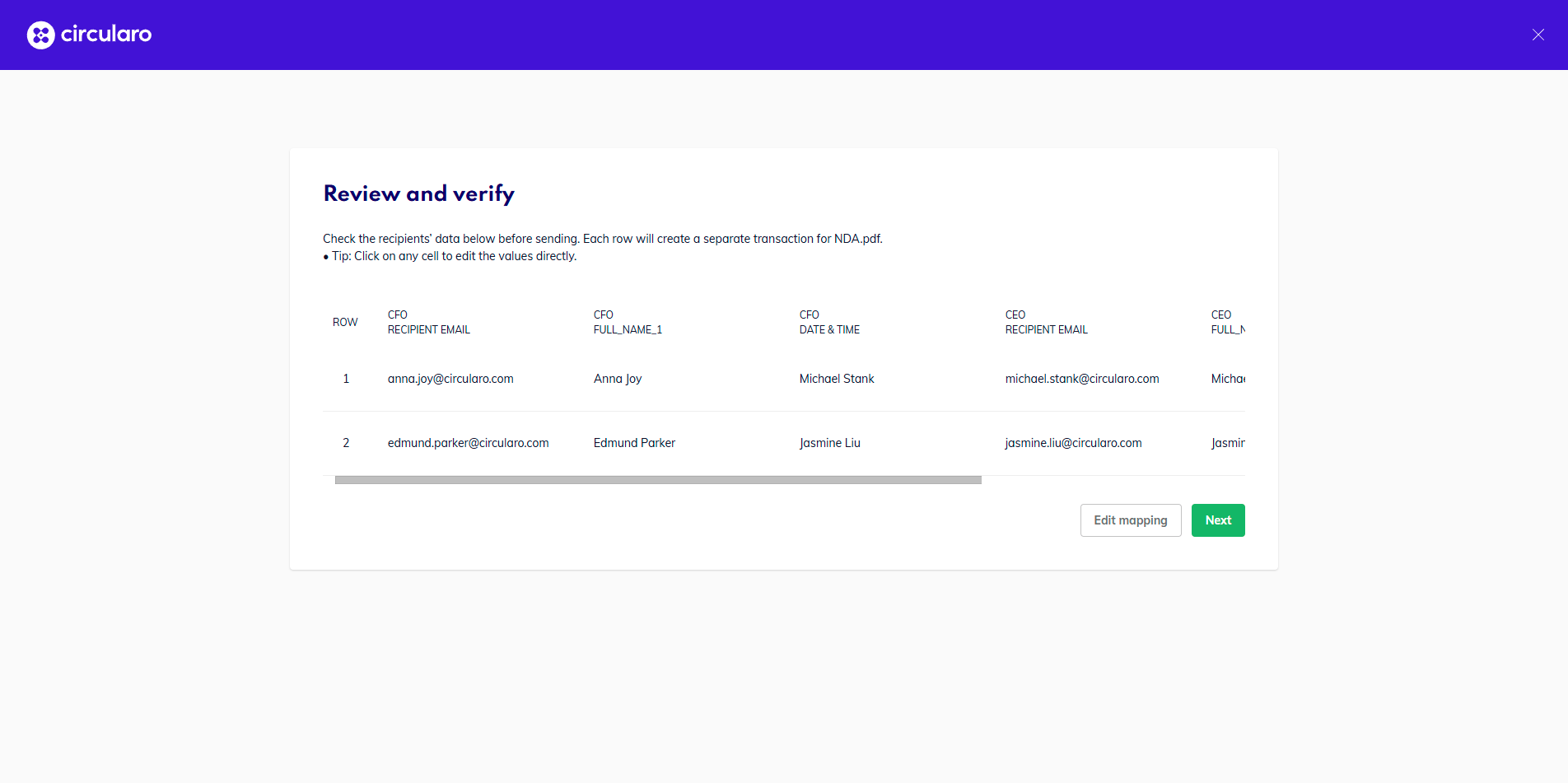
The next step allows for the verification of the mapped data and any individual changes that may need to be done.
This is the step you will be taken to if you use the provided template, or if you have previously saved the mapping for this template - the system will remember which column names were mapped for which fields.
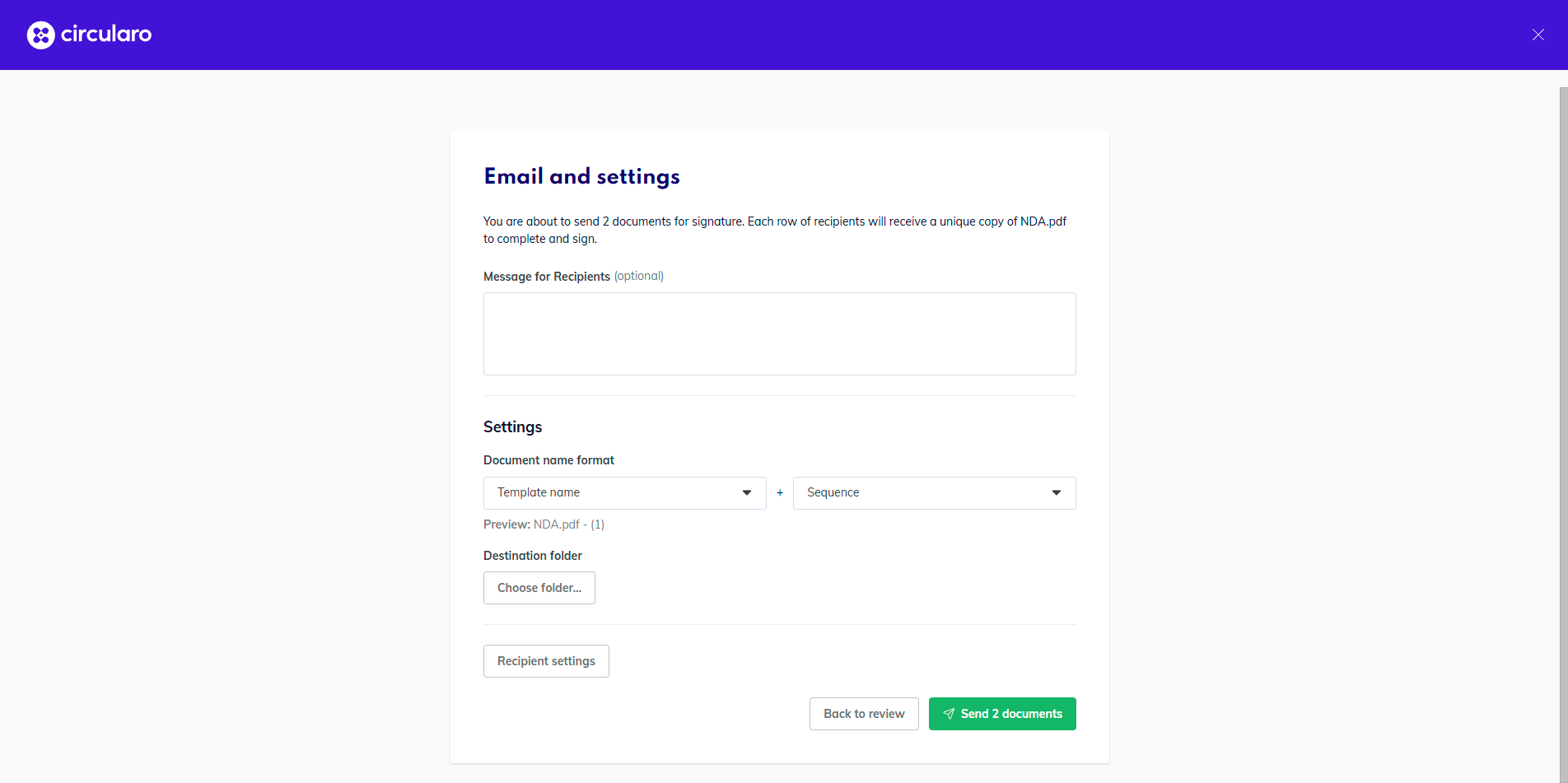
In the last step, you can set up settings as you would with one transaction.
You can send a message, choose the name formatting for the new documents (for example include a name of one of the recipients), choose a destination folder for the new documents, and set recipient settings - permissions, deadlines, reminders, or access permissions.
When done, click Send documents and a copy of the document template will be sent to the recipients based on the settings.
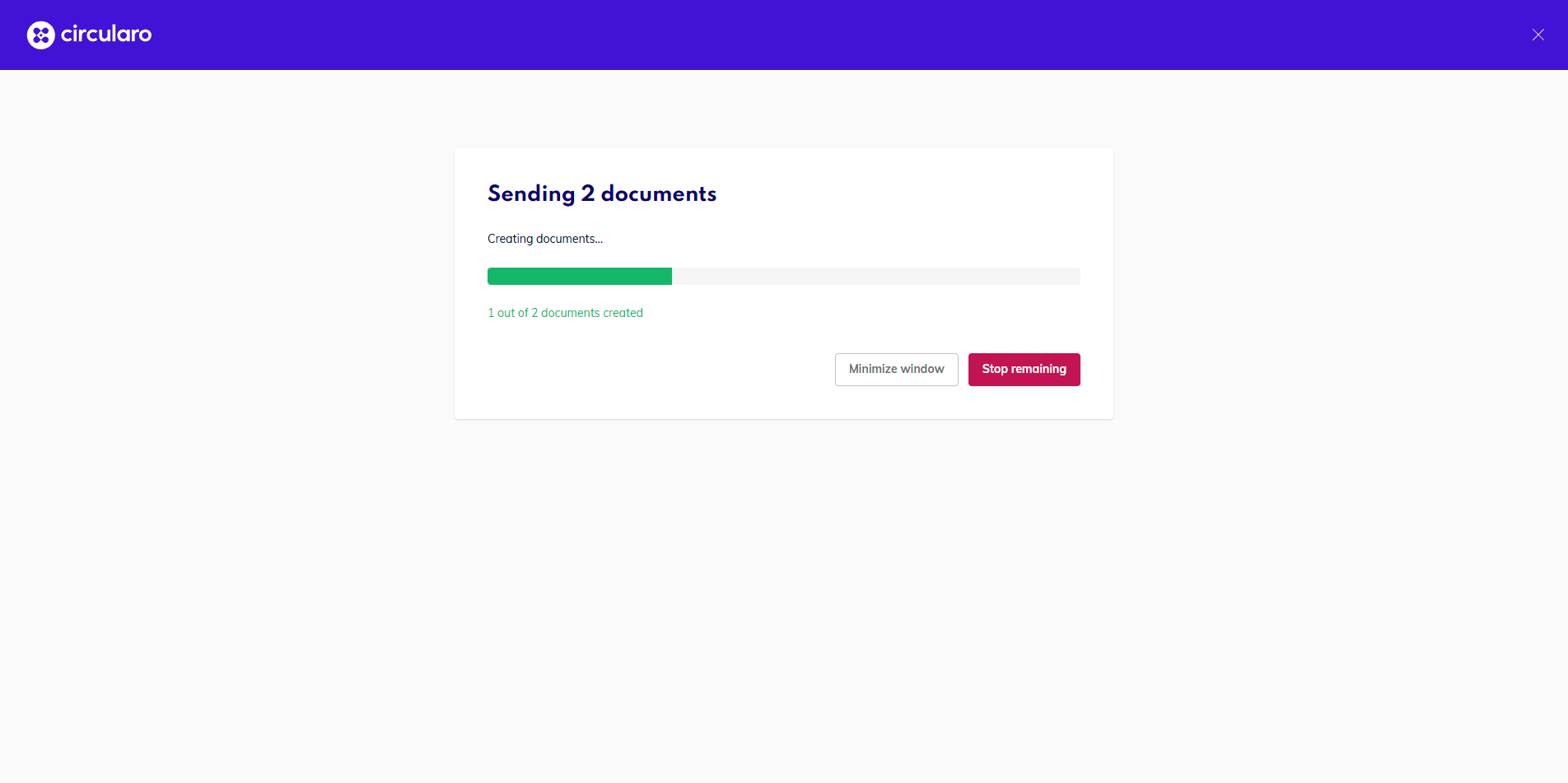
For large batches that may take a long time, you have the option to Minimize window, if you want to continue you work.
Do not close the tab or window in which Circularo is open until all documents are sent.
After all documents have been sent, you can find them in the chosen destination folder or in Documents, where you can track their progress.
MS Word Templates
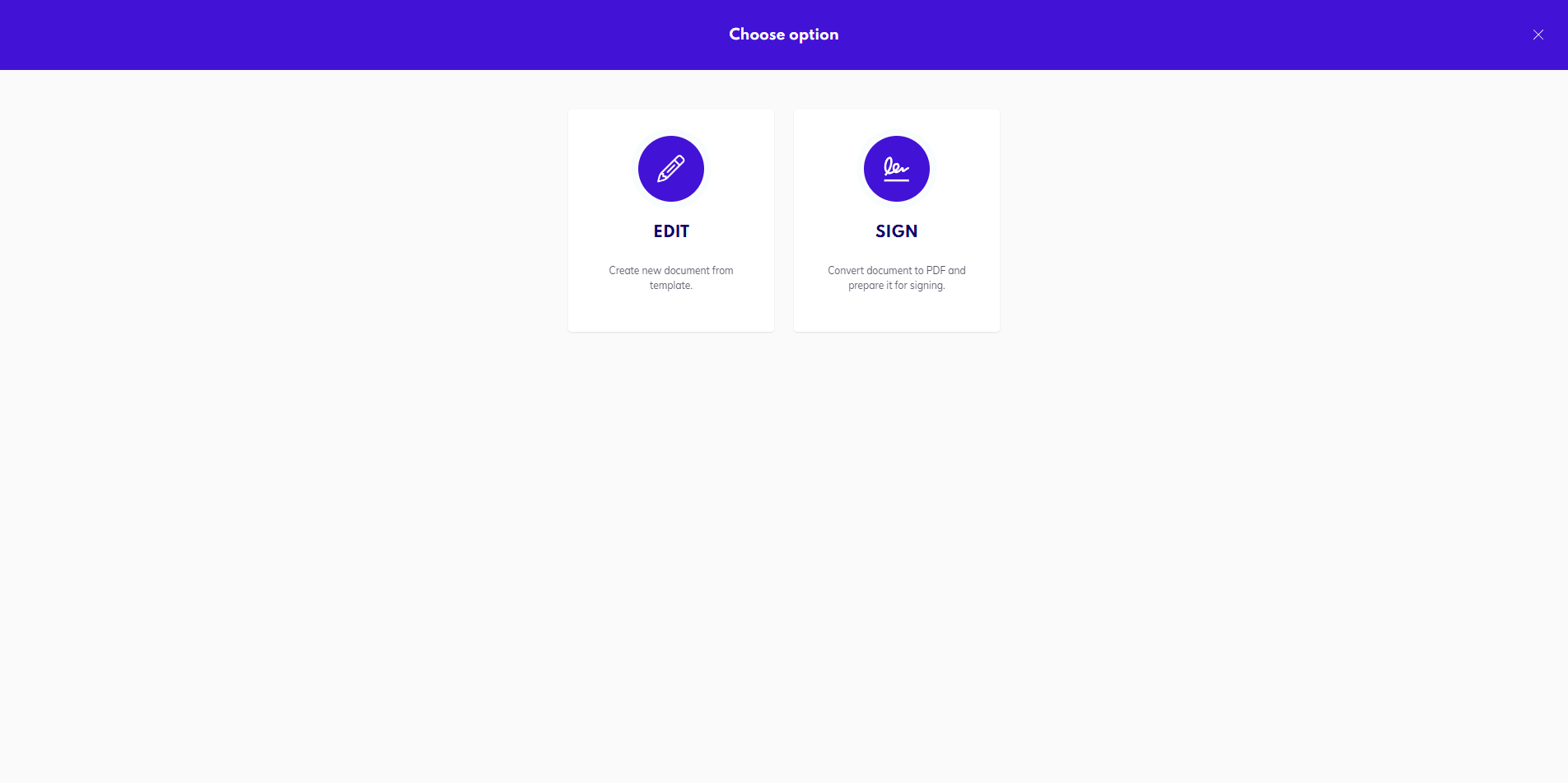
To use a MS Word template, click on Use Template and continue by picking one of these two options:
-
Sign - The MS Word document will be automatically converted to PDF and you will be taken to the eSigning page.
-
Edit - The document will open in the MS Word online editor where you can edit its content before processing it further.
MS Word Dynamic eSigning Templates
Once MS Word dynamic eSigning templates are created in the system, they behave as standard MS Word templates.
The only difference is that the signature and other fillable field placeholders are already present in the MS Word document itself and their positions will adjust accordingly when you update the content of the document.