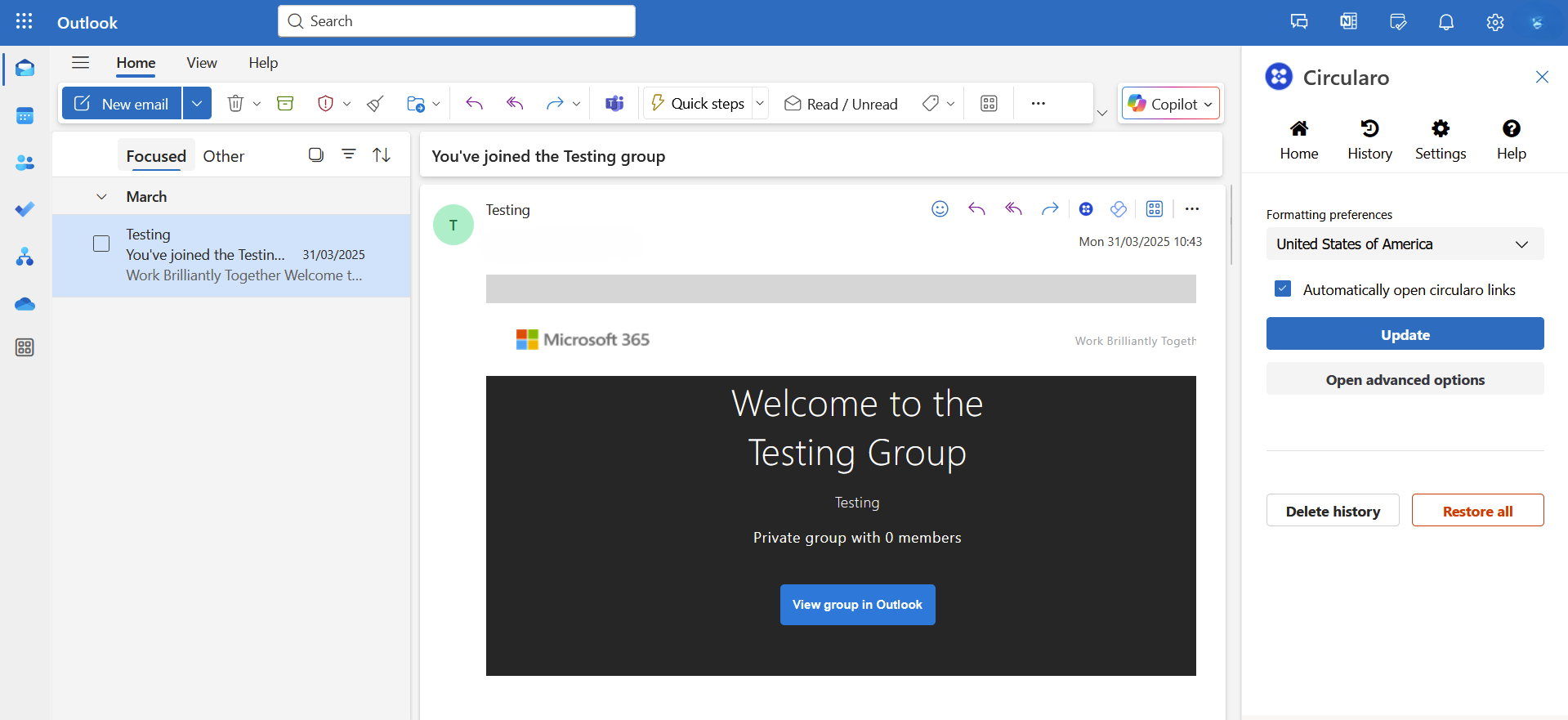
Seamlessly send email attachments to Circularo for secure eSigning, PDF conversion, or document workflow automation - all without leaving Microsoft Outlook.
This add-in requires you to have an online Microsoft account and be logged in to use it. The add-in is available for both online and desktop version, but it will not work offline, as it will not be able to connect to Circularo.
Where to get the Outlook add-in
You can find the add-in in the app store under “Circularo for Outlook”.
Alternatively, you can get it from the Microsoft App Source.
-
Go to More apps in your Outlook
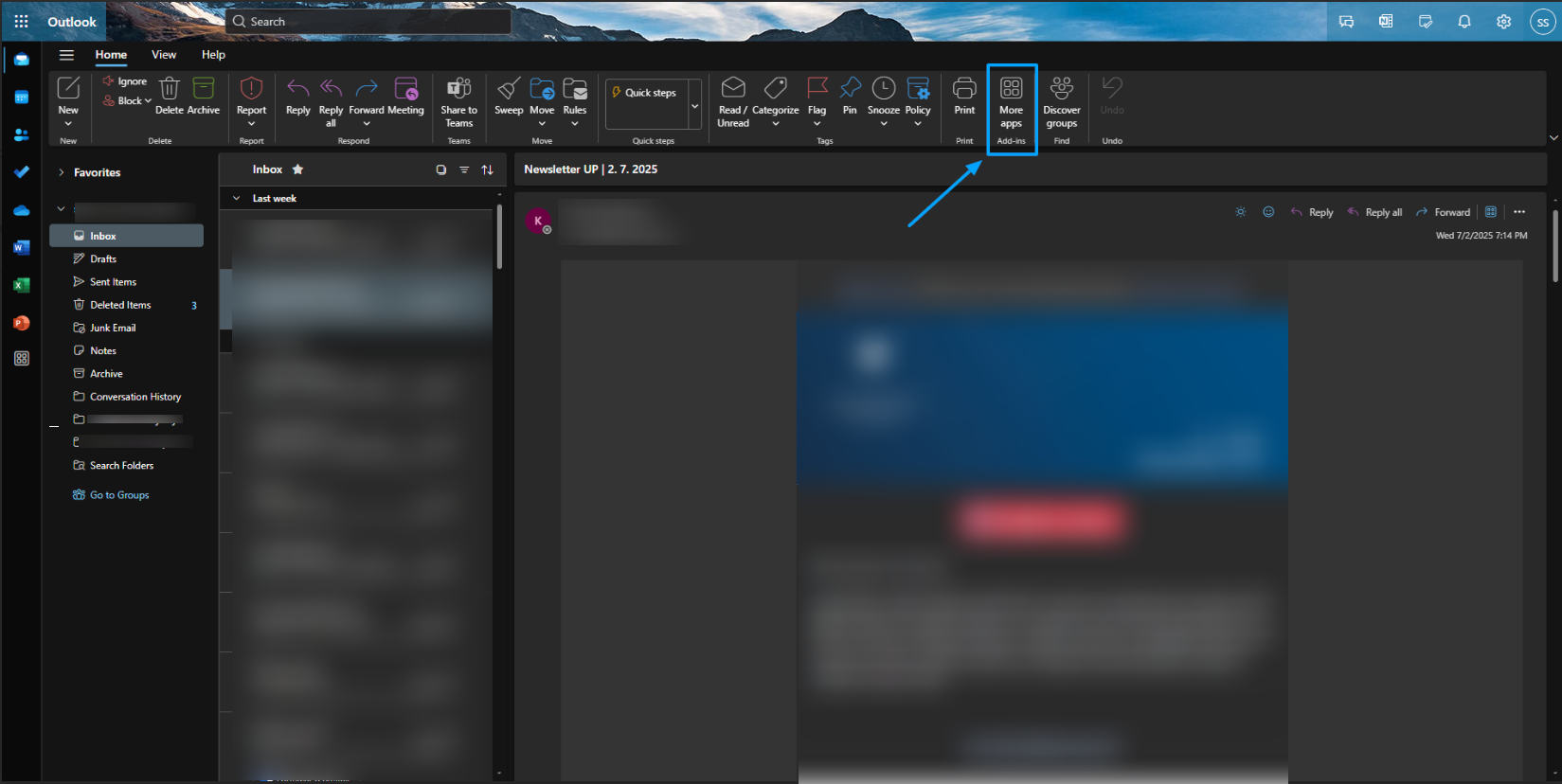
-
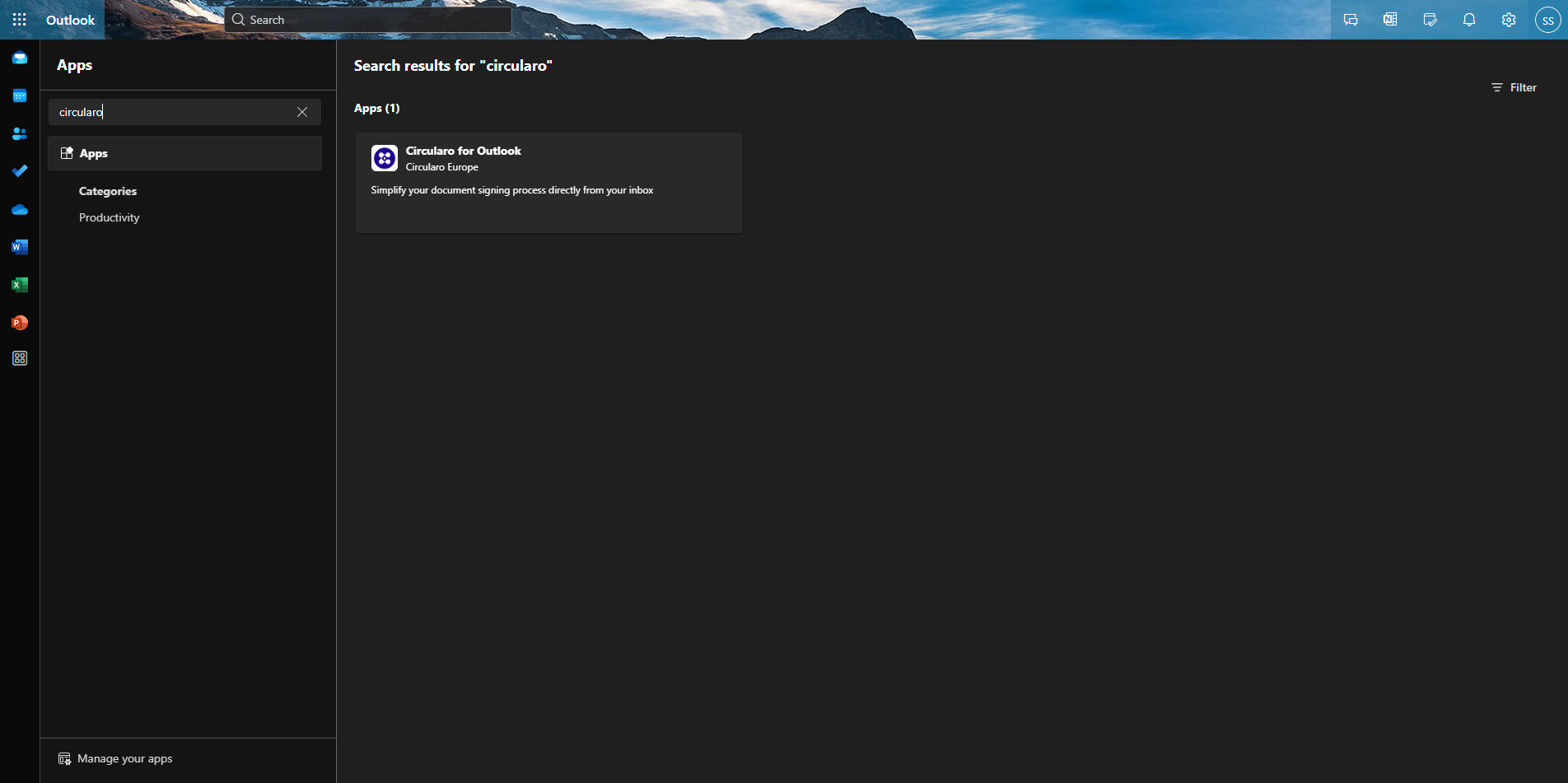
Search for “Circularo” and then click on Add
-
If the app does not appear, click on Add apps in the bottom right corner of the pop-up.
-
Search for “Circularo”
-
Click on the app.
-
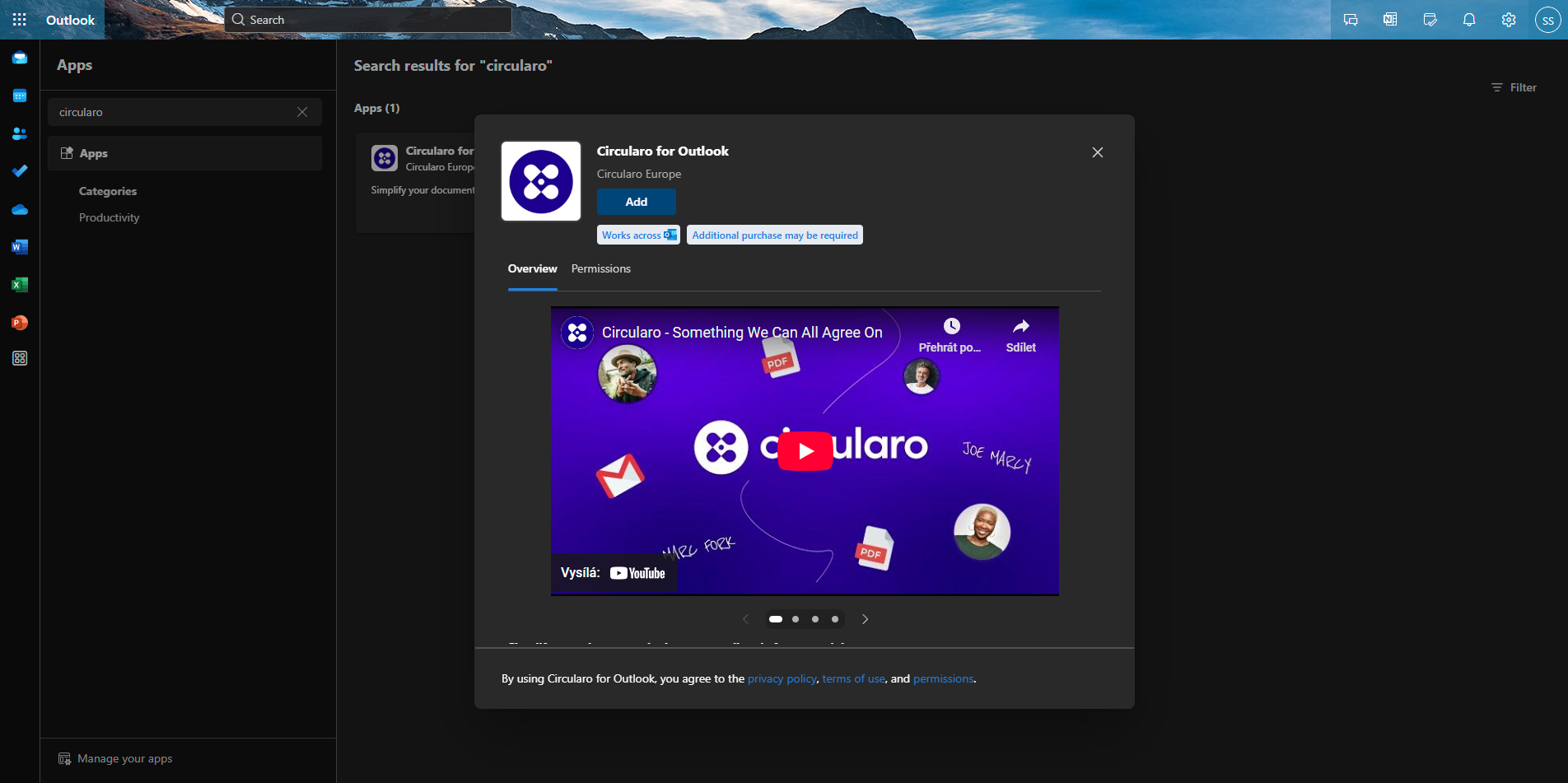
Click on Add
-
Circularo should be installed into your Outlook.
Alternatively, here is the manifest file that can be uploaded into Outlook, if you do not have access to the app store, or cannot find the add-in in the apps: https://www.circularo.com/static/office-addins/outlook/manifest.xml.
Logging into the add-in
We recommend logging into the add-in via an API Key you can generate in your Preferences.
Login via API Key
-
Go to Preferences in your Circularo account.
-
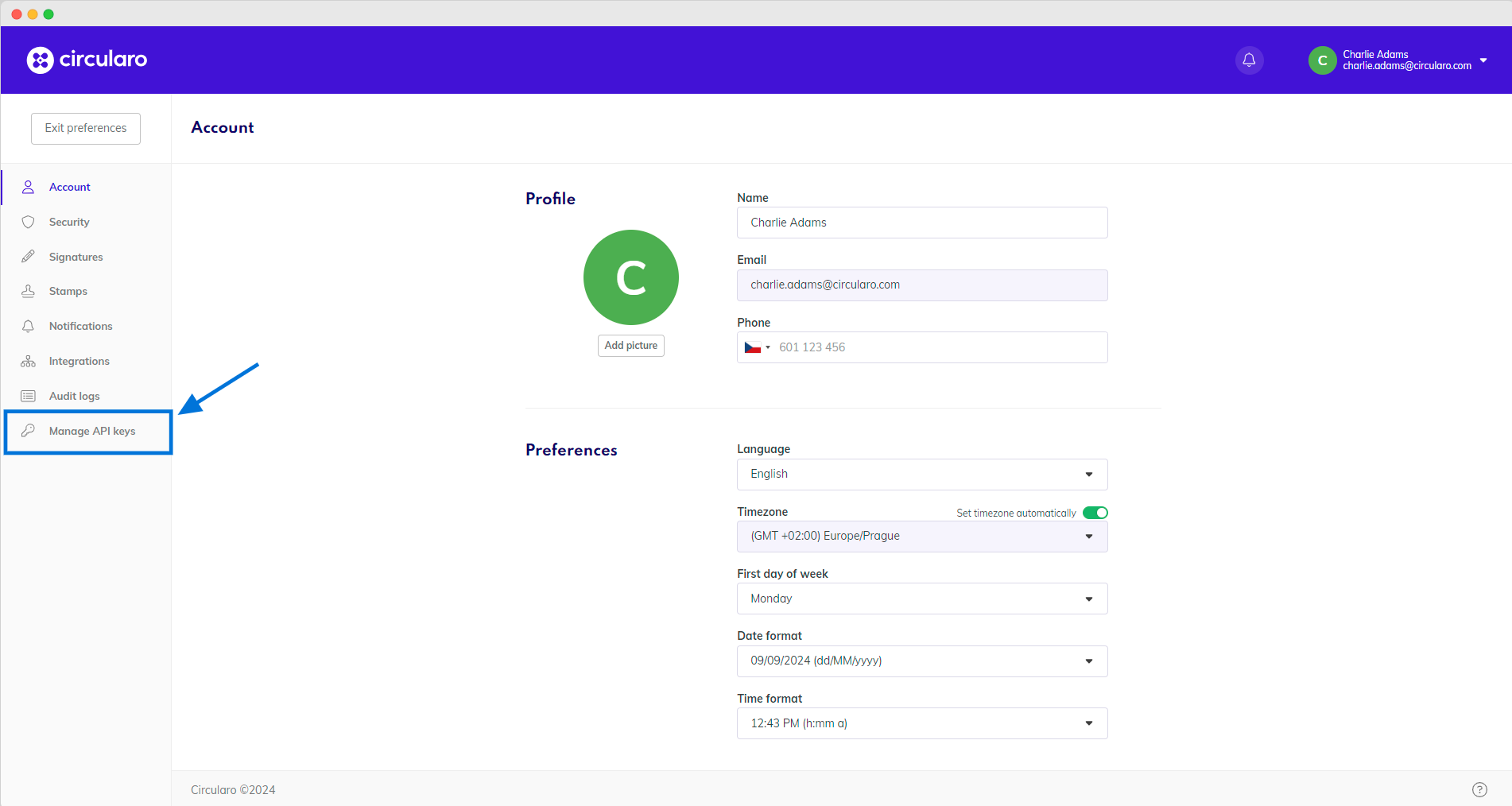
Click on the Manage API Keys tab.
If you cannot find this tab, contact the Admin of your organization.
-
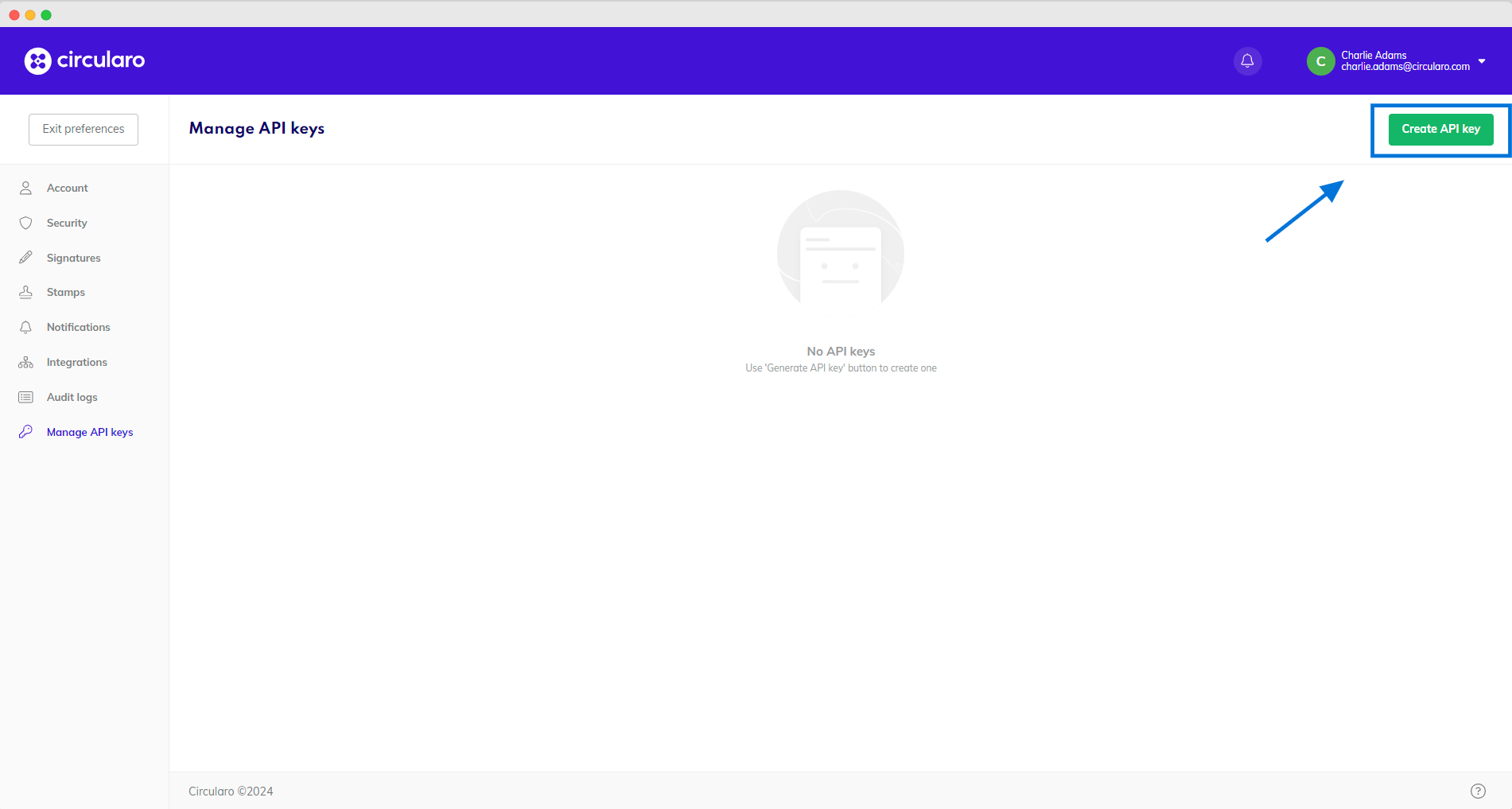
Click on the green Create API Key button in the top right corner.
-
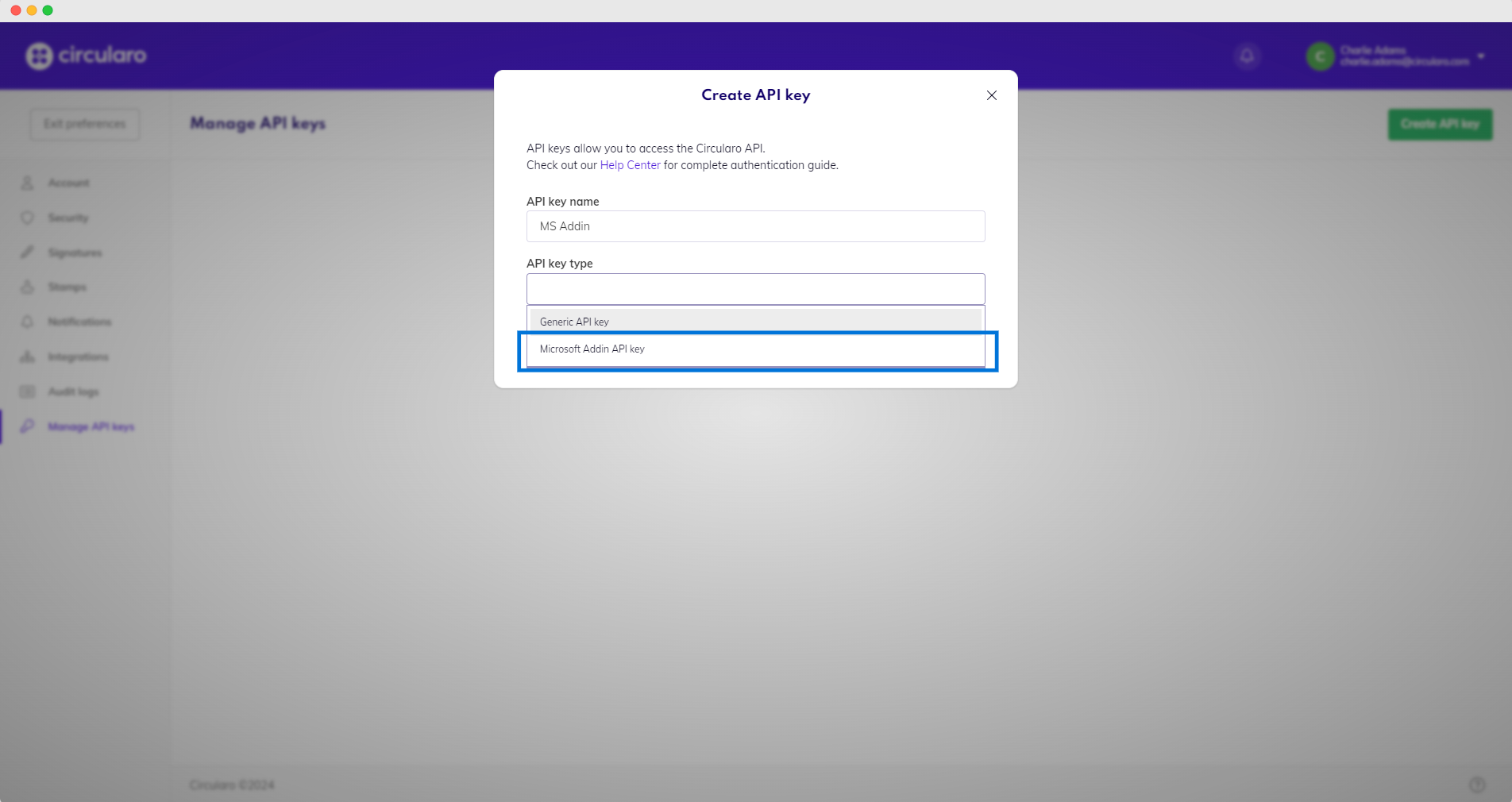
Create a name for the key and select Microsoft Add-in API Key from the dropdown.
-
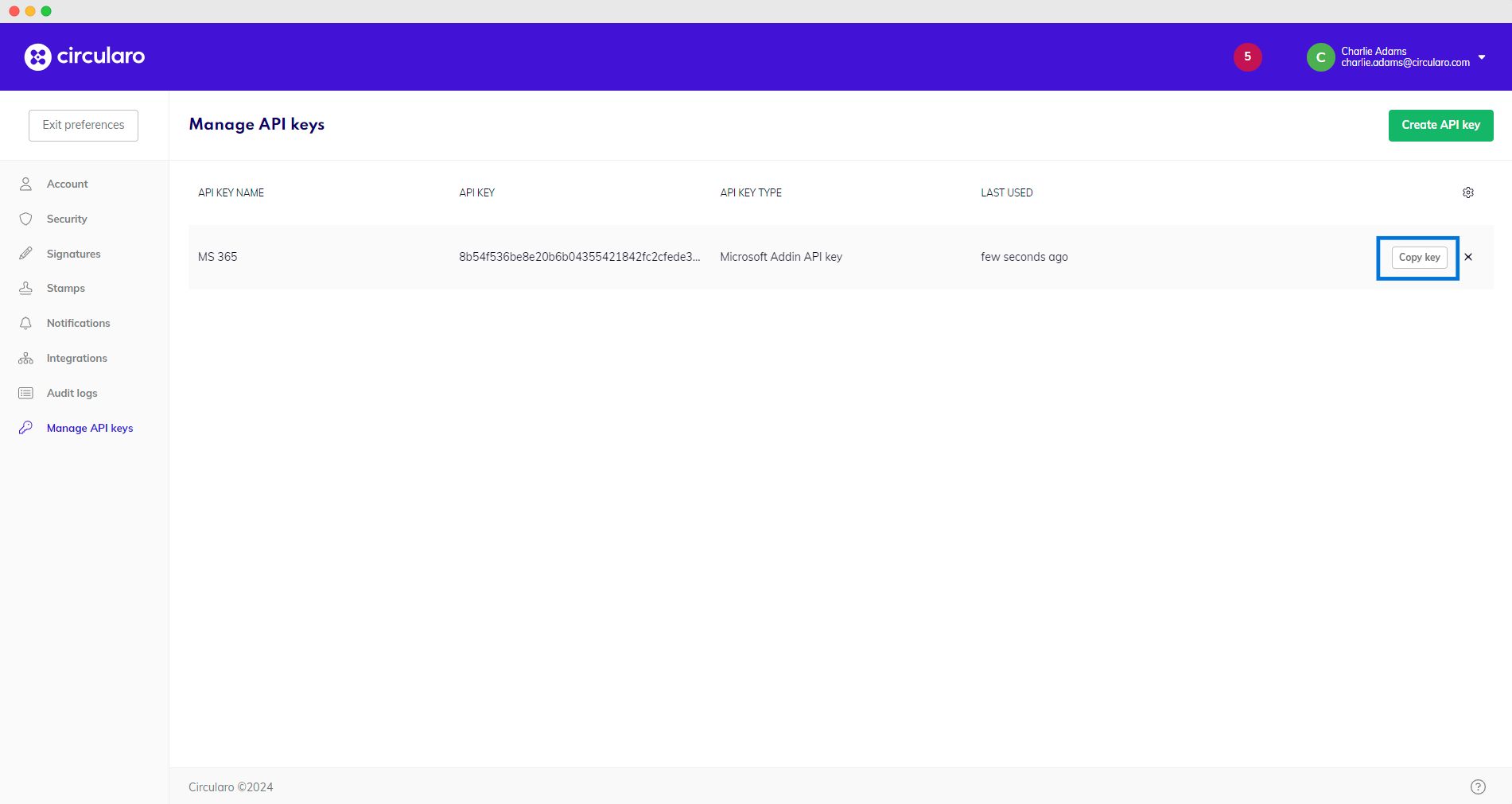
Copy the new generated key.
-
Go to Outlook
-
Open the add-in.
-
Click on “Do you have access code for Circularo?”
-
Input the copied API Key.
-
You are logged into the add-in and can use all its functions.
Add-in functions
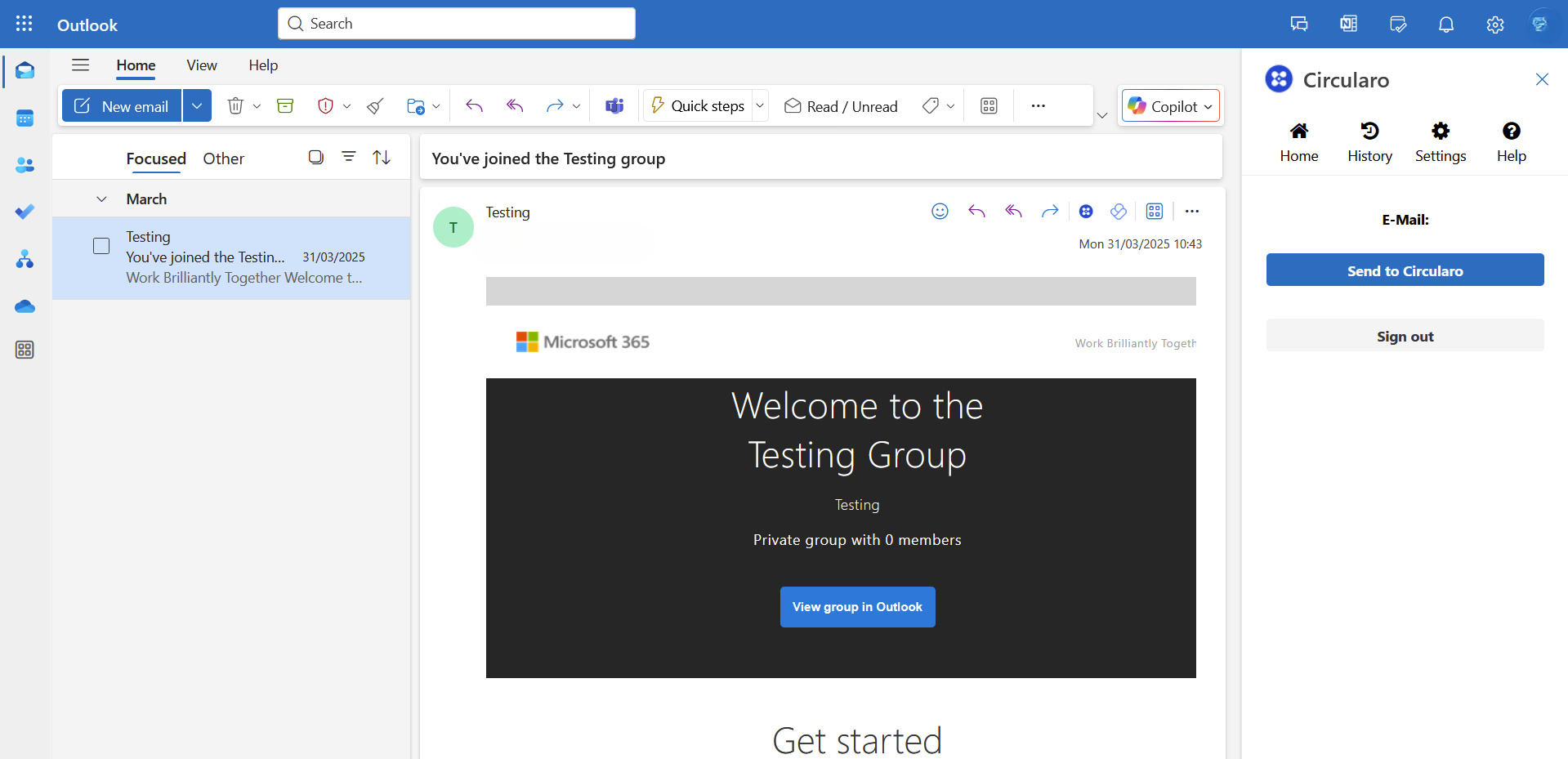
Send to Circularo
You can seamlessly send your emails to Circularo, where they can be edited, stored, and converted into PDFs for signing, or attached to other documents.
History
Shows all actions taken through the add-in.
Settings
Here you can adjust the formatting preferences.