
Using the Chrome browser, you can install a Circularo extension that allows you to send documents directly to your Circularo account without having to leave the page you are on. The extension also automatically recognizes when you are viewing something that can be sent to Circularo, and offers you a pop-up to save time with manually opening the extension.
Installing the extension
-
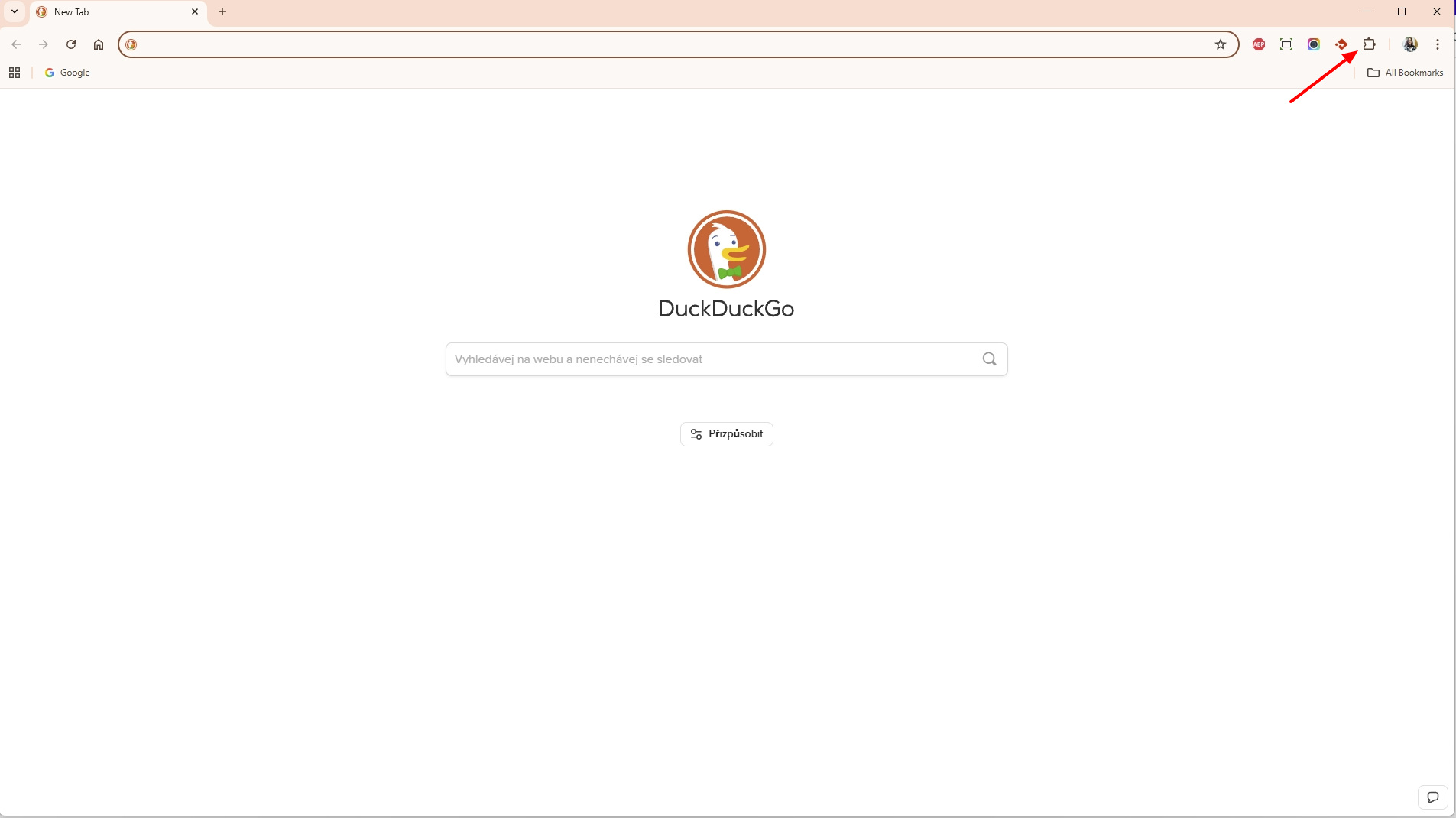
Go to Extensions in your browser - it is the puzzle-like icon in the top right corner of your browser.
-
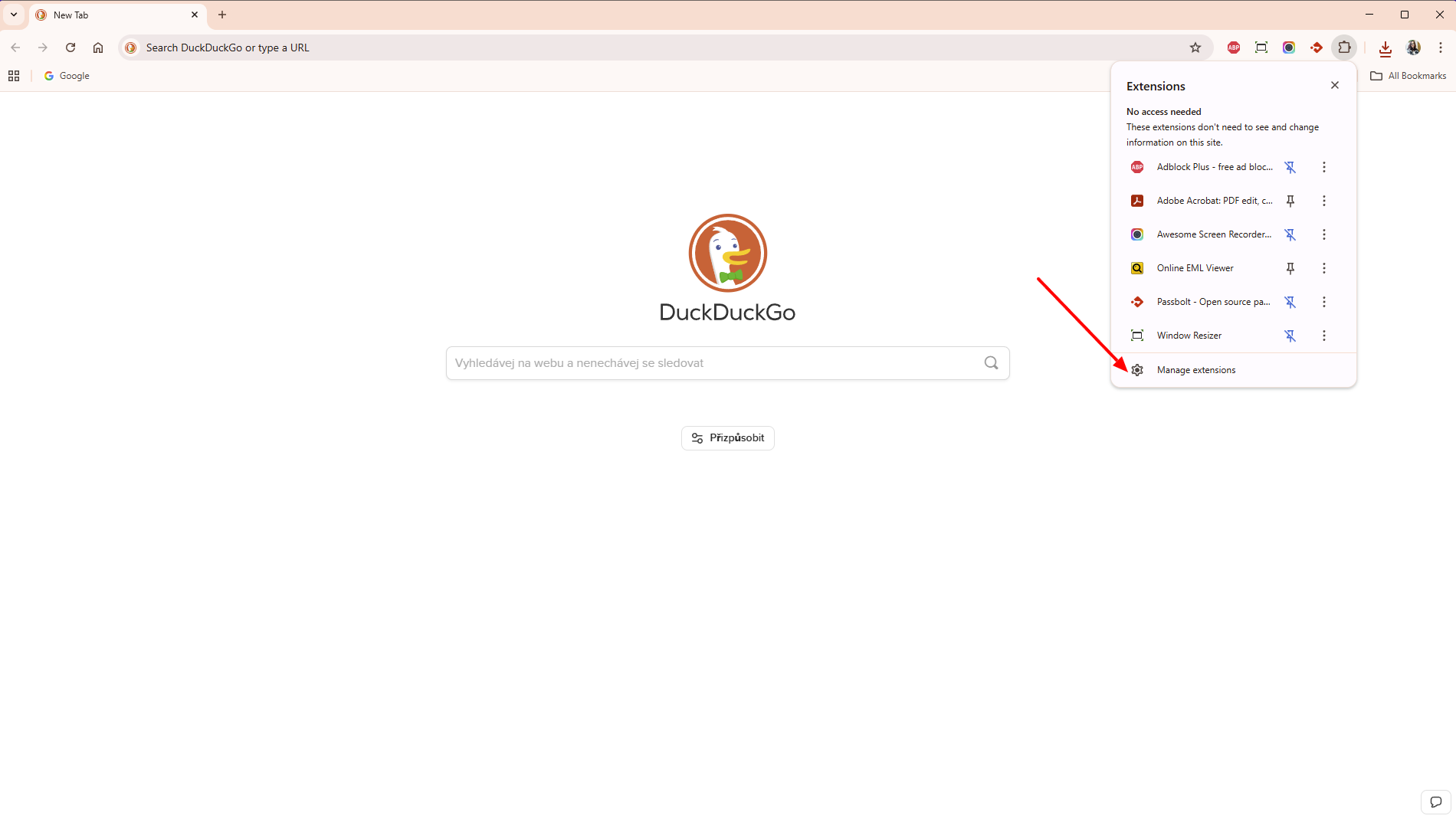
Go to Manage extensions.
-
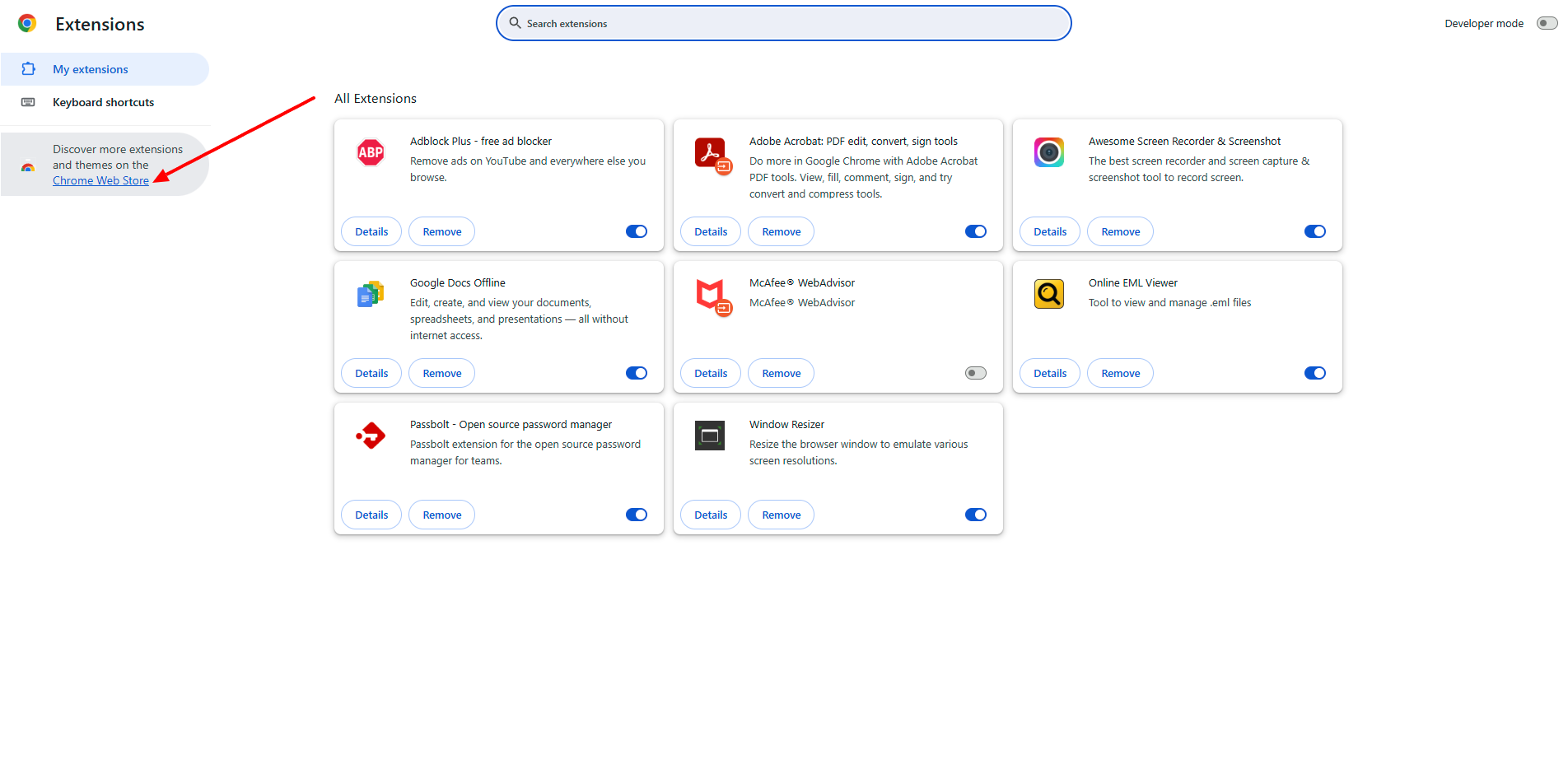
You will be taken to the extensions you already have. On the left side, navigate to Chrome Web Store.
-
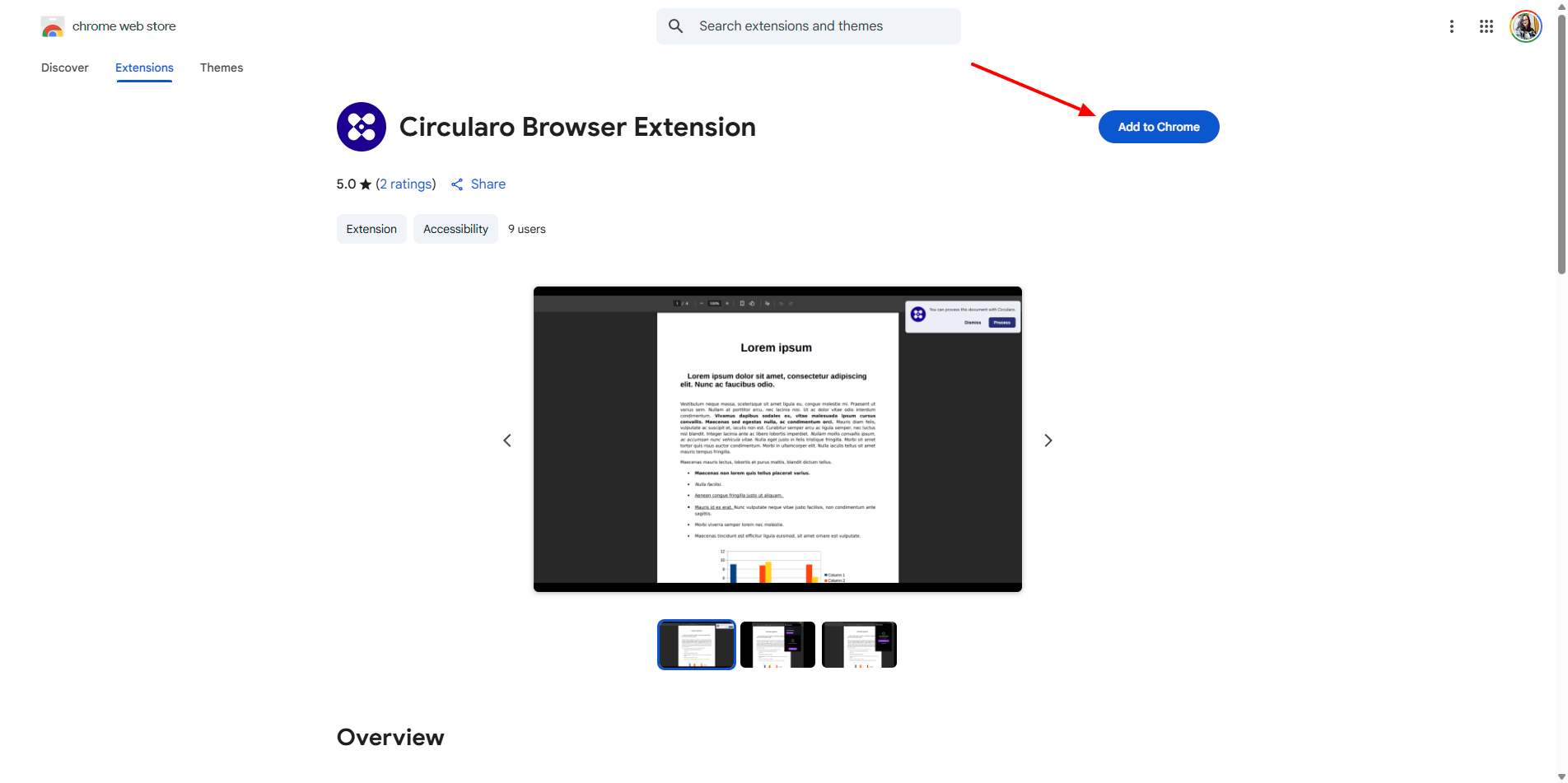
Then search for Circularo in the search bar. Open the extension to be able to add it to your browser.
-
You might need to confirm that you want to add the extension to your browser.
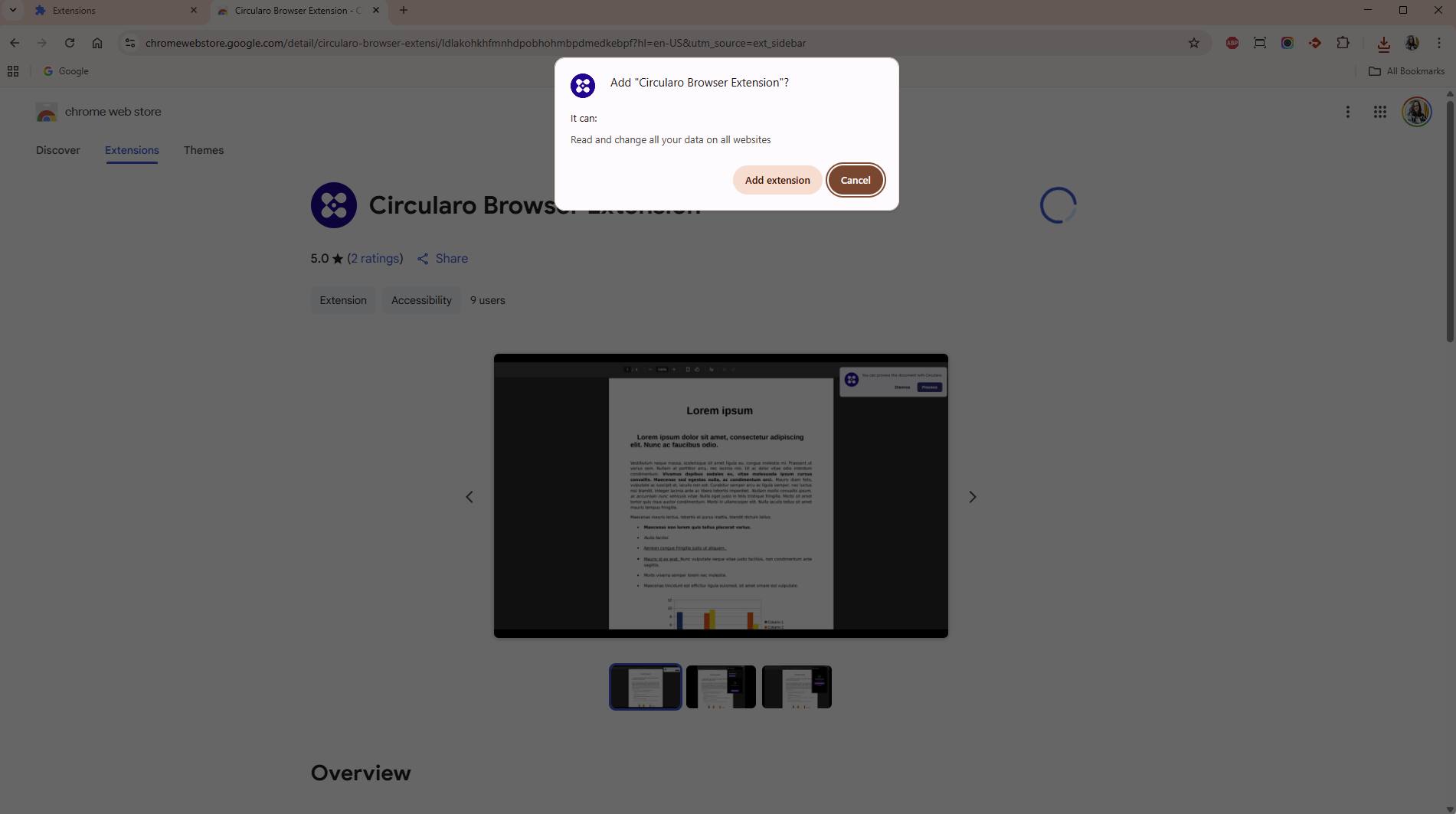
-
Once added, you will see a small banner with a success message.
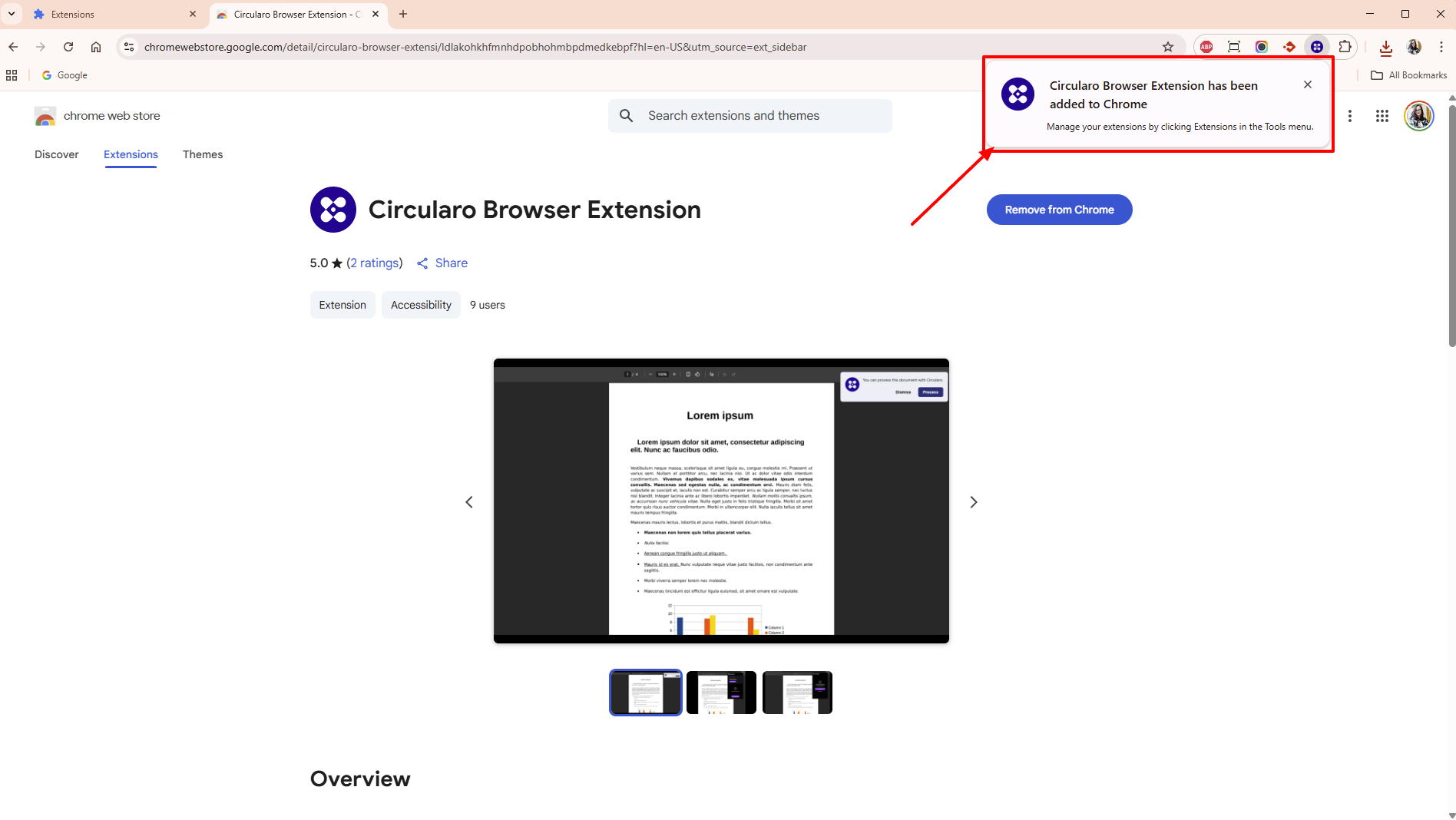
Logging into the extension
Once you’ve installed the extension, you need to login to your account, before you can send documents to Circularo.
To access the extension, either click on the Extensions again, or on the pinned Circularo logo.
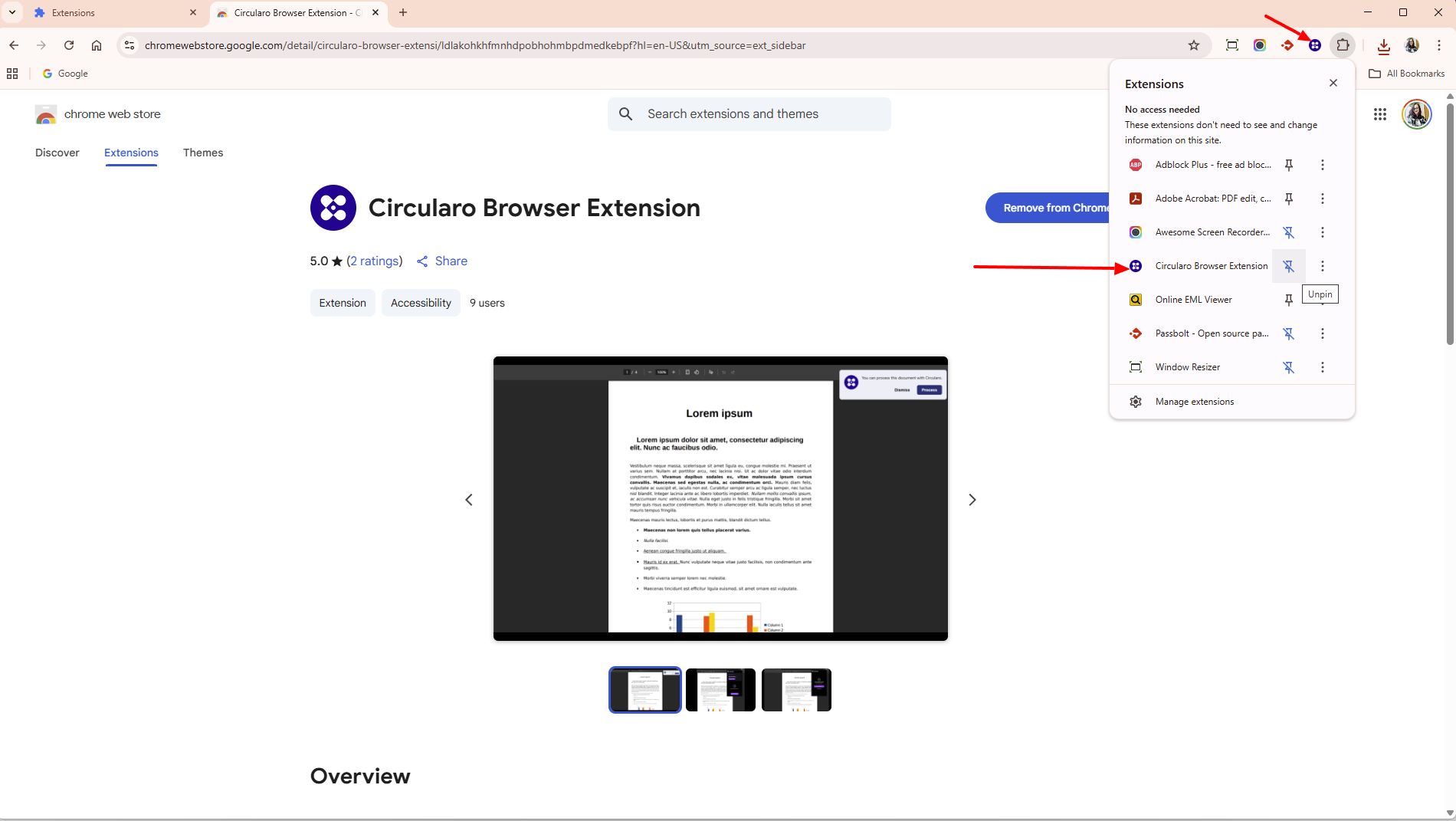
Now you have two options how to log into your account:
-
You can use your email and password, and choose the region where your organization is hosted or the URL used by your organization.
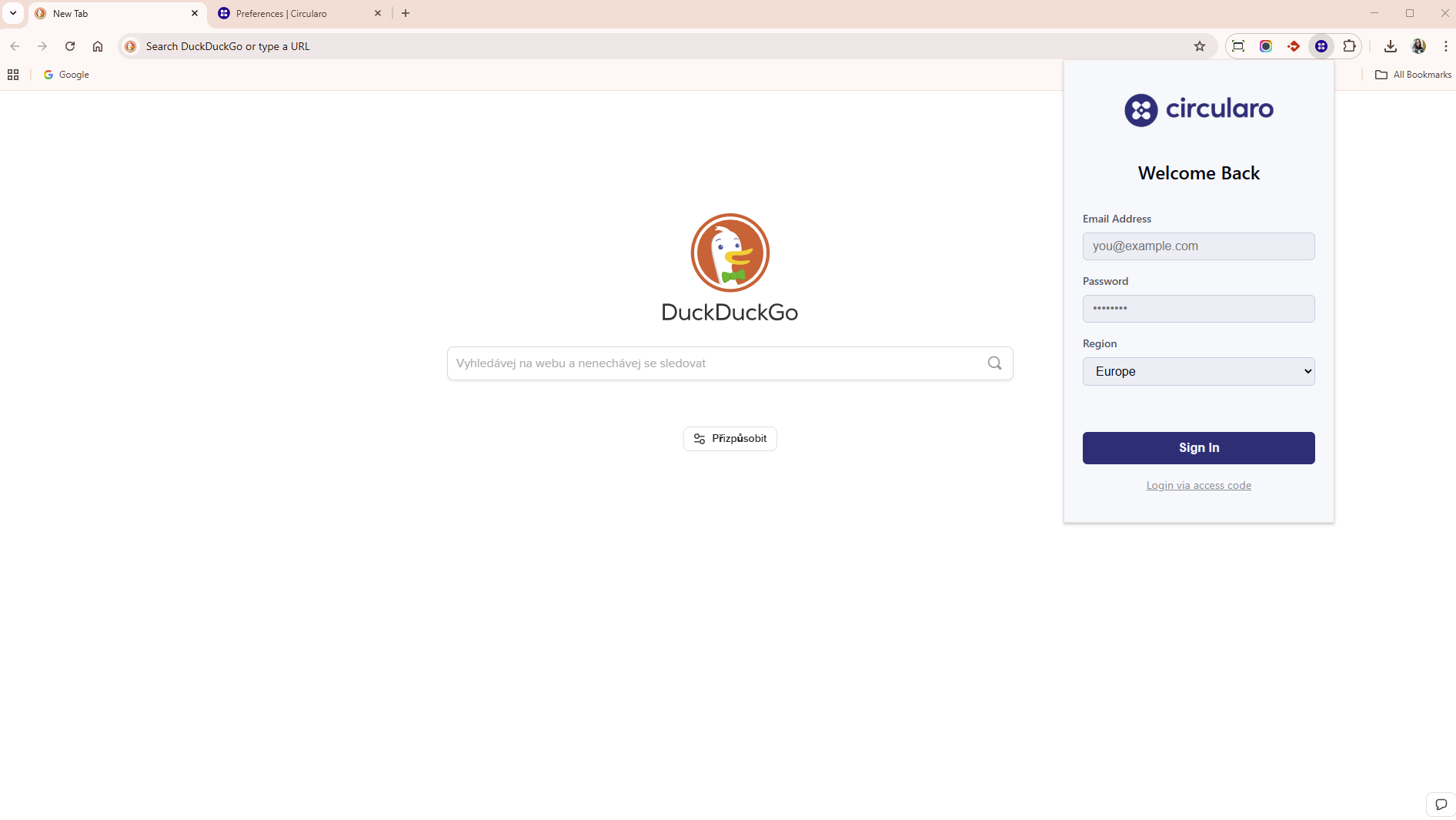
-
Or use an access code (API key) that you can generate in your account, which will set everything up for you.
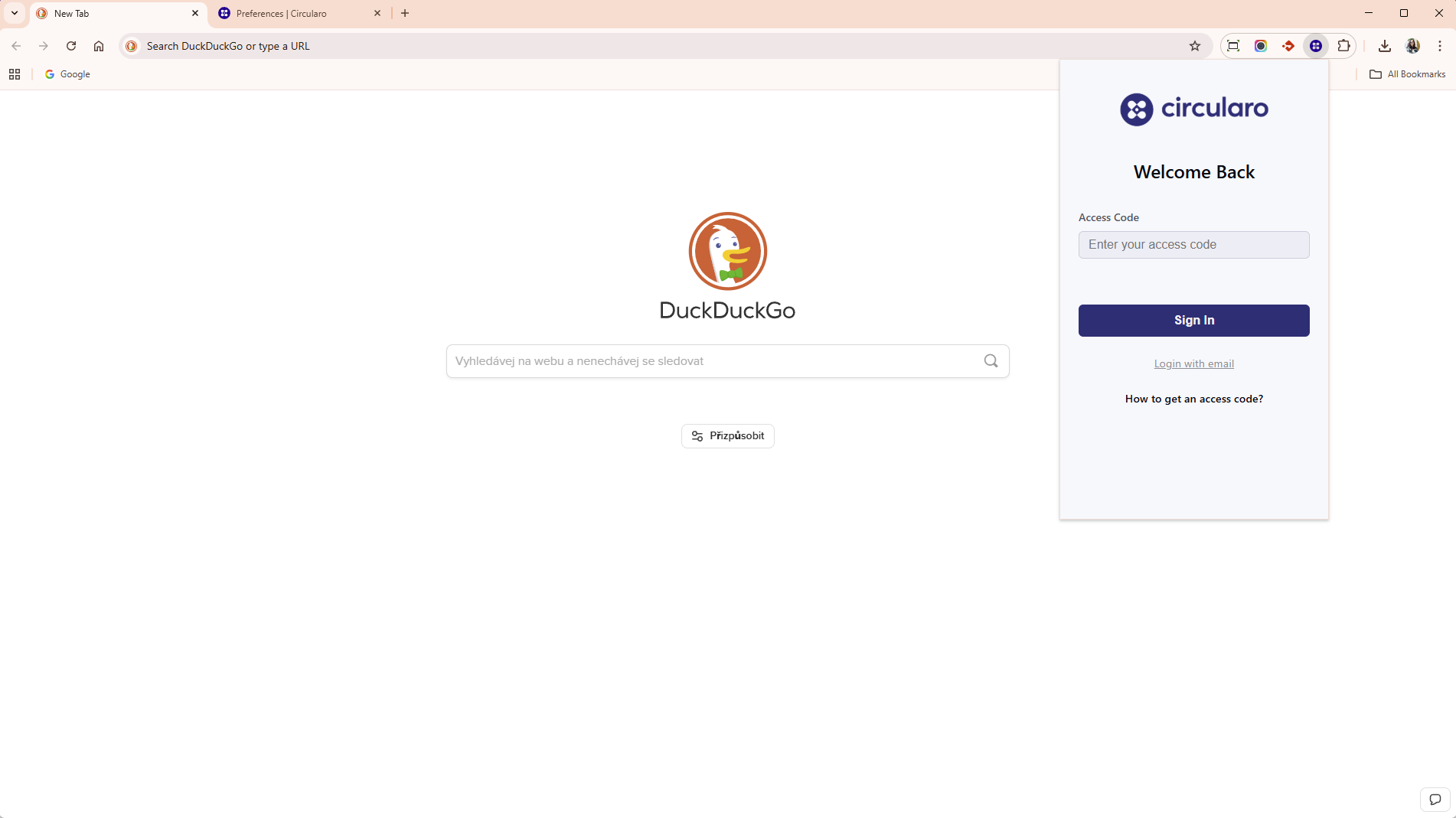
Using the access code is much easier, when you are unsure which region to choose in the menu, or if your organization is using a custom URL, as you would need to know it exactly.
When using your email and password, an access code will also be generated in your account, which you can later on use for login if needed.
Using the extension
When you open the extension, you can immediately upload a document into it, by either dragging and dropping it in, or clicking the Upload document button.
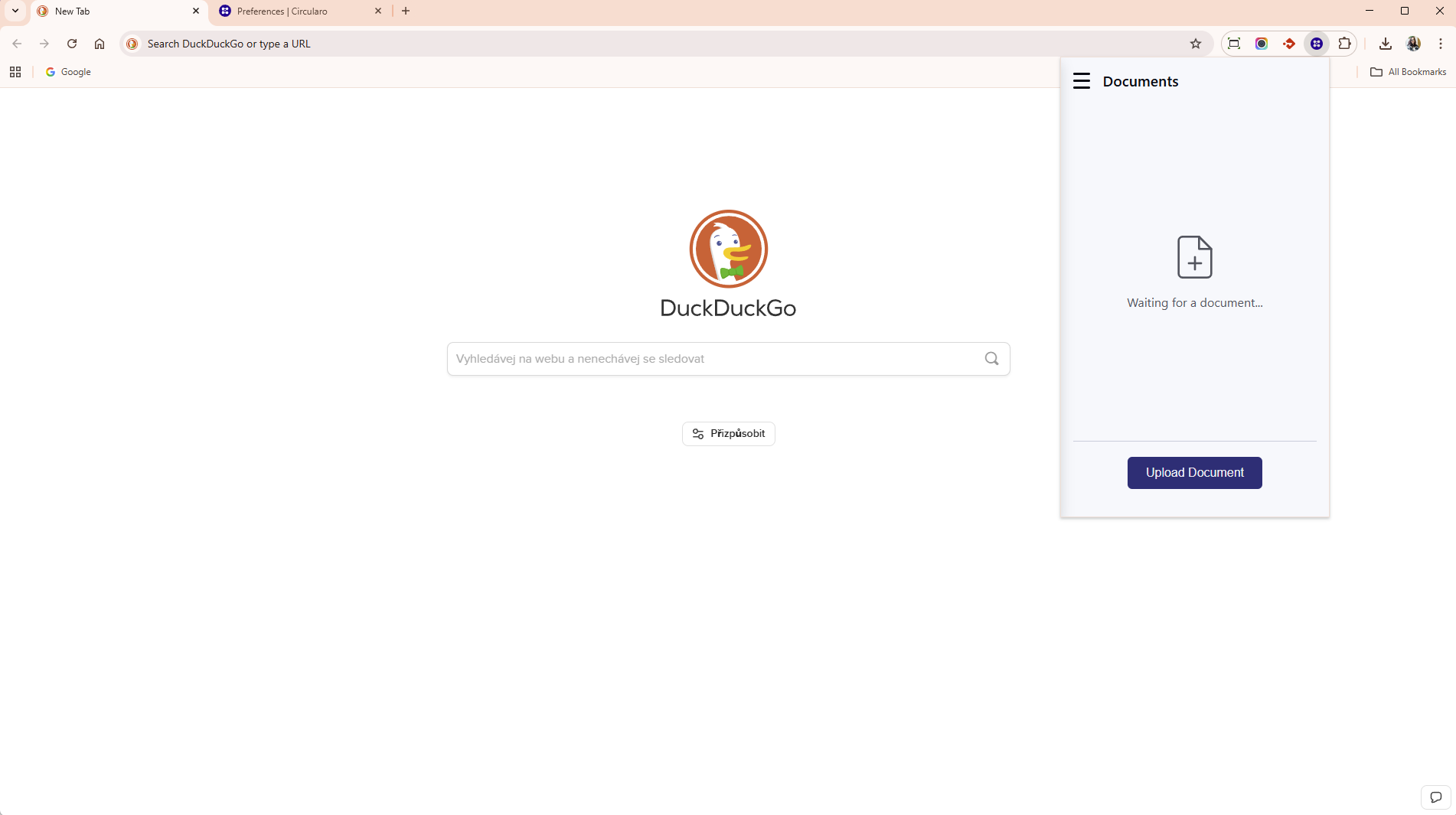
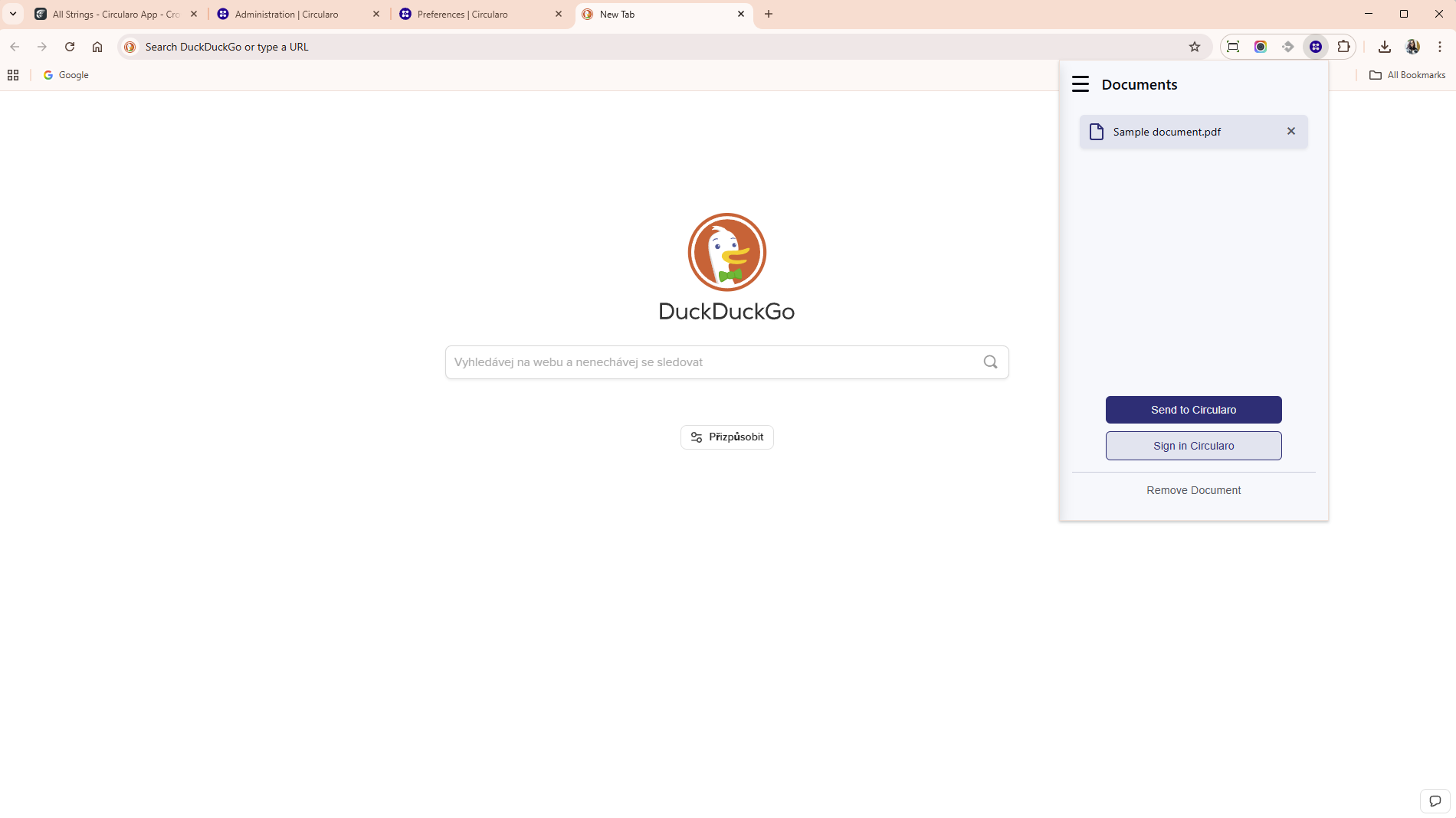
Once the document is uploaded, you choose what you want to do: Send to Circularo, which will simply upload the document to your Circularo account and you can continue with your work, or Sign in Circularo, which will take you to the application login page (or homepage if you’re already logged in), so you can start the signing process.
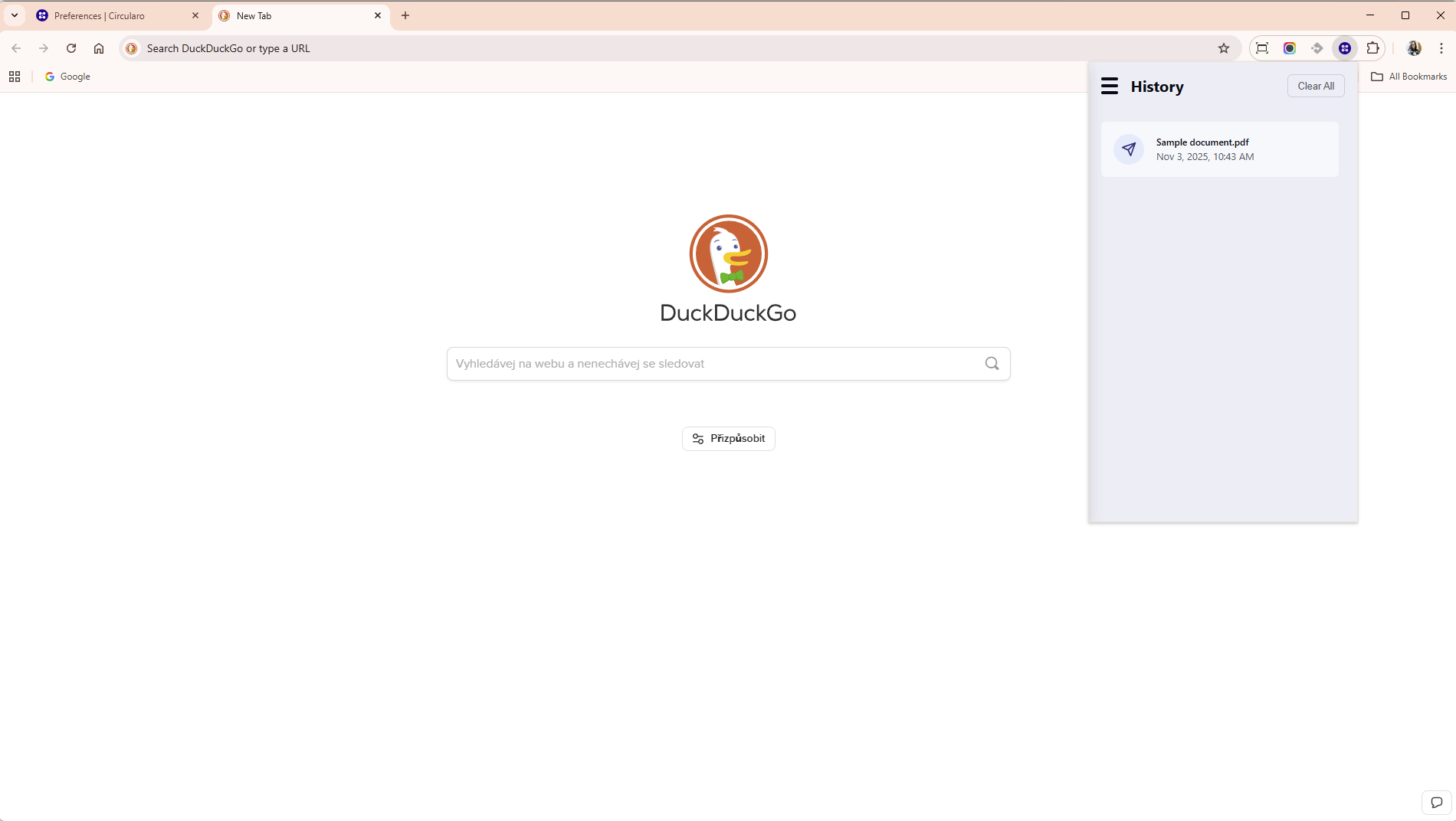
Any uploaded or signed documents through the extension can be seen in the History tab, when clicking on the three lines in the top left corner.
Processing documents opened in the browser
The extension is able to tell when you open anything, that can be processed through Circularo, including pictures.
When it detects something that can be sent to Circularo, a pop-up window will appear, offering to send the document to Circularo. This works when a PDF is opened in the browser, or even if you open any Google documents, or a document in MS Office 365.
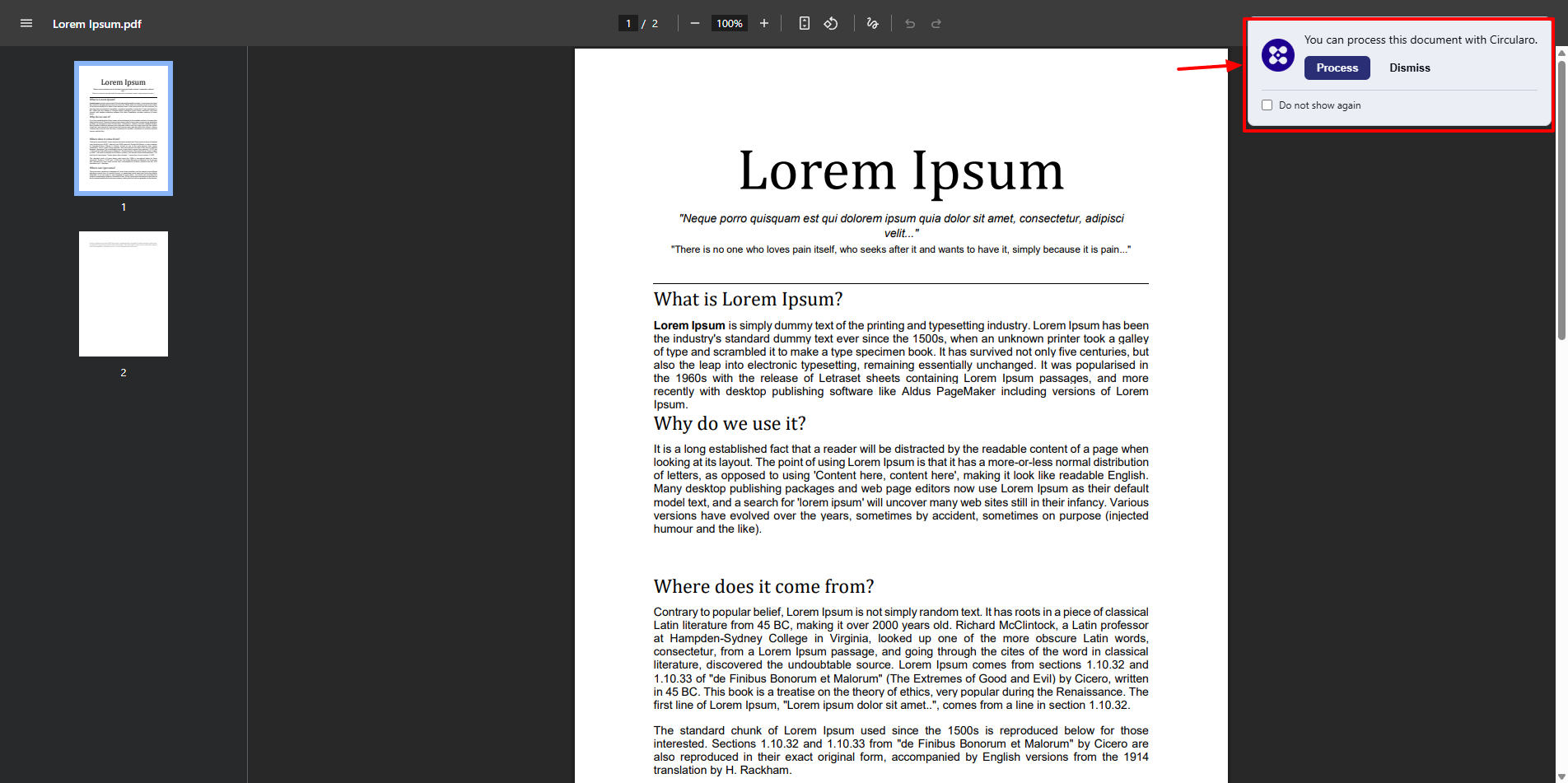
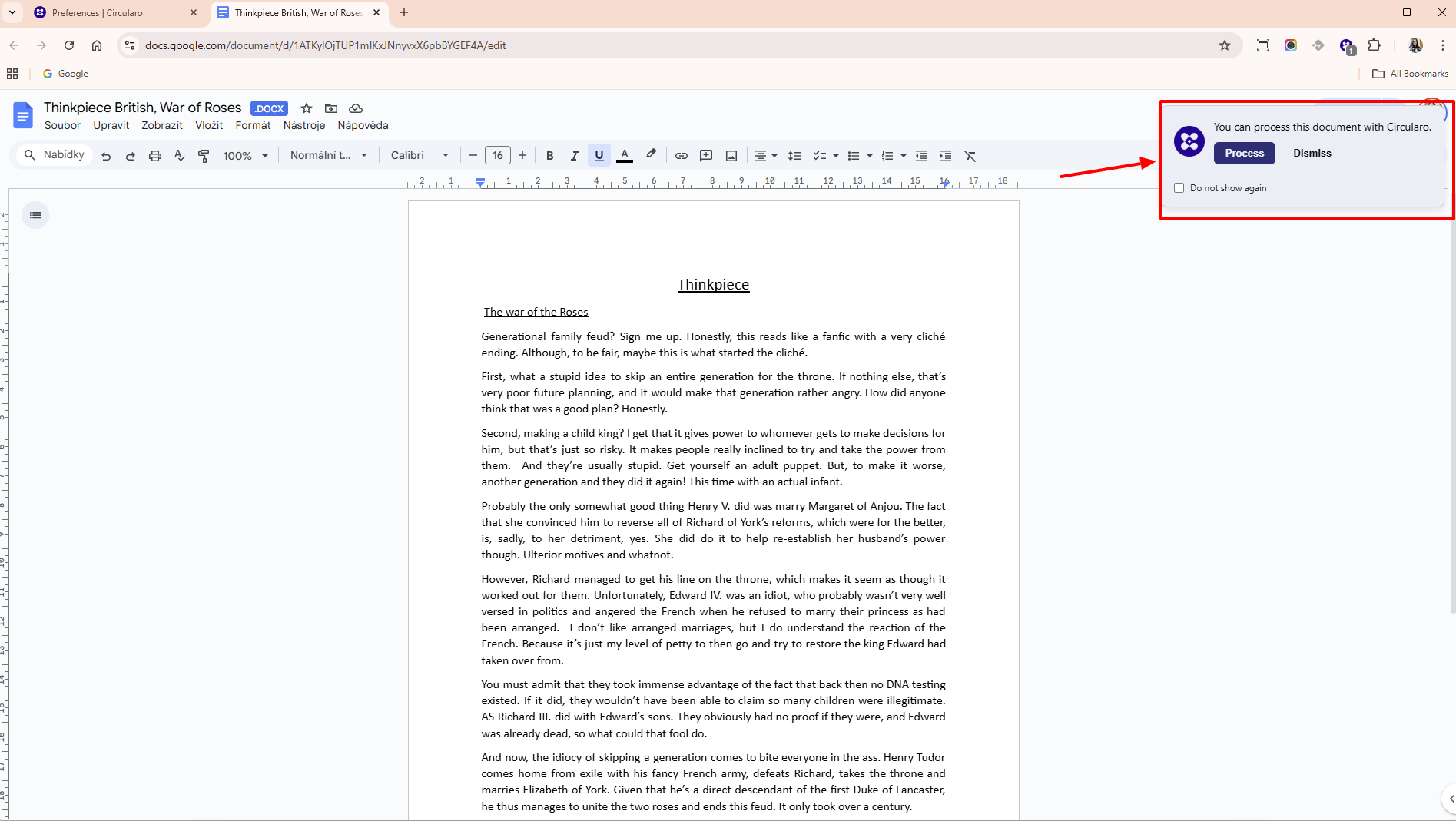
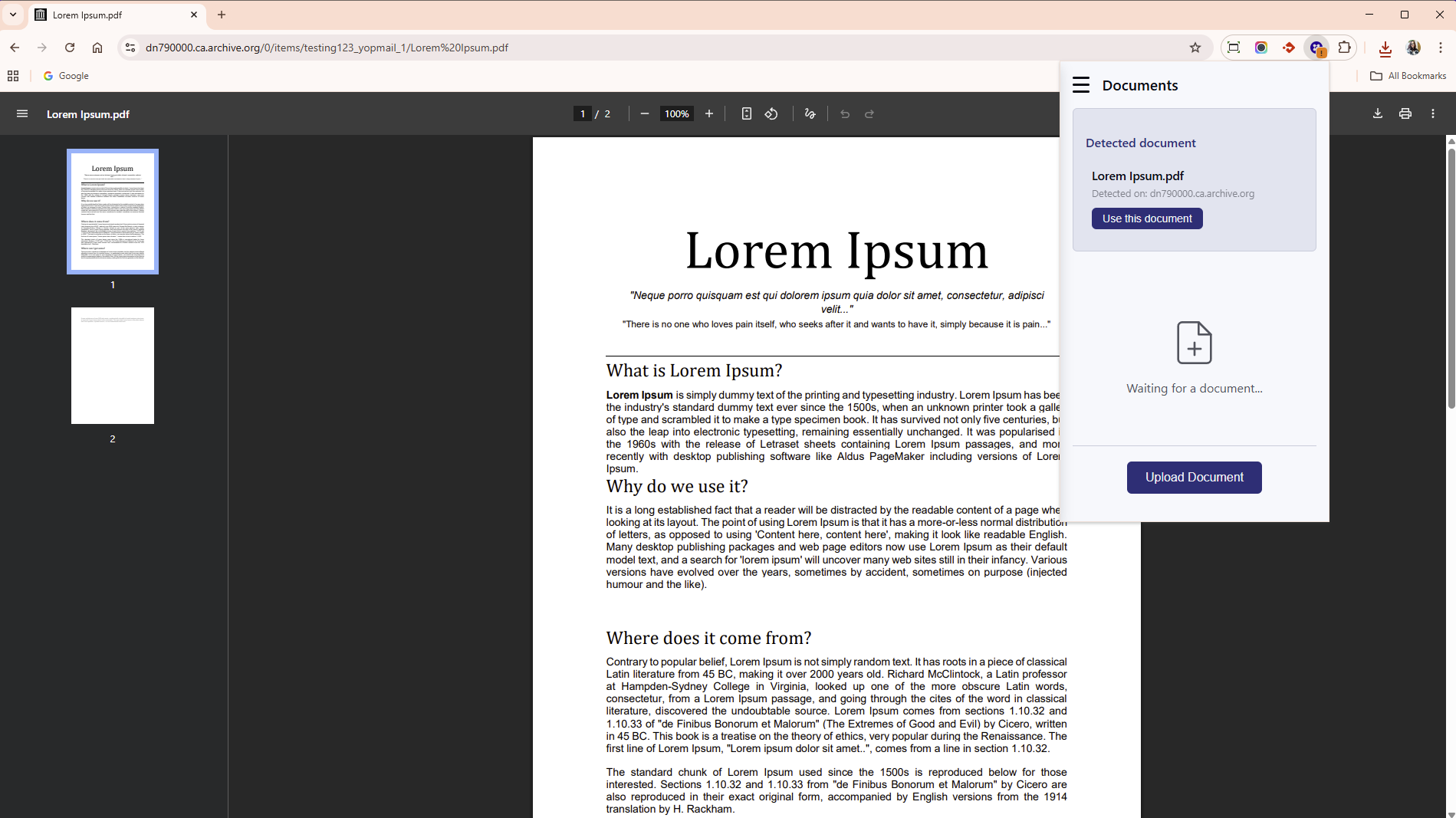
When you choose to process, or open the extension directly, if you have disabled pop-ups, you will see the detected document along with a button Use this document, or you can still upload a different document.
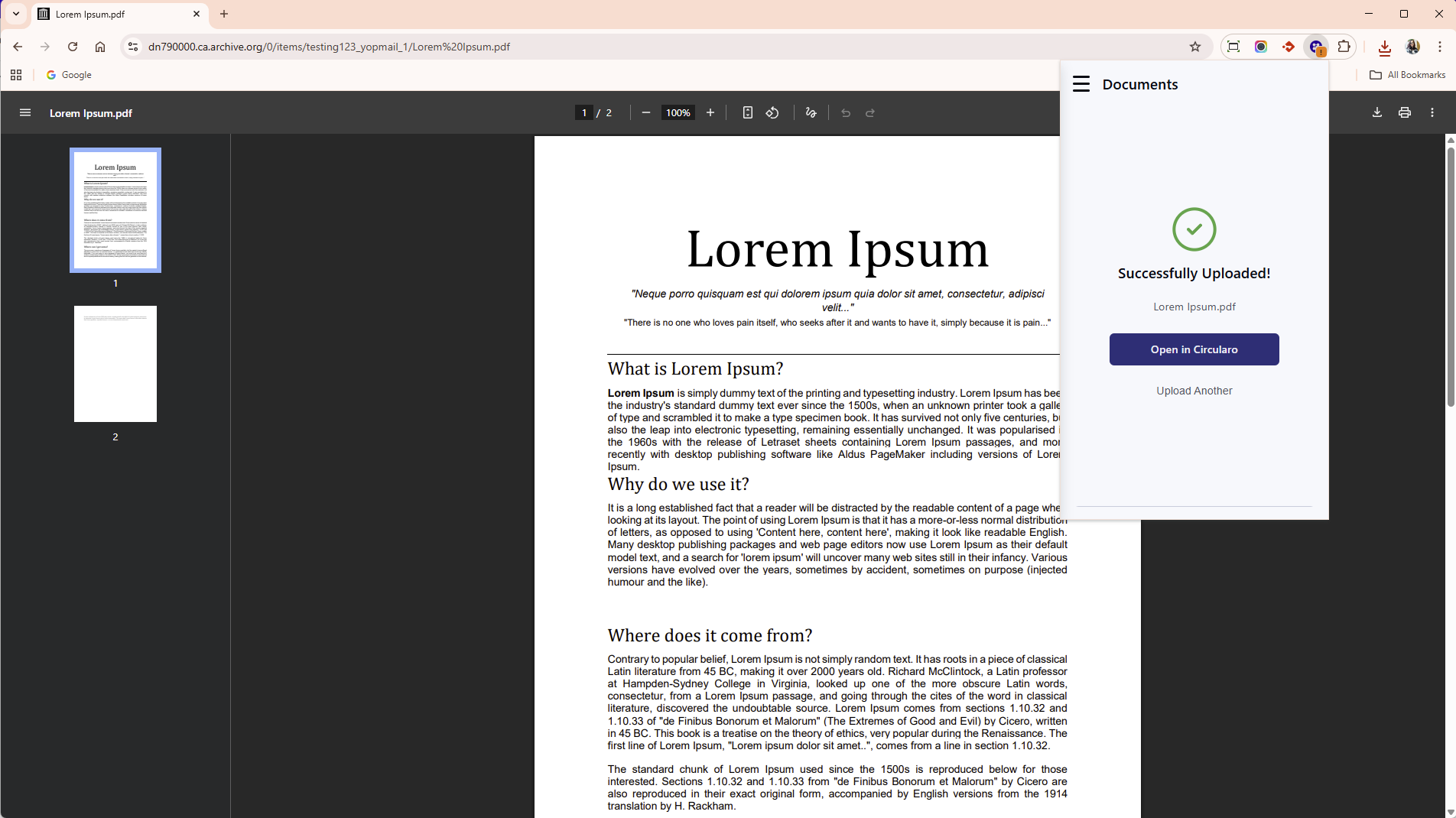
A successfully uploaded document will have the option to go into the application to view it there, or upload a different document.
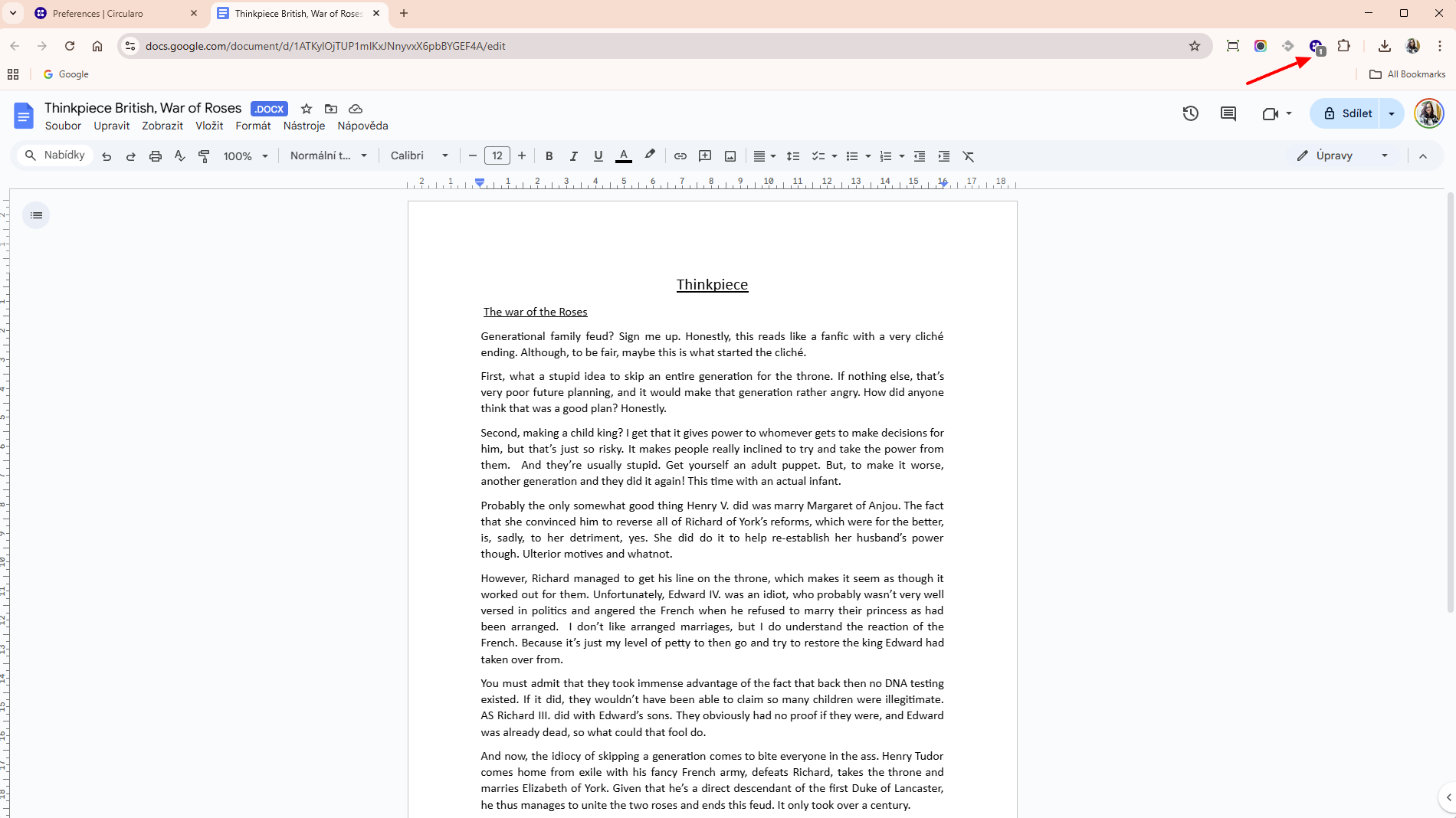
Whenever you are somewhere with a detected content and your pop-ups are disabled, the extension icon has a small one (1) that indicates the extension has detected content.
Settings
Under the settings bar you can set several things
Theme
You can choose a theme for the extension - light, dark, or same as system.
Language
Choose one of the supported languages for the extension - English, Czech, or Arabic.
Server settings
Here you will see your region or the custom URL of your organization.
Pop-up setting
Decide whether you want a pop-up to show whenever the extension detects content that can be processed in Circularo.
After upload behavior
Decide what happens after you upload a document - A link to the document is shown in the extension or you will be taken to a new tab with the document inside the application itself.
Go to Circularo
You can also access your Circularo account directly from the extension.
Help Center
This button takes you to this Help Center to find anything about the application you need.