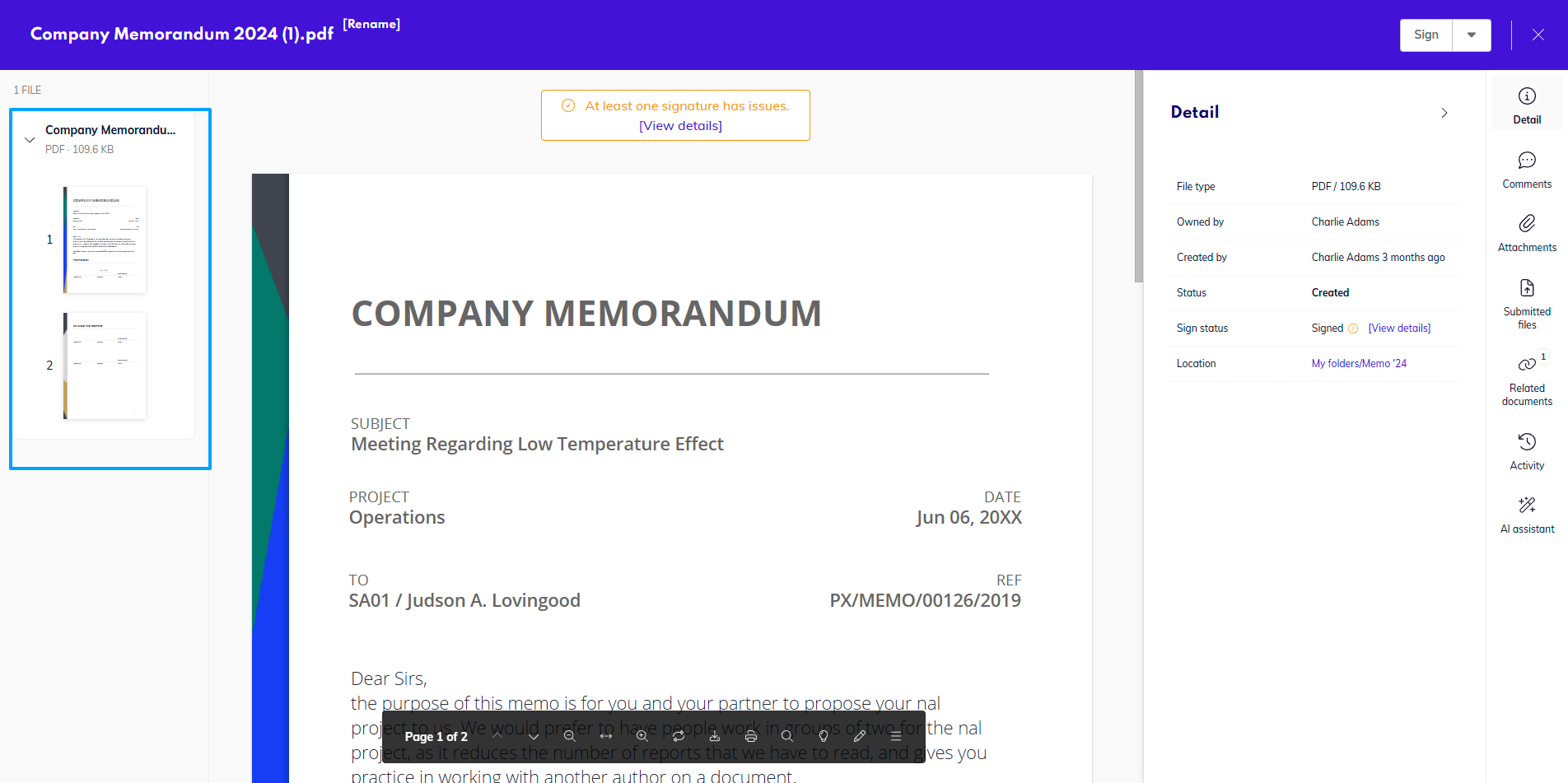
By clicking on a document anywhere in the app, you will be shown its Preview. Here you can preview the content of most of the common document types such as PDF and MS Office documents, images, and others.
Circularo supports the preview of the following document types:
-
PDF - application/pdf
-
IMAGE - all standard image formats (jpg, png, gif…)
-
TEXT - text/plain
-
HTML - text/html
-
CSV - text/csv
-
VIDEO - all standard video formats (mpeg, mp4, flv, ogg…)
-
AUDIO - all standard video formats (mp3, ogg, wav…)
-
MS-OFFICE & Open Office (all well-known formats like xls, xlsx, doc, docx, ppt, pptx etc.).
On the right-hand side, you will see your Document Properties - Detail, where you can find basic information about the file, Comments, Attachments, Submitted Files, Related Documents and the Activity tab. You might also see the AI Assistant tab here, if it is enabled.
Detail
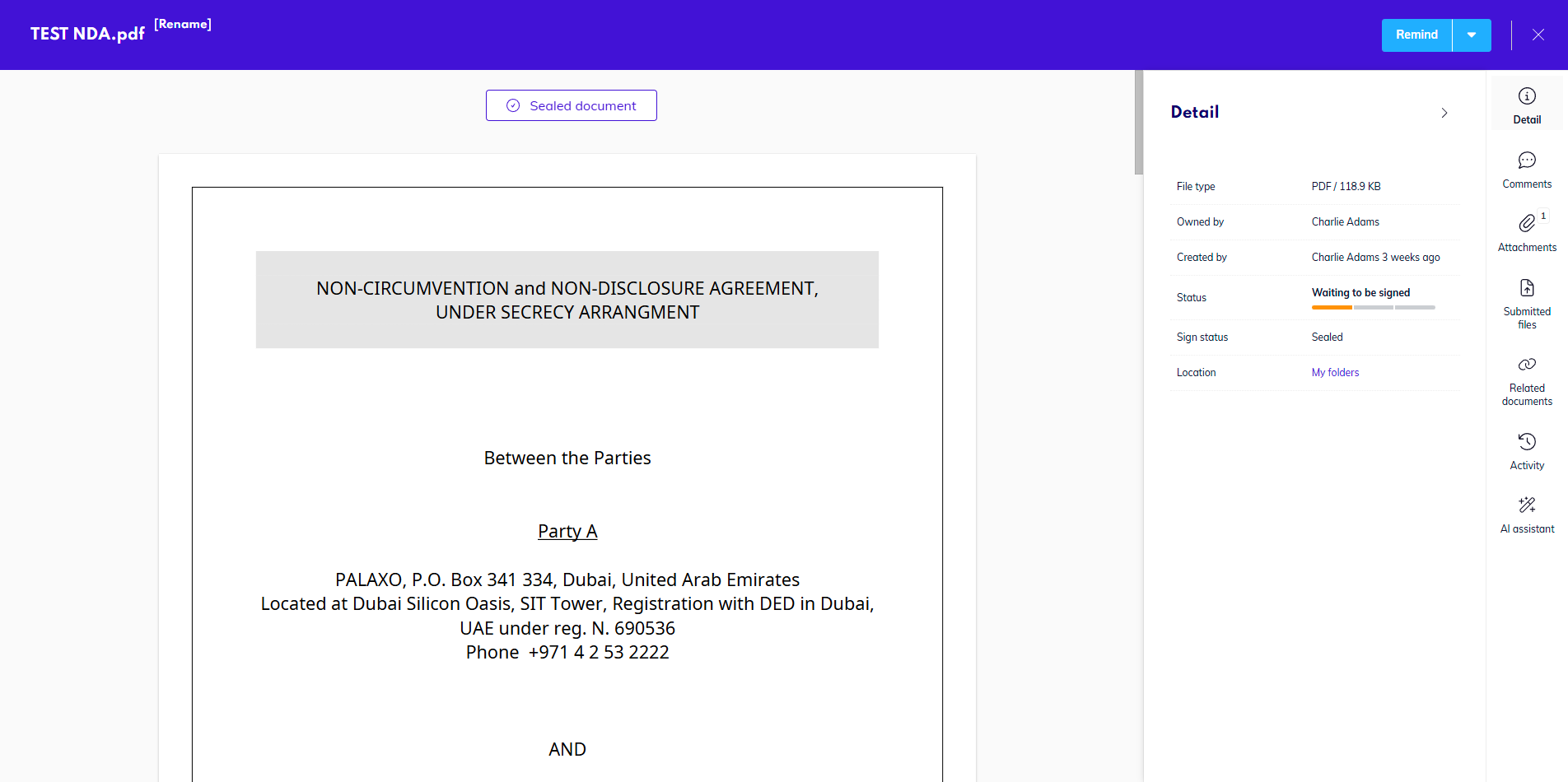
The Detail tab contains basic information about the document (created by, owned by, date created, type, workflow status, tags, etc.)
Metadata
Availability: Enterprise
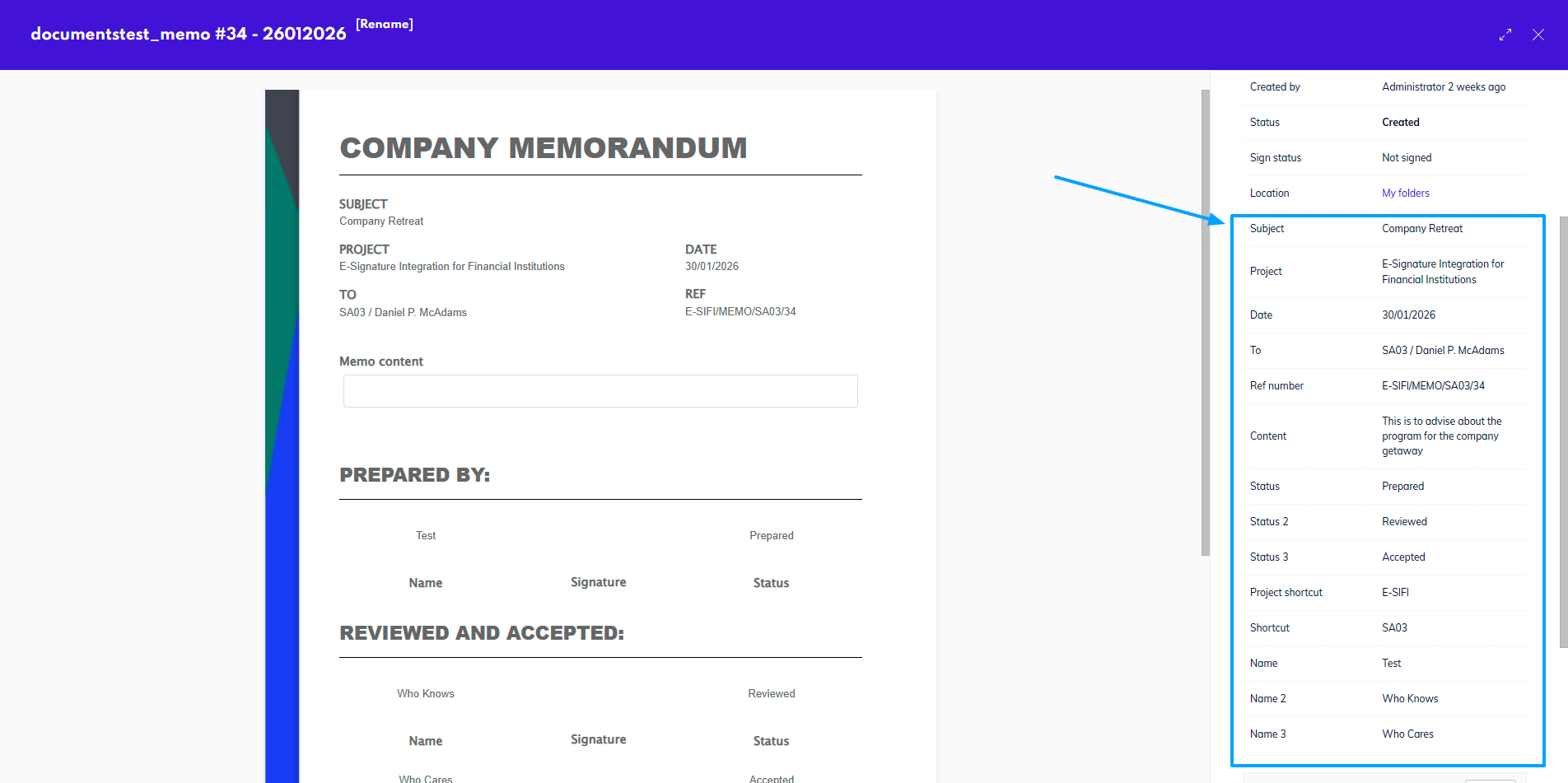
Metadata is the information about the contents and details of a document that is stored alongside each document in Circularo. Document metadata differs between document types and it can be accessed through the Detail tab - below all the default details shown for each document will be the specific fields for that document.
Comments
You can add comments to each document in the Comments tab of the detail view. These comments can be mandatory in some cases.
Comments can be either Public or Internal.
Public comments are visible to internal and external recipients (people outside of the organization) if the document is shared with them.
Internal comments are always only visible to members of your organization in Circularo.
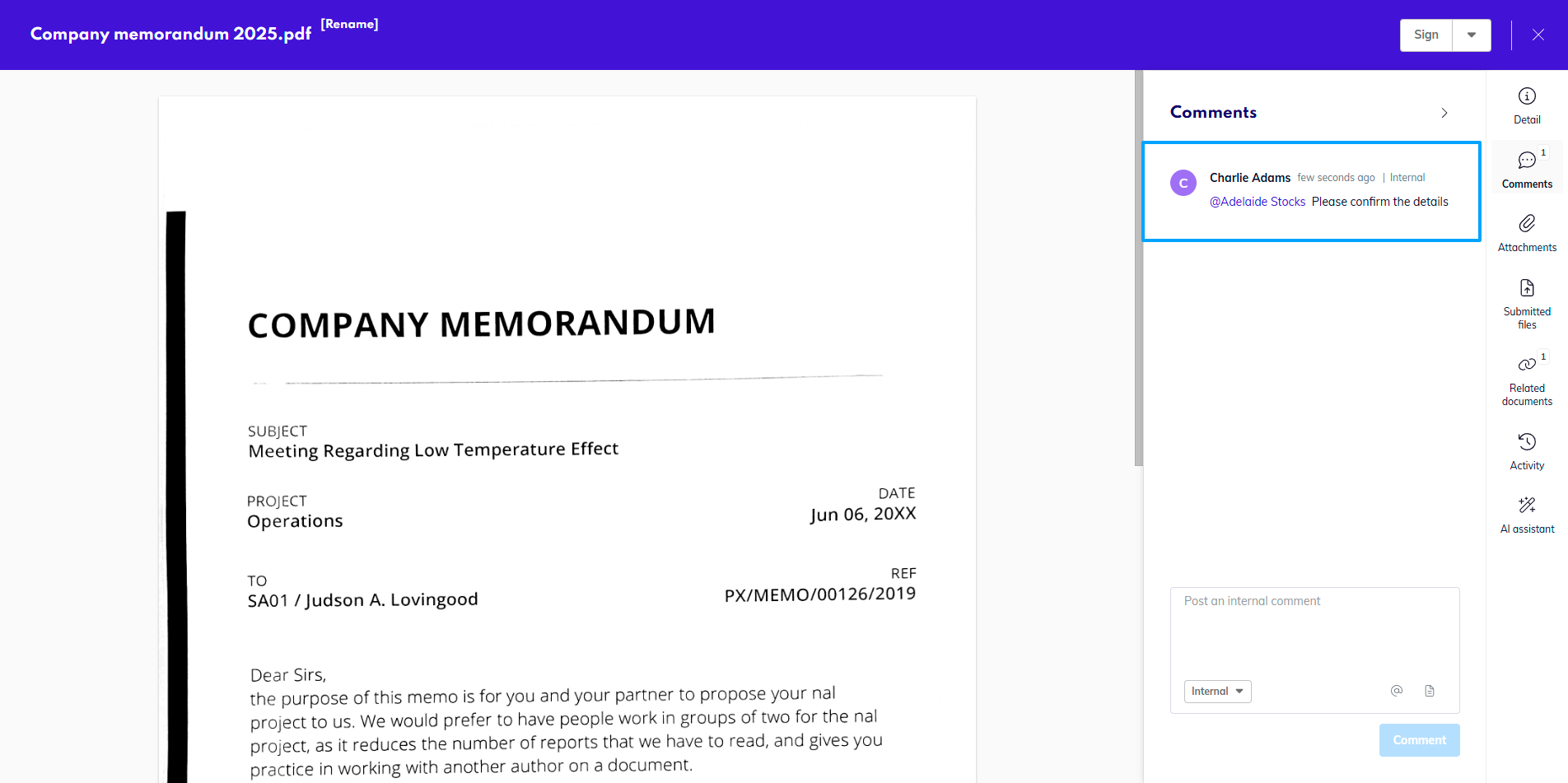
In a comment, you can mention someone to send them a notification (@name), or reference a different document in the system using a hashtag (#documentname).
Comments you don’t publish immediately will stay drafted in the comment box until you end your session, making sure you won’t lose your progress.
When processing documents, senders have the option to include a Public message for all recipients. This message will be available in the system as a Public comment.
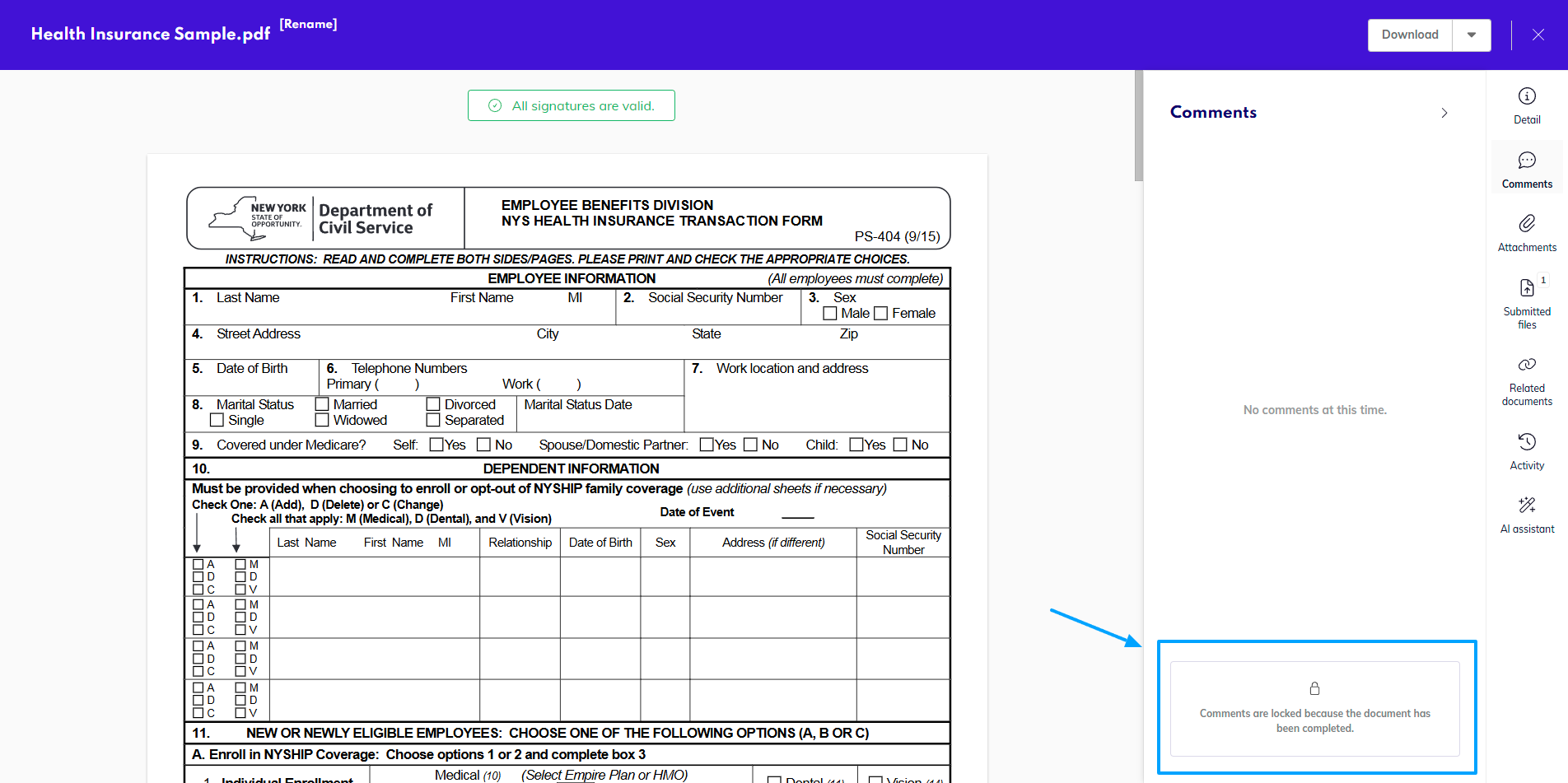
You may come across a document with locked comments - this is either because the document has been trashed, or because a transaction that the document was part of has finished - either successfully or unsuccessfully. Admins of an organization can disable the option of adding comments to these documents.
Attachments
Availability: Business and Enterprise
Here you can view, add, and download additional files attached to the document.
At this moment the maximum number of attachments on one document is 20. Their total size cannot go over 200 MB (with increased maximum file size to 80 MB, the total size of attachments can go up to 400 MB - to increase this size, contact our sales team).
Attachments added by the recipients during the signing process can only be managed by those who have Edit rights to the main document.
Attachments can be Shared with all recipients - visible to all recipients, or Internal only - visible only to other members in your organization if they have the document shared. Each attachment’s visibility can be adjusted individually.
Each attachment will show its setting along the other details.
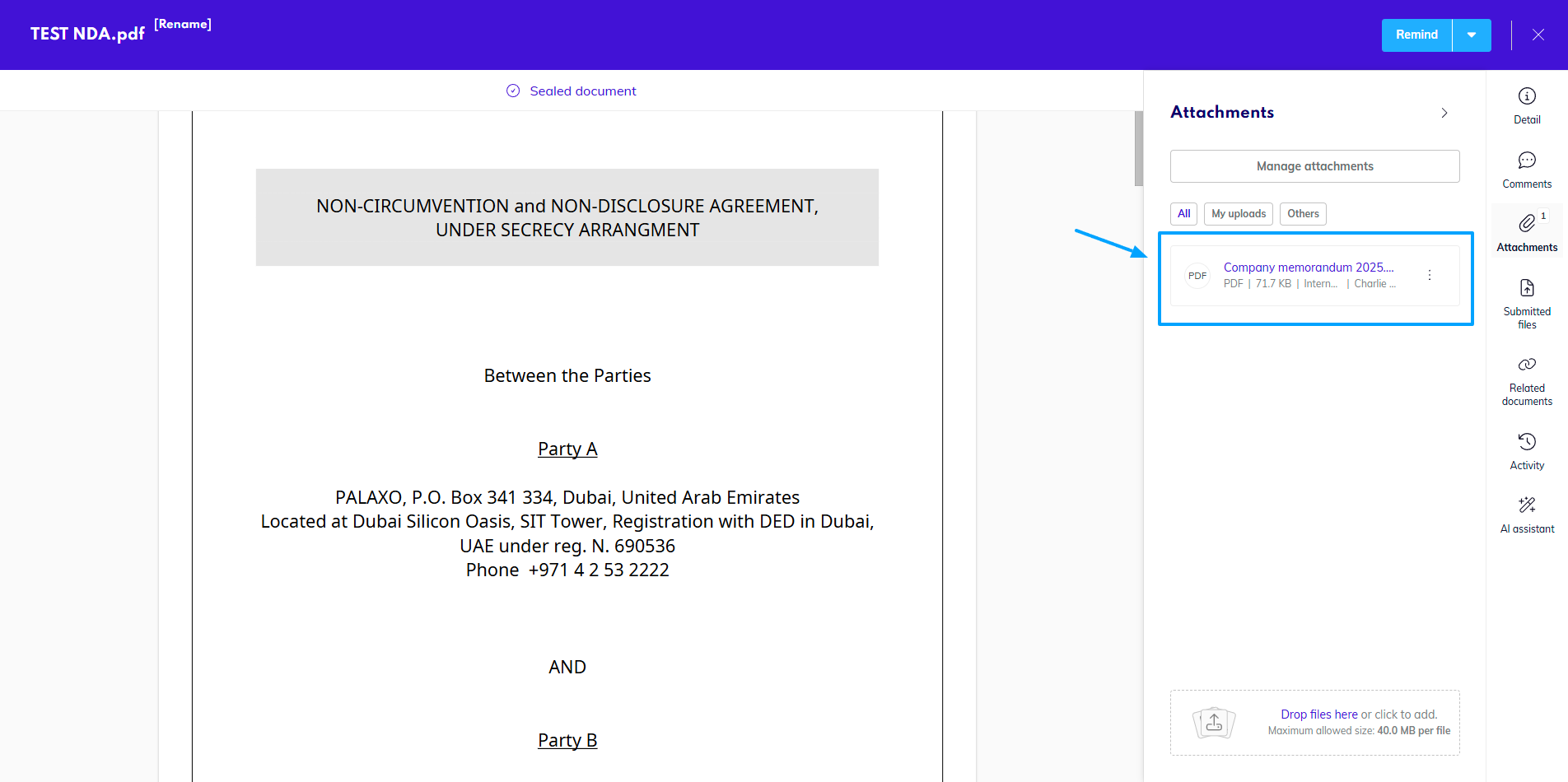
You can also manage the attachments, by clicking on More. In the pop-up window you can rename the attachments, change their visibility, delete them or upload new ones as needed.
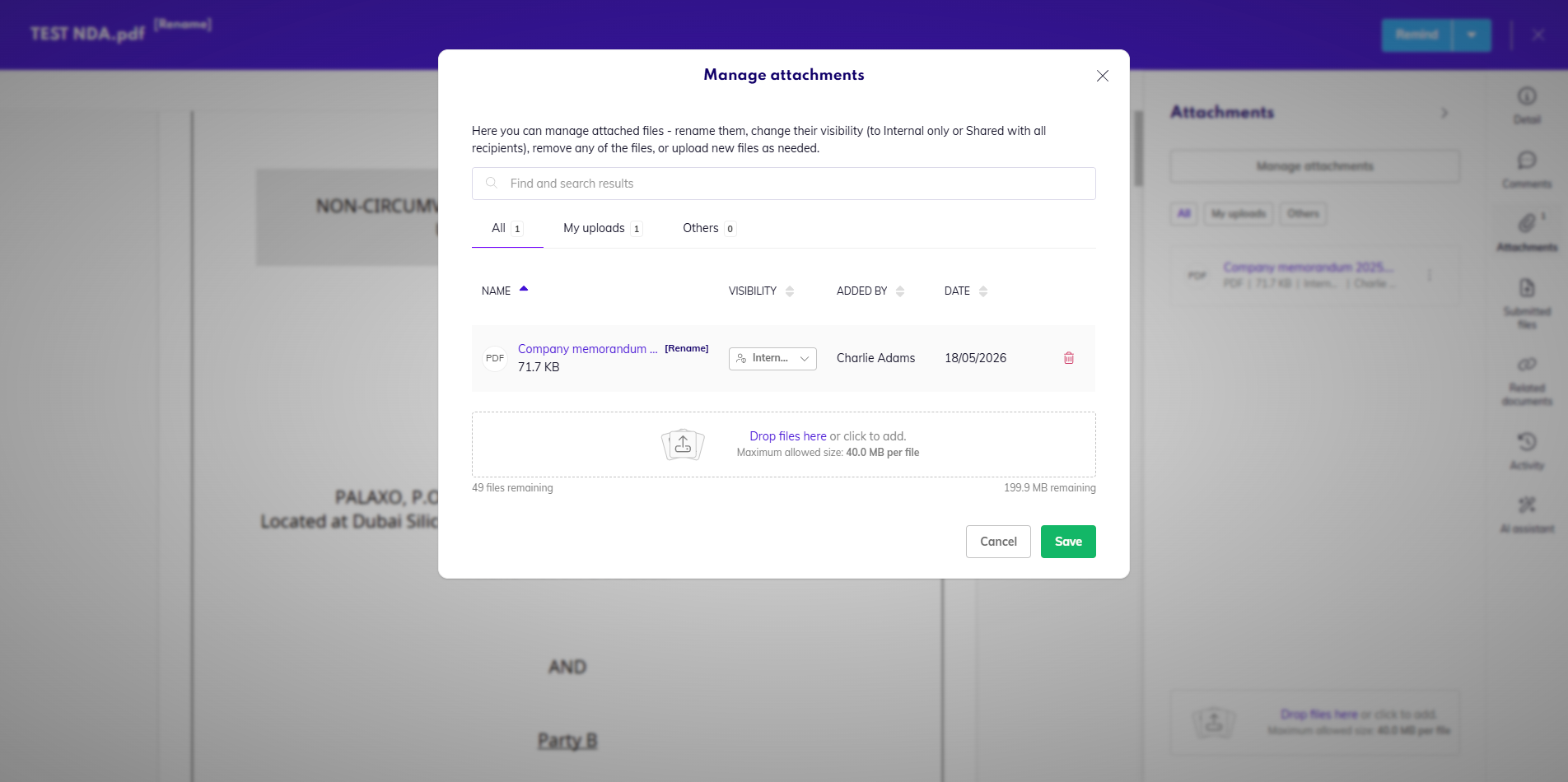
Under the three dot by each attachment you will also find the option to download them.
At this moment, only internal users have the option to download attachments. External recipients can only view them and their contents.
Submitted files
Availability: Business and Enterprise
Unlike attachments, submitted files cannot be managed or edited once added to a document, as they become part of the document transaction. For this reason you also cannot have a submitted file on a document in the Created status.
You can see the preview of the file by clicking on its name.
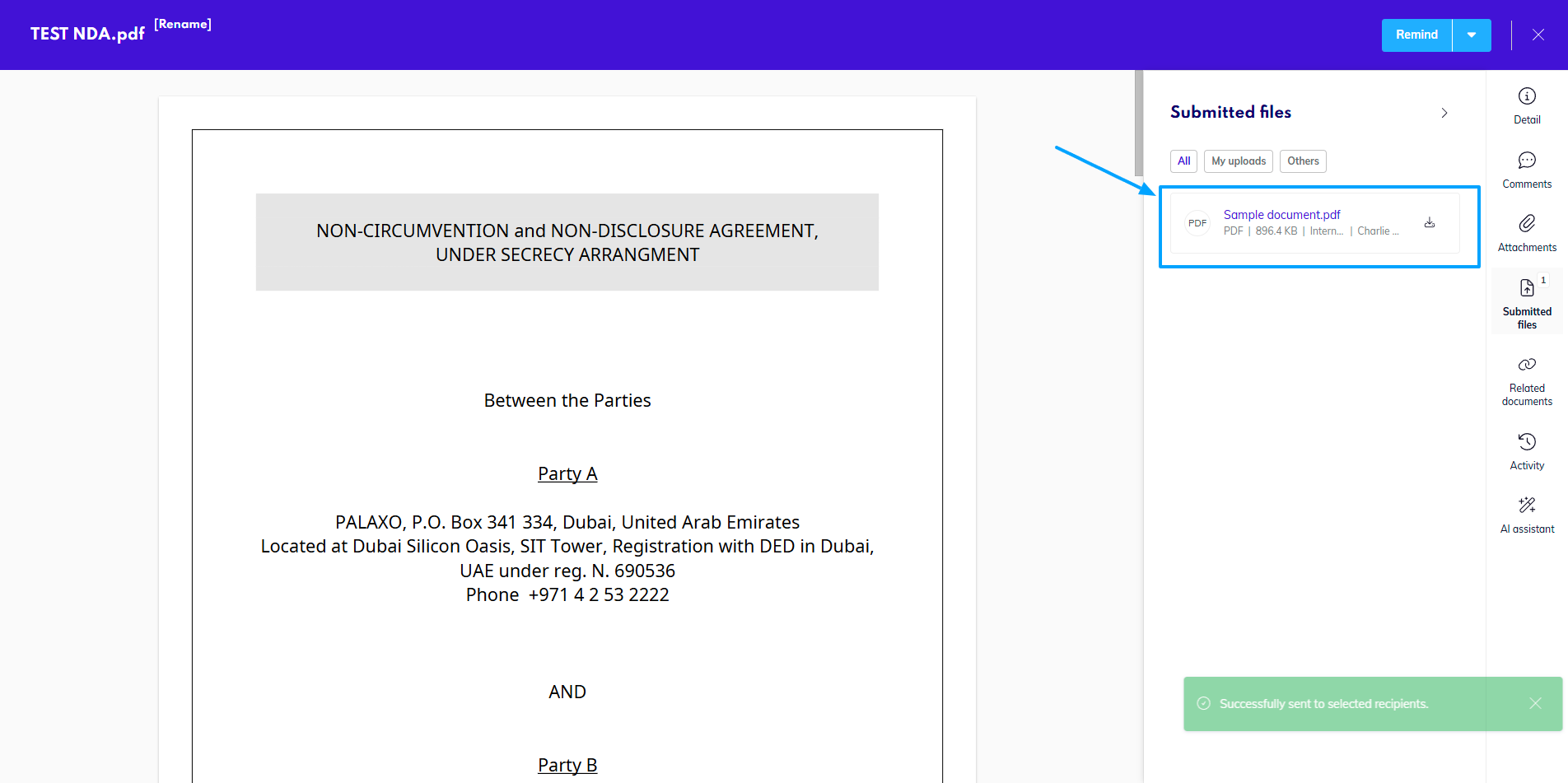
Submitted files can be created via the Collect file field, by the initiator of the document, or through a dropzone in the section, if enabled.
The files can also be sorted based on who uploaded them to a document - you can see All, My uploads, for documents you uploaded yourself, By sender, if you are a recipient and the sender added a file, and Others, which is all other files, uploaded by other recipients.
Submitted files can have different visibility, same as attachments - Shared with all recipients - visible to all recipients, or Internal only - visible only to other members in your organization if they have the document shared. For files collected through a field, the visibility is set by the preparator in advance.
For files you add through the dropzone before finishing the signing session, you can manage the visibility yourself - once sent, however, it cannot be changed.
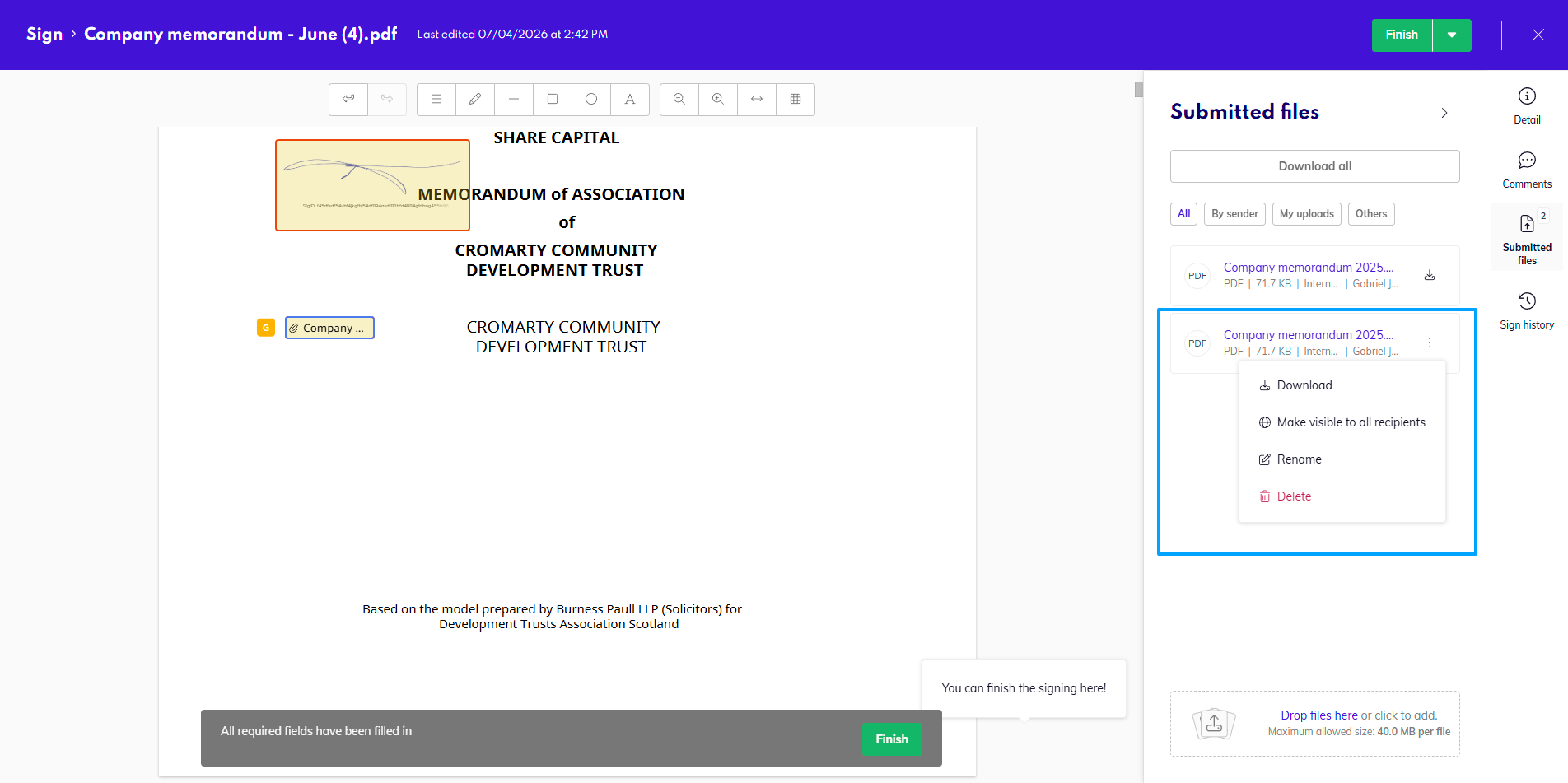
You have the option to download each submitted file you can see, or download them all at once as a ZIP file.
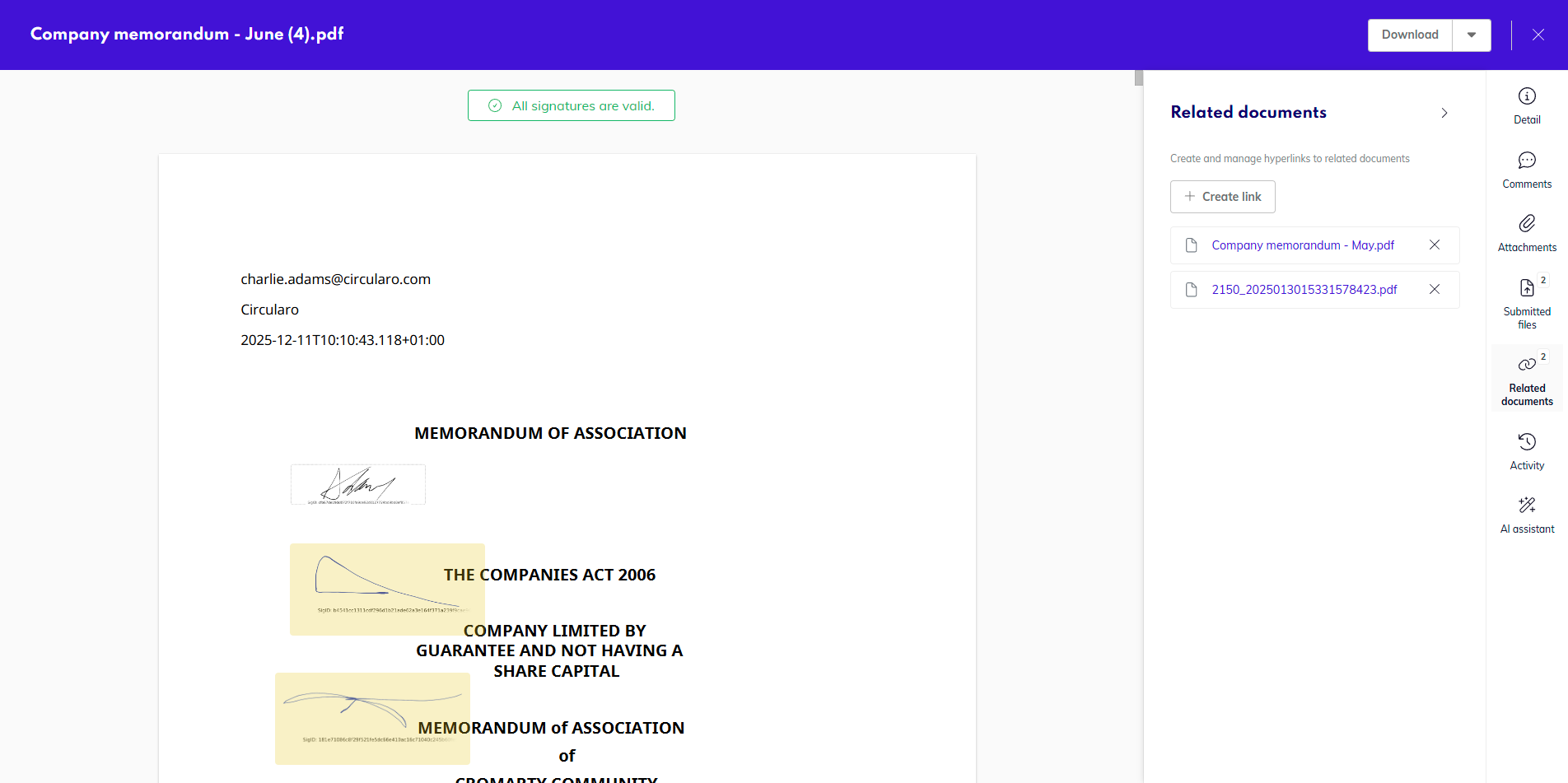
Related documents
Availability: Business and Enterprise
Here you can view all documents related (linked) to the document you are previewing, as well as create or remove links. This link can only be created between documents that already exist in the system.
Activity
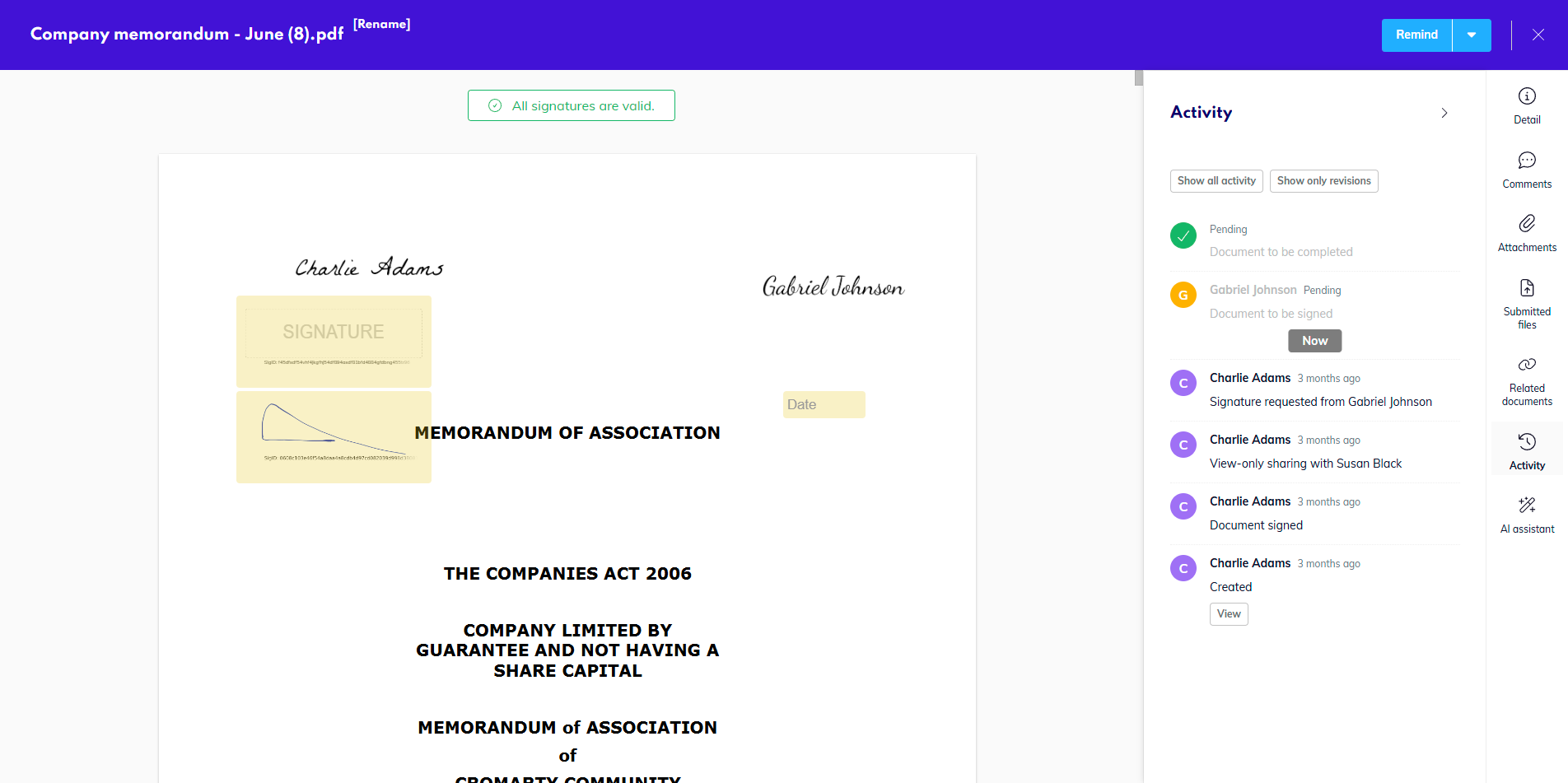
The Activity tab contains the document's audit log. It displays all actions done and pending on the document in chronological order from the most recent to the oldest, as well as who performed which action and when.
You can also use this tab to upload a revision of the document before it’s sent for signatures. You simply Drag&Drop a file into the tab. This is how you can use the versioning capabilities.
Afterwards, you will be able to view previous revisions of the document and have the option to revert the document to an older version.
Once a signing process has started, documents can no longer be reverted.
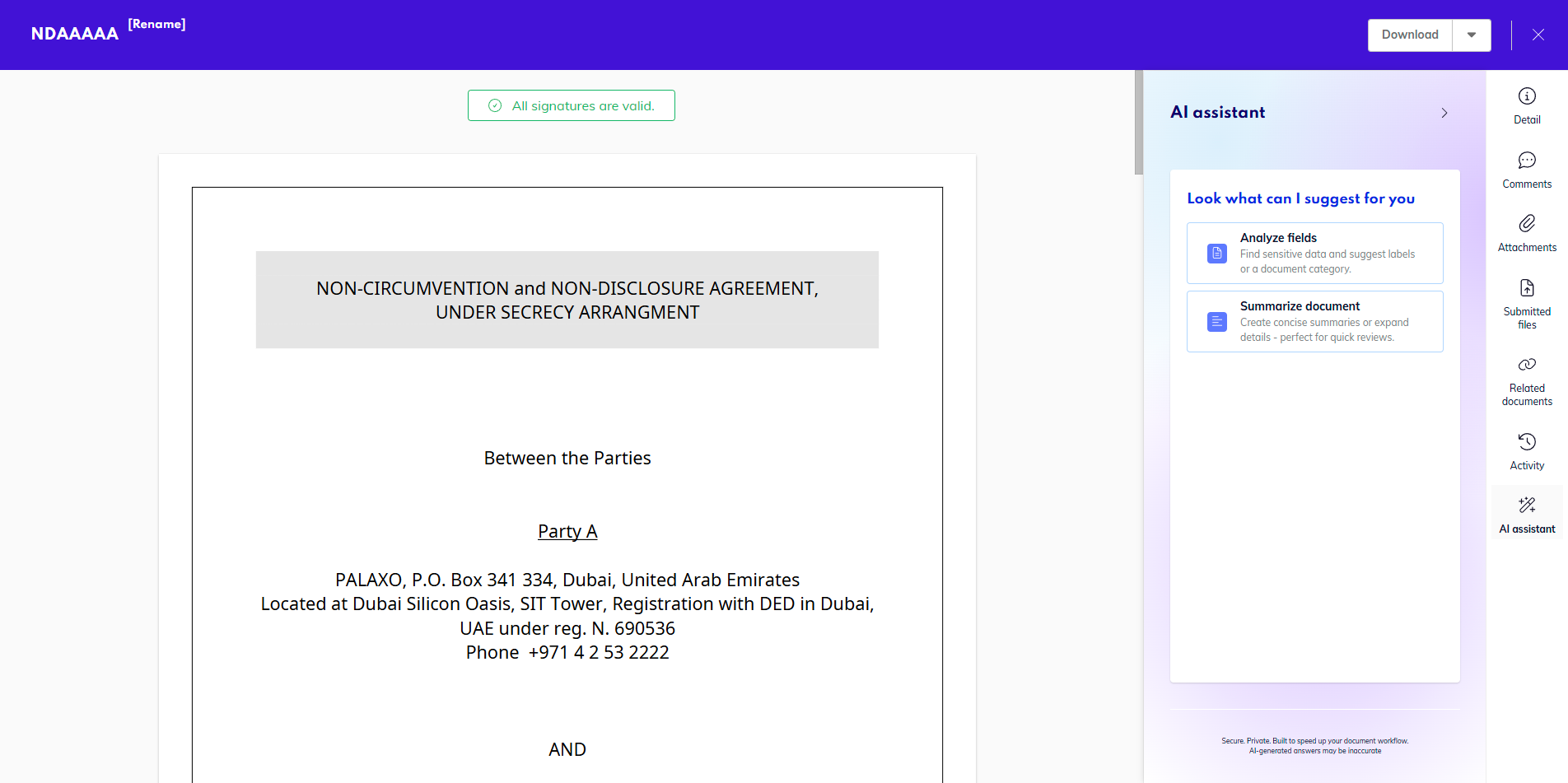
AI Assistant
Availability: Business and Enterprise, as an add-on
Our in-app AI Assistant offers several capabilities - document summary, label suggestions, PII detection and key points.
For a guide to all of what the assistant can do for you, you can head to this page - How to: AI Assistant.
Editing a MS Office document
When the option of using MS Office 365 for editing documents is enabled in the administration, you will also see an Edit button on documents that have been uploaded in the Word, Excel, or Powerpoint format and not converted into PDF.
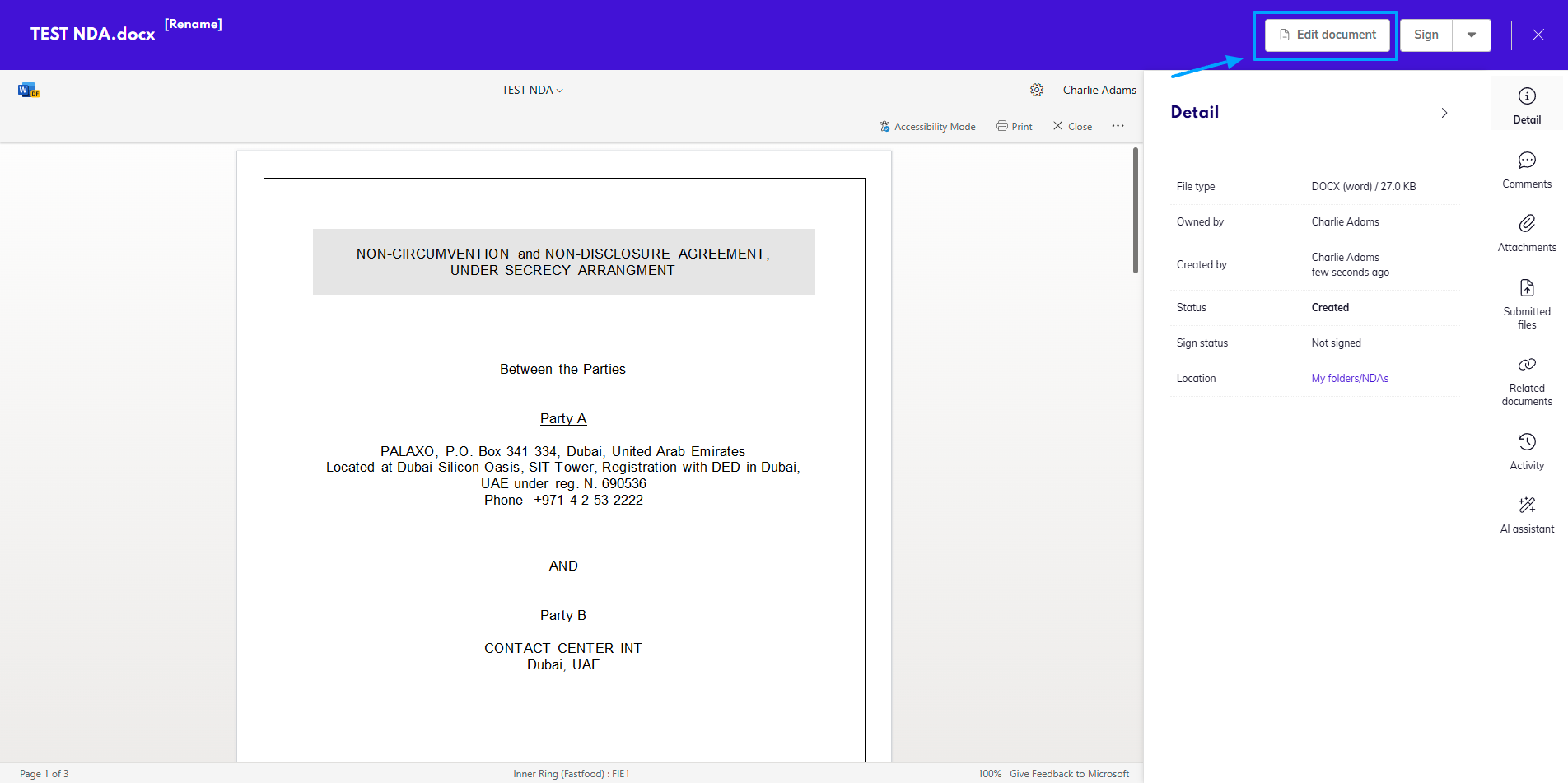
By clicking on the button, you will be taken to a new window where you can edit the document.
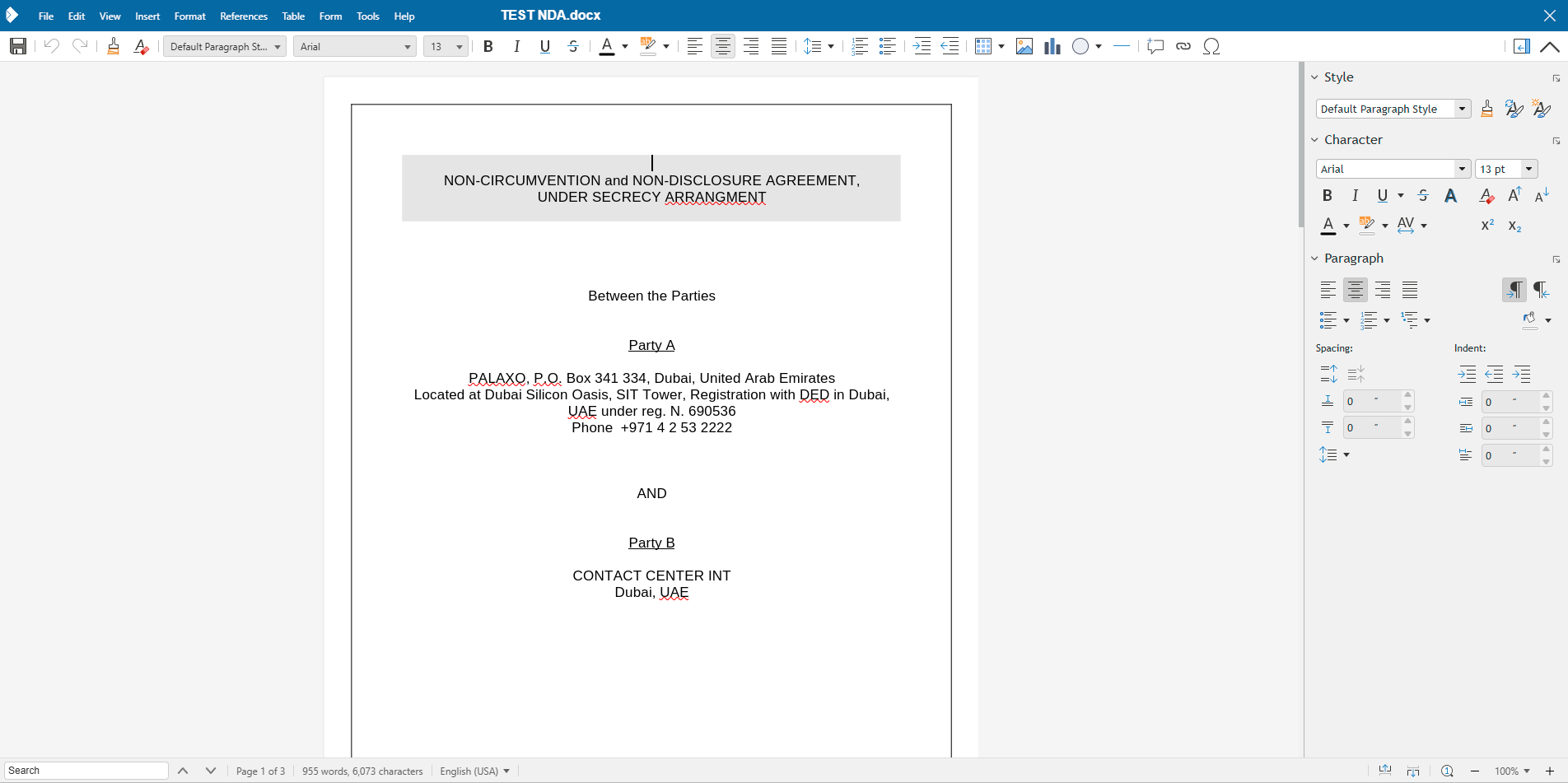
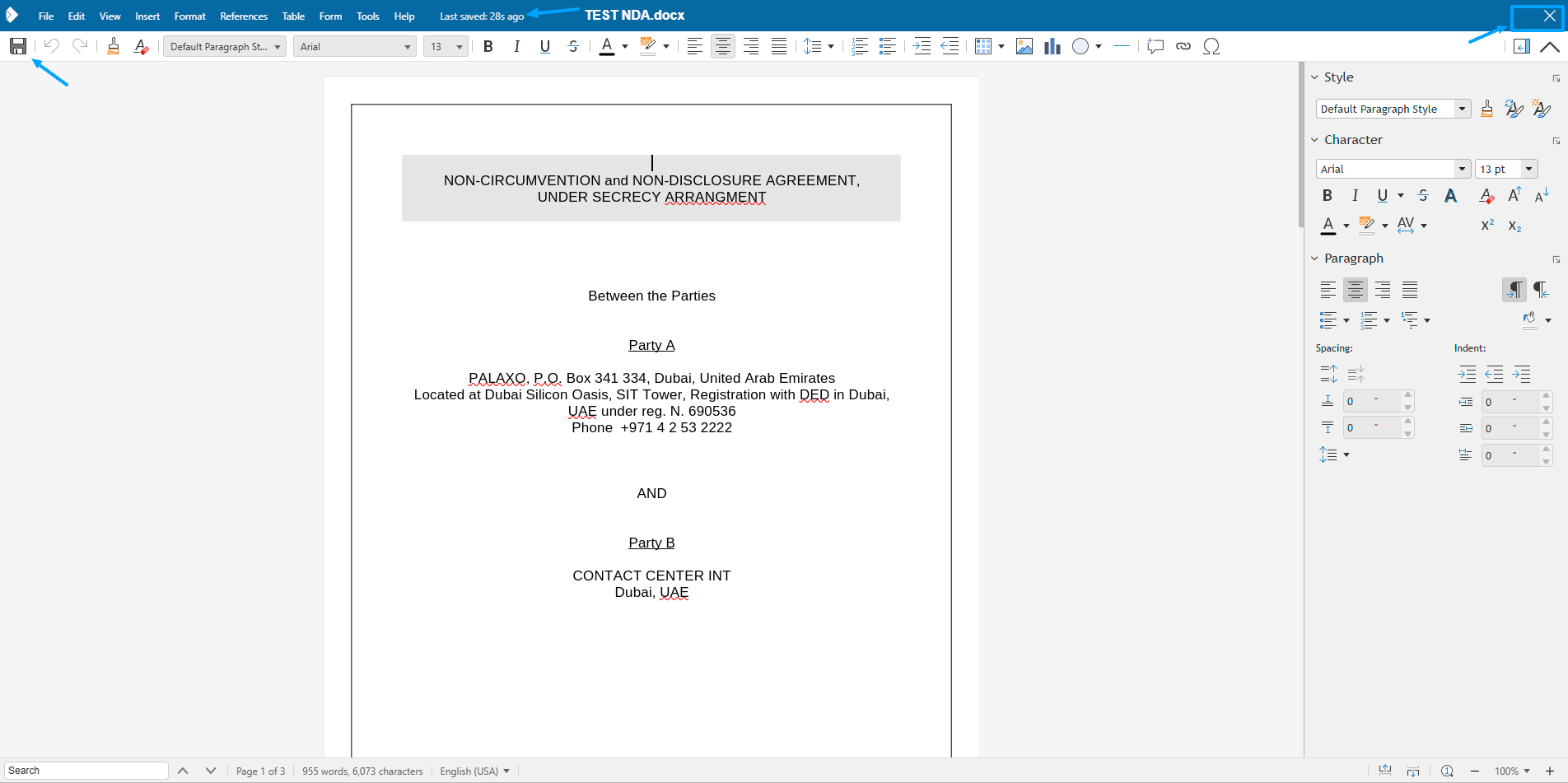
When you are done with any edits to the document, make sure changes are saved (either automatically, or by manually using the save button in the top left corner), and use the exit button in the top right corner - make sure you are not clicking the red close button for the entire browser.
Upon exiting the edit view, you will be taken to the location where the document is saved. You can open the preview again to check that all changes were saved.
Preview Toolbar
When hovering your mouse cursor over the document in preview, a black strip with different icons will appear. That’s the Preview Toolbar, which contains various tools to make screening the content of the document easier for you and also several action buttons.
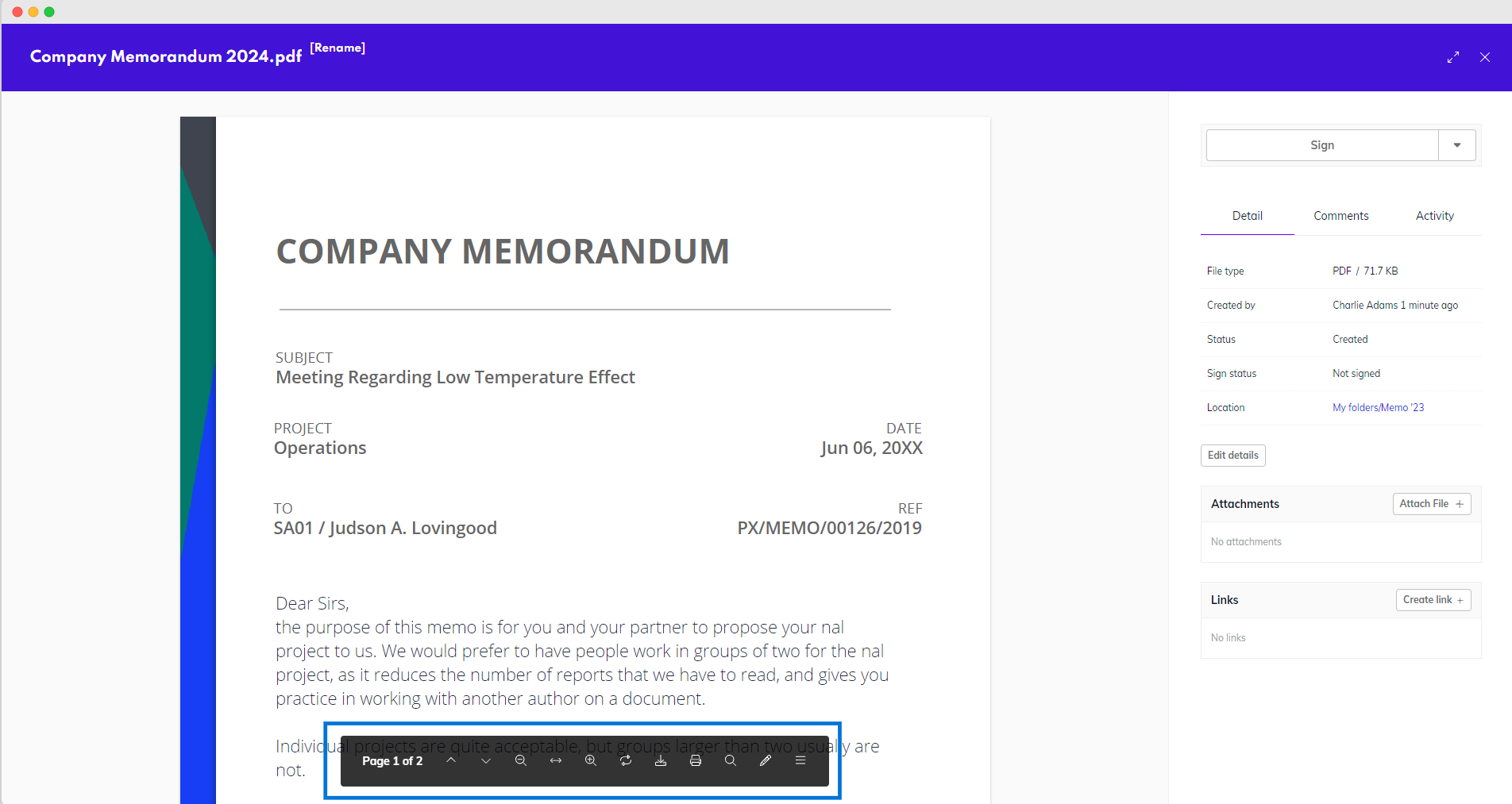
The description of each icon becomes visible when you hover your mouse over the icon. The icon/action selection can differ by Circularo subscription plan.
Here are some of the actions that might be available.
Previous page
Moves your view one page up (if the document has more than one page).
Next page
Moves your view one page down (if the document has more than one page).
Zoom out
Preview seems to be smaller.
Zoom to fit width
Widens the preview to its maximum width.
Default zoom
Appears instead of Zoom to fit width after you have zoomed in or out. Clicking on Default zoom restores the page to its original view.
Zoom in
Preview seems to be bigger.
Rotate
Rotates the view by 90°.
Download
Document will be automatically downloaded to your PC.
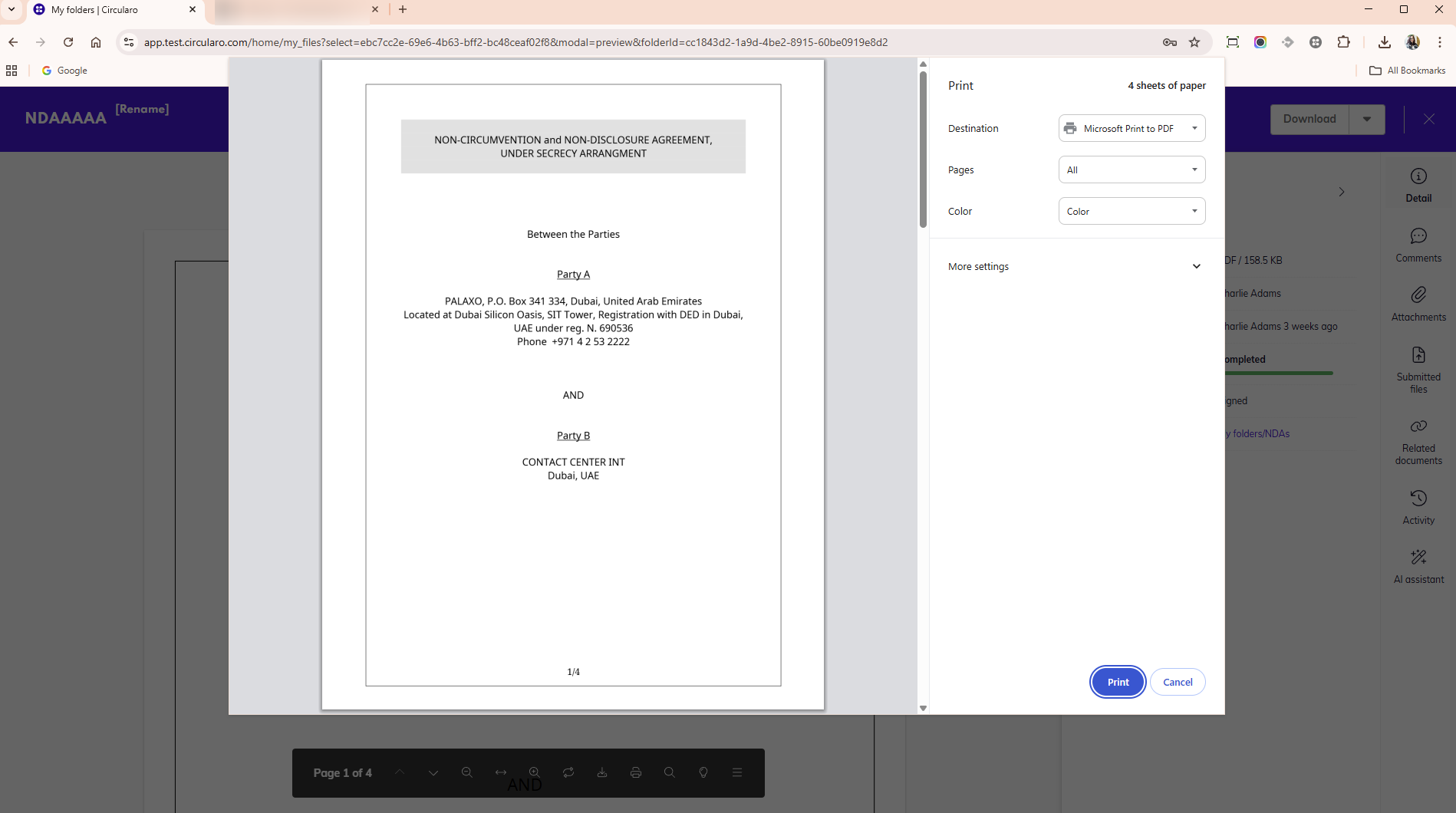
Print
Print dialog will open.
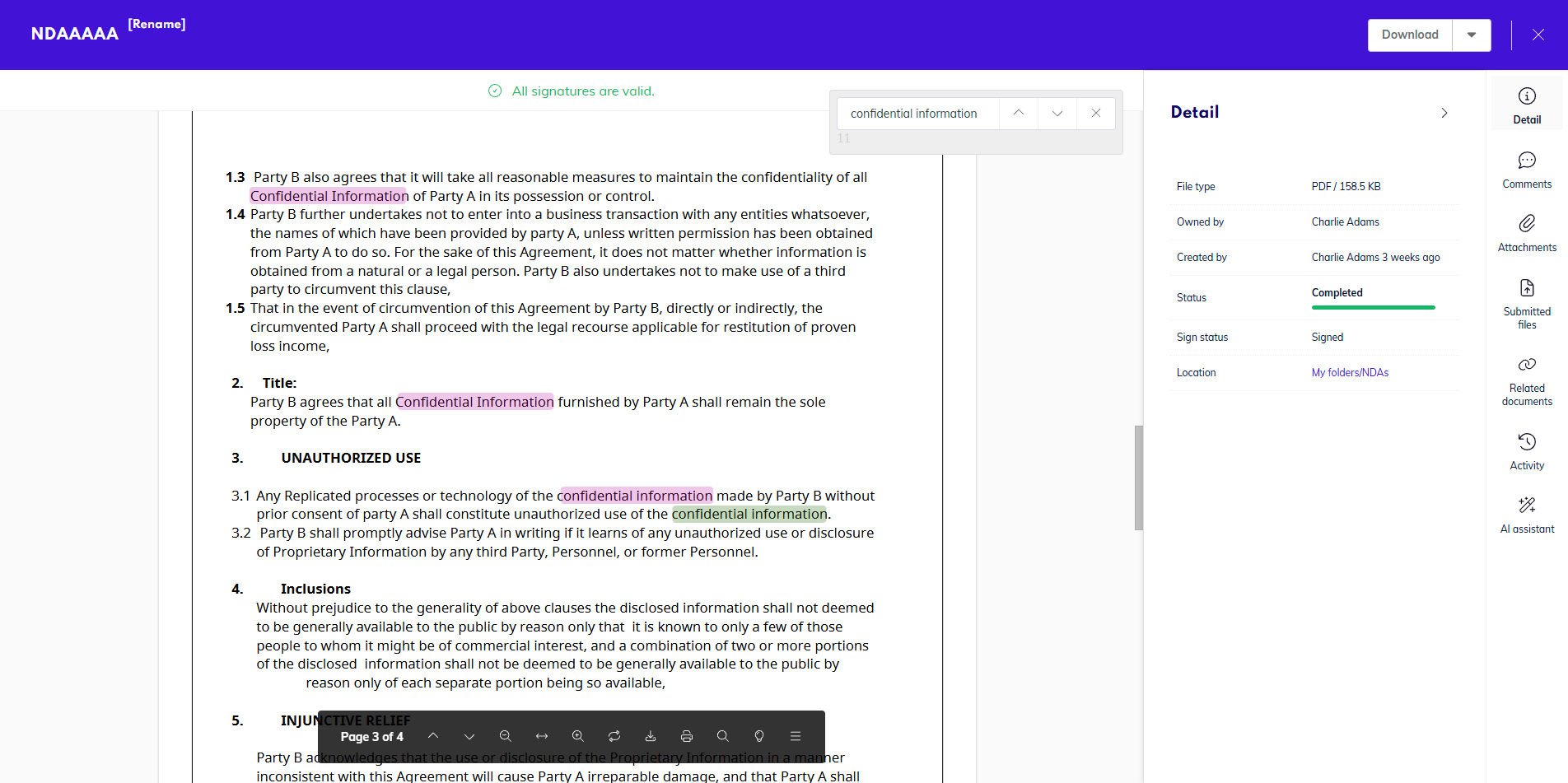
Search
If you want to find a specific word within the document, use full text search to look for keywords.
Annotations
Availability: Business and Enterprise
Users can add text, highlight any text in the document, or draw shapes and lines during the document preview.
This feature is useful and time-saving for the participants of the document’s creation and signing process, since they are now able to communicate their suggestions and objections to each other clearly, easily, and without having to reject the document first.
Keep in mind that every time you annotate a PDF document, the annotation will become a part of the PDF file and cannot be removed!
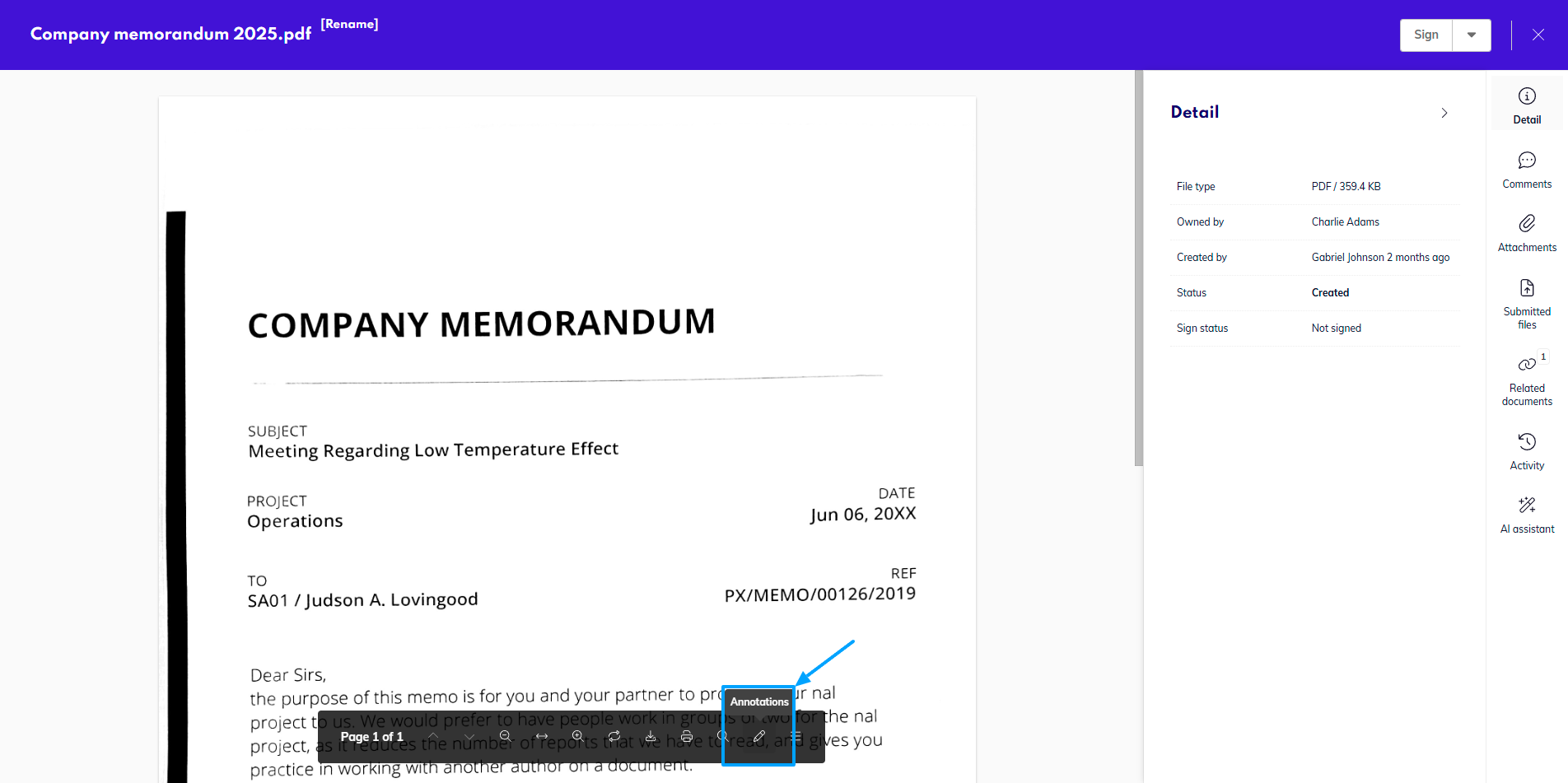
Different annotation options become visible upon clicking on the pencil icon in the black bottom bar.
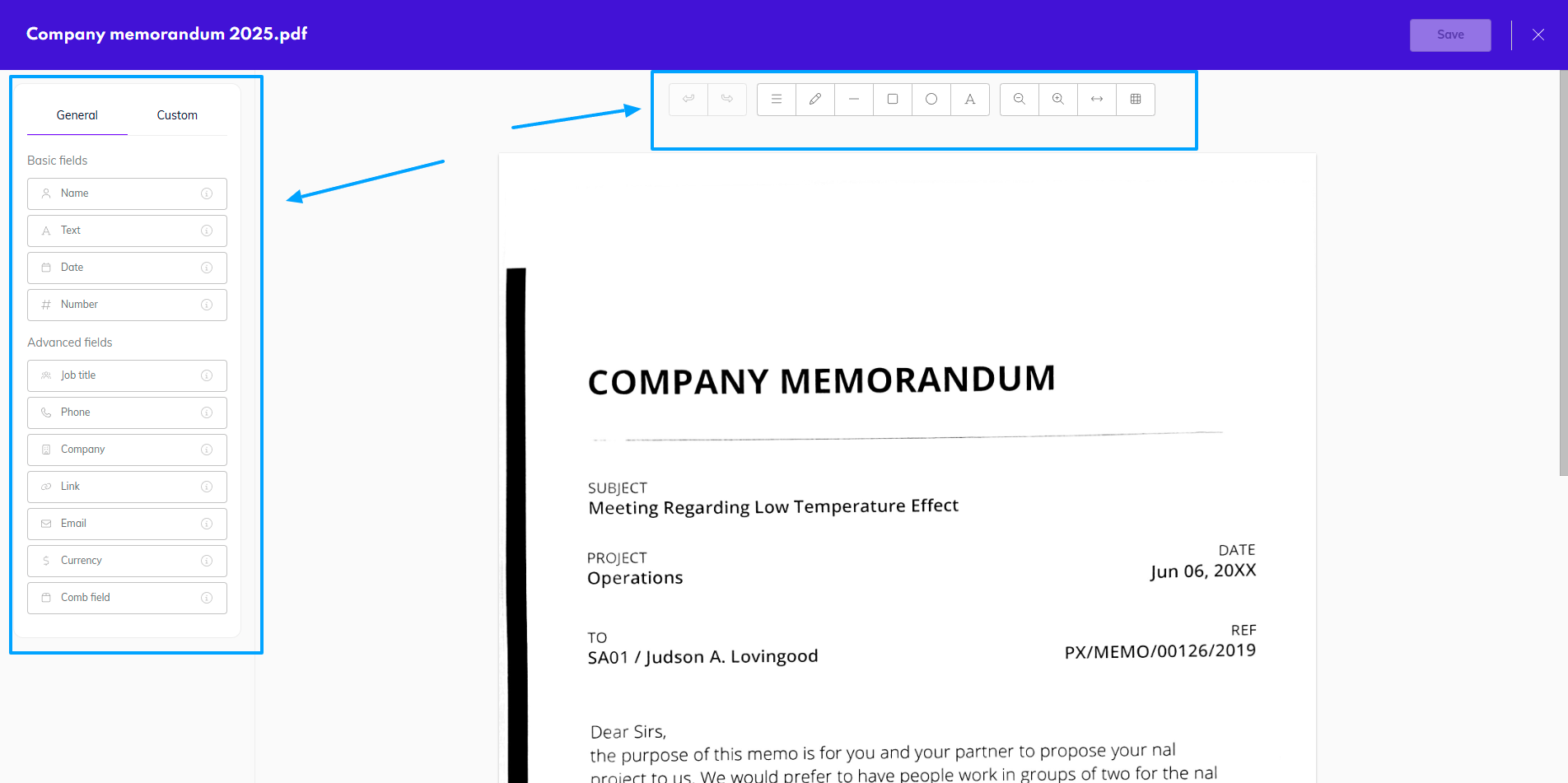
The annotation mode allows you to drag & drop fields from the panel like when signing a document. At the top of your page is a white bar from where you can add shapes, lines, or drawings.
When you annotate an already signed document, the original signature, along with its electronic certificate, will be automatically removed so that the new version of the document could be signed again.
Toggle thumbnails
Page thumbnails can be turned on to make the navigation across multi-page documents easier. That way, you can quickly find the page you are looking for.