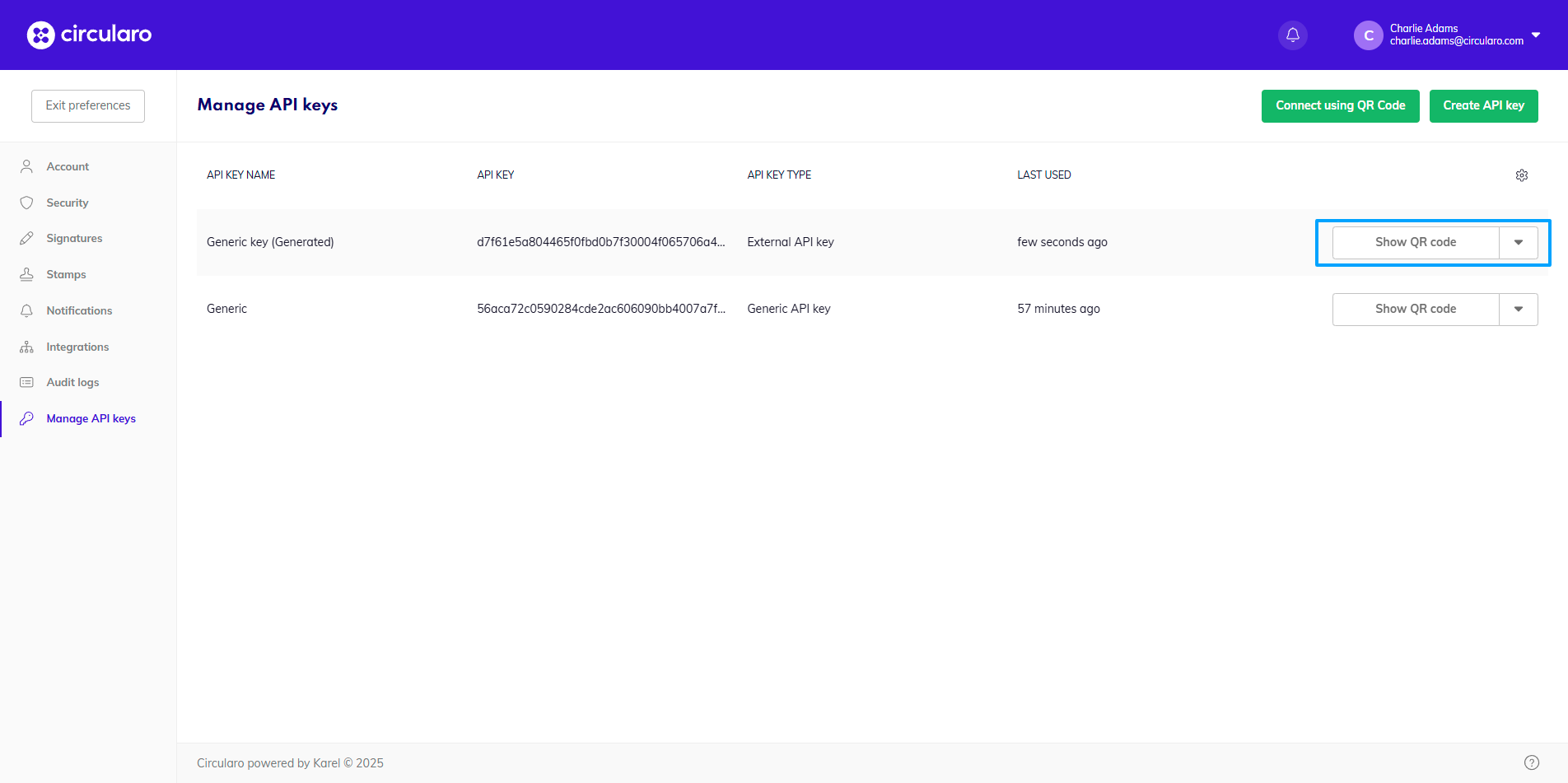
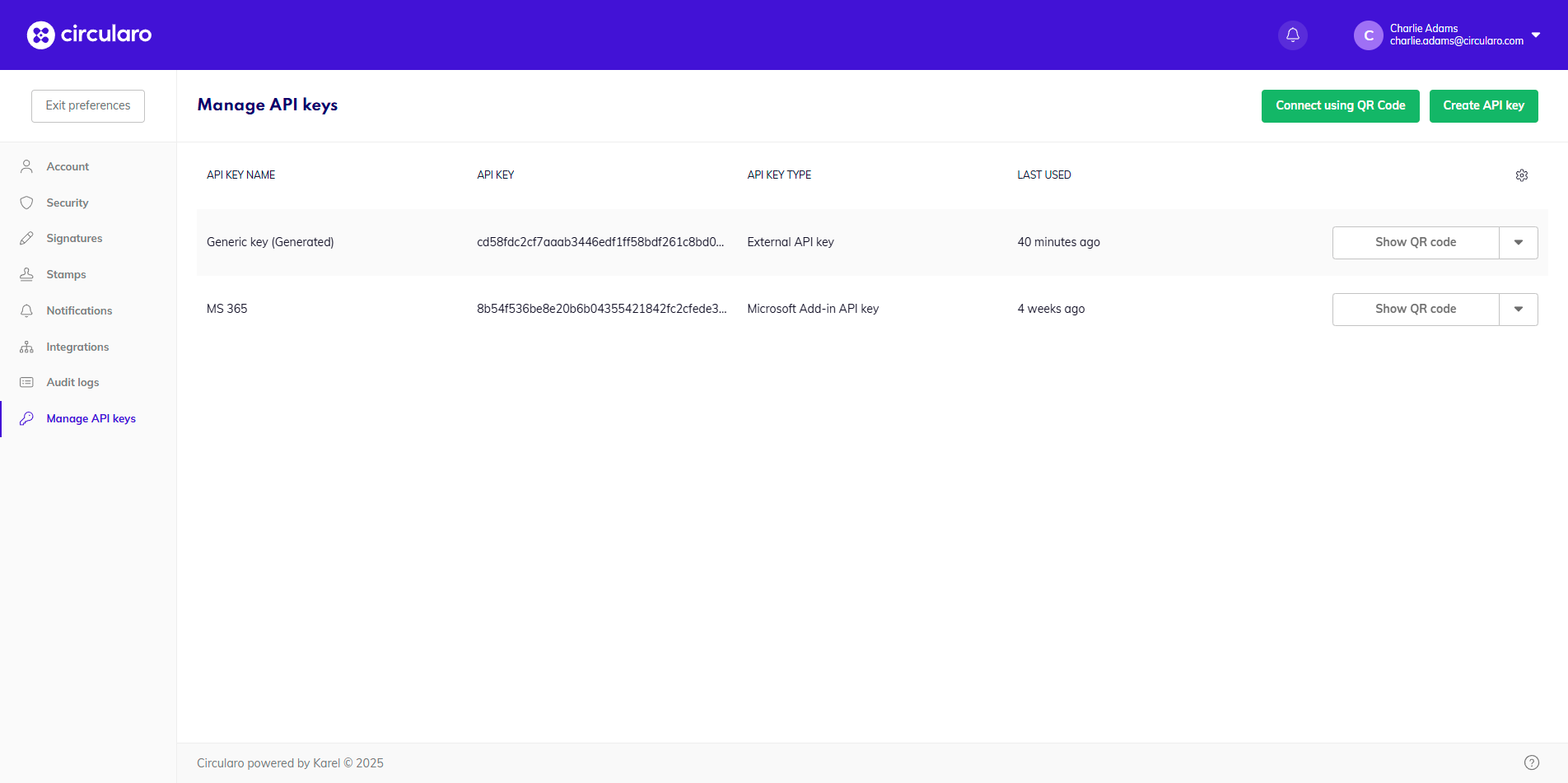
API Keys function as a shortcut for logging into integrated systems. They act as a unique identifier and provide a secret token for authentication purposes.
Creating an API Key
-
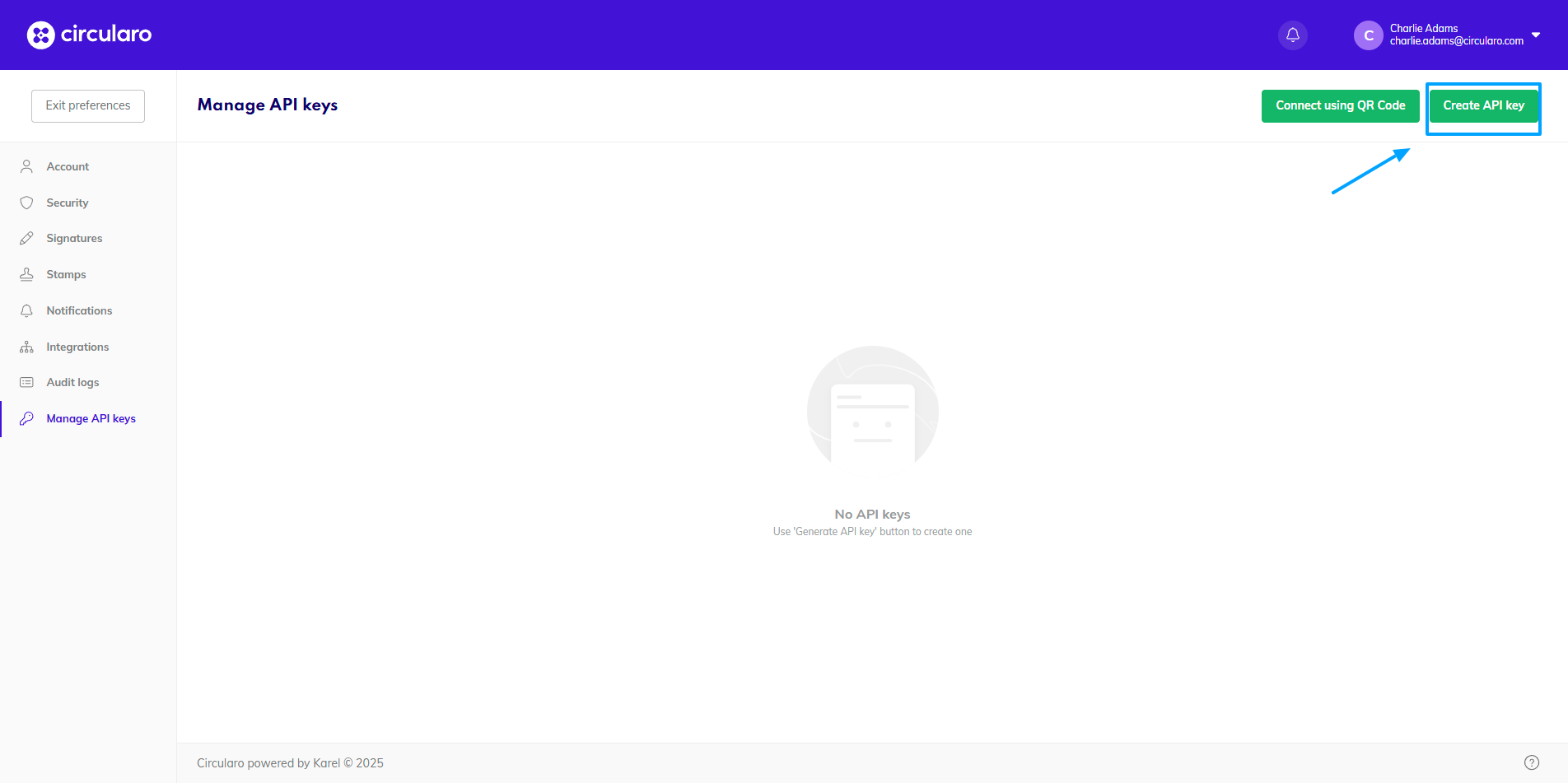
Click on the green button in the top right corner.
-
Create a name for the key and choose a type.
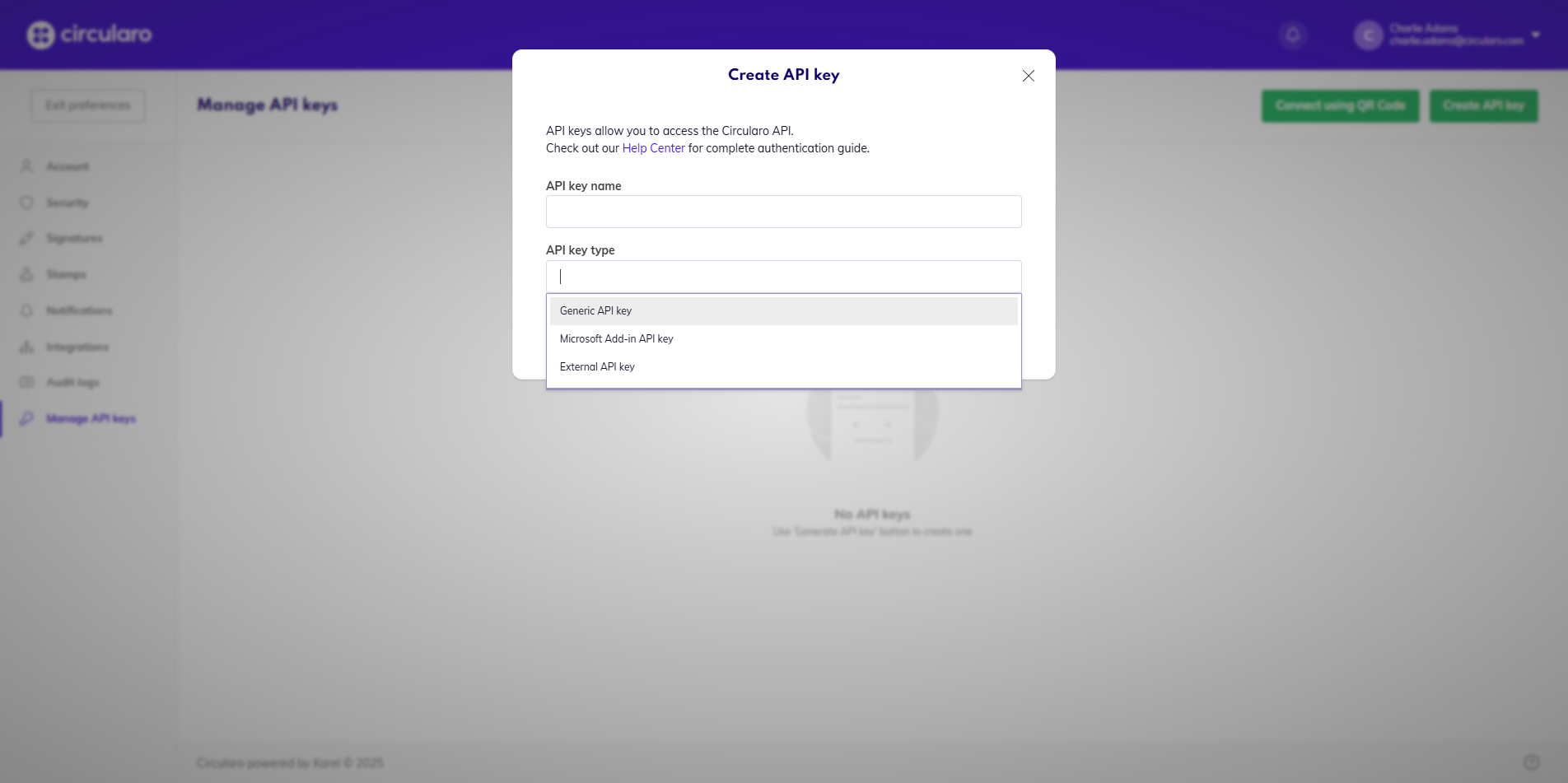
Name and type of API Key
-
Click on Create API Key.
When you wish to use the key, you can either have it shown as a QR code to scan with a 3rd party application, or Copy key to paste it where needed.
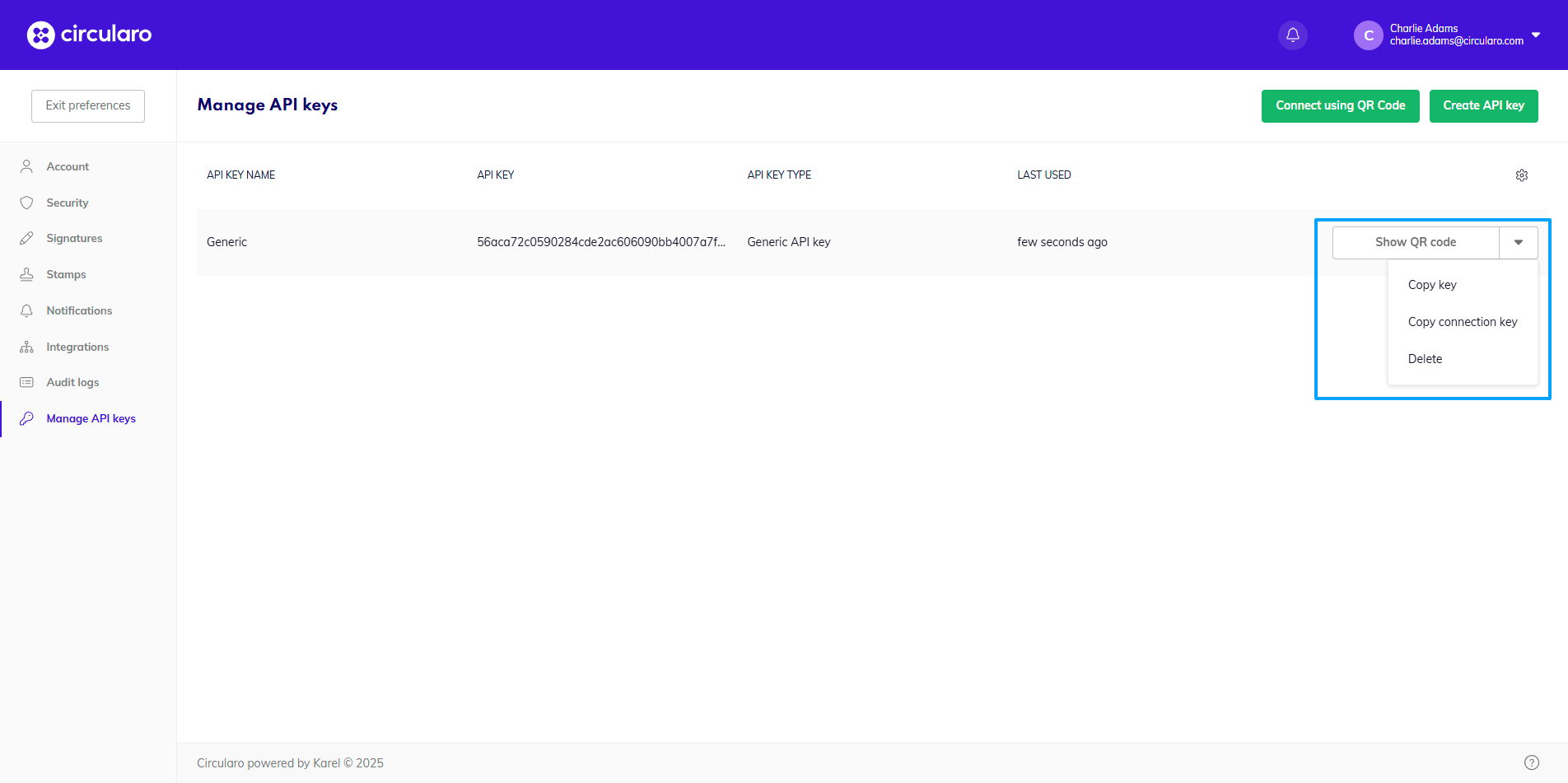
Generating a QR code for login
There is an option to generate a QR code to be scanned by a 3rd party application as a login method.
The QR code contains login information such as username and password, so make sure to be careful and do not share the code with other people, as they would be able to access your account with the code.
-
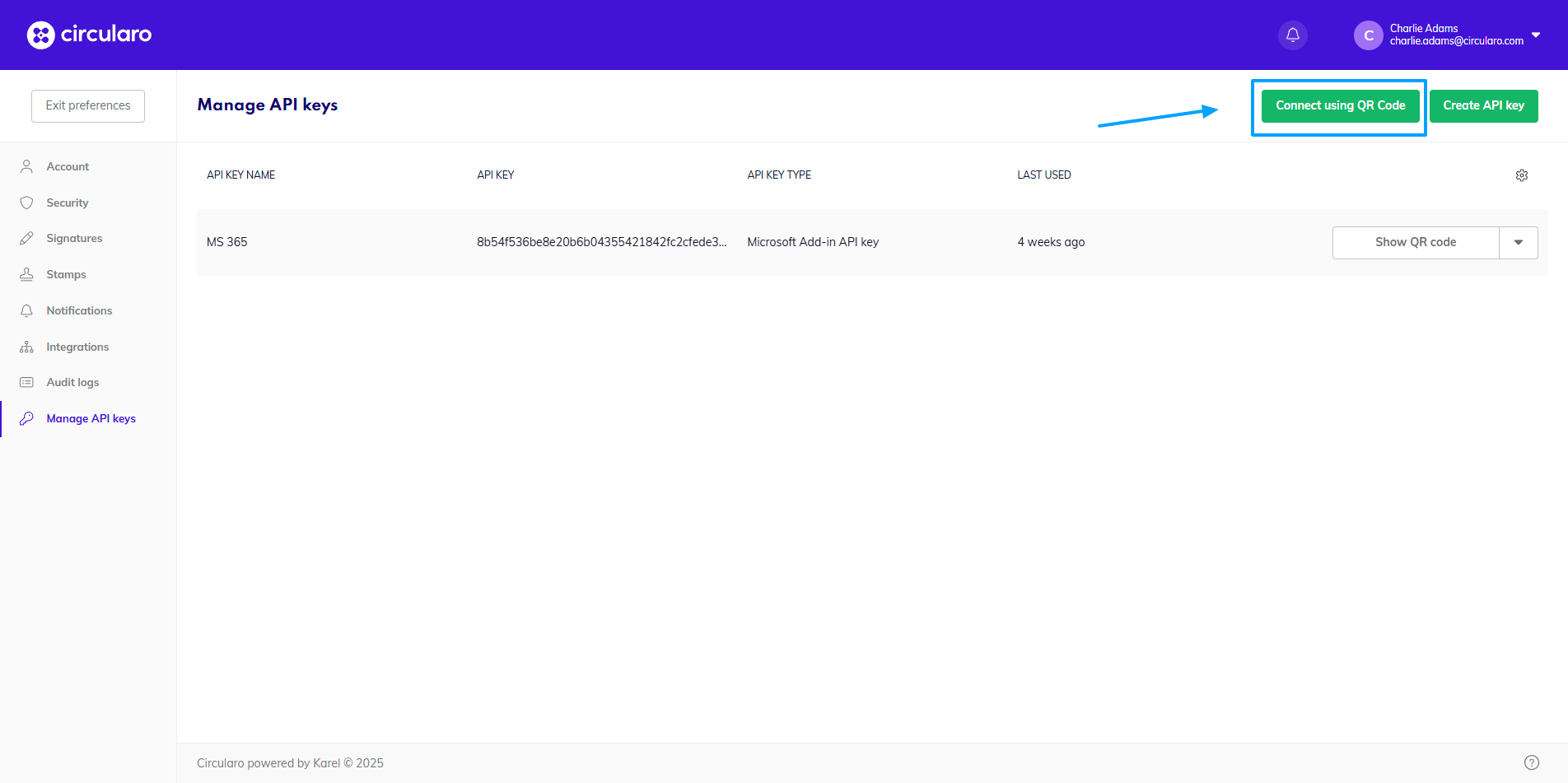
Click on Connect using QR Code
-
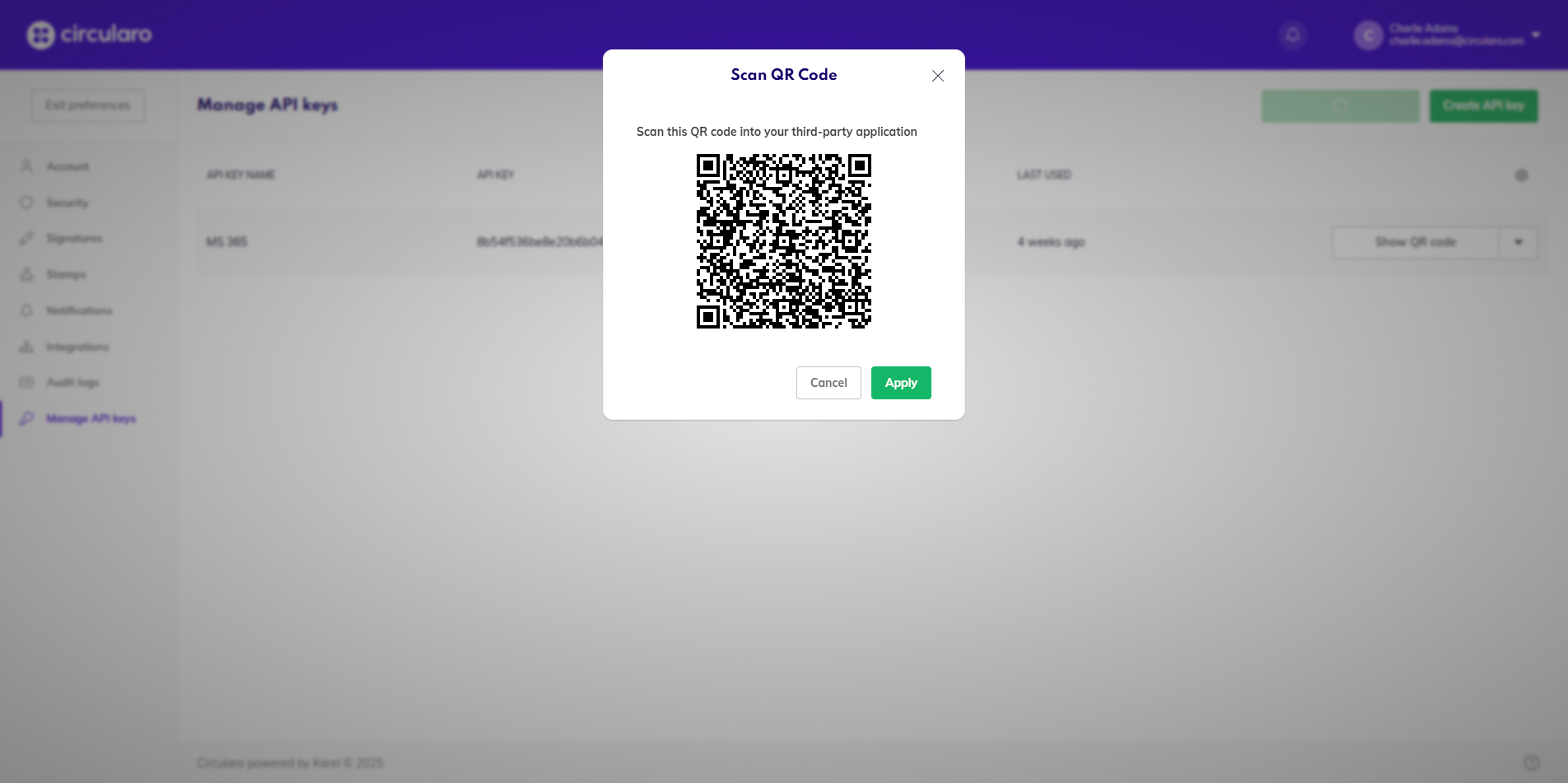
You can scan the QR code immediately, or just click Apply to save it into your account.
-
To access it later, click on Show QR code and scan it with your device.