
Account settings
In this section you will find settings related to your account, such as Language, Delegation set up, and some additional settings.
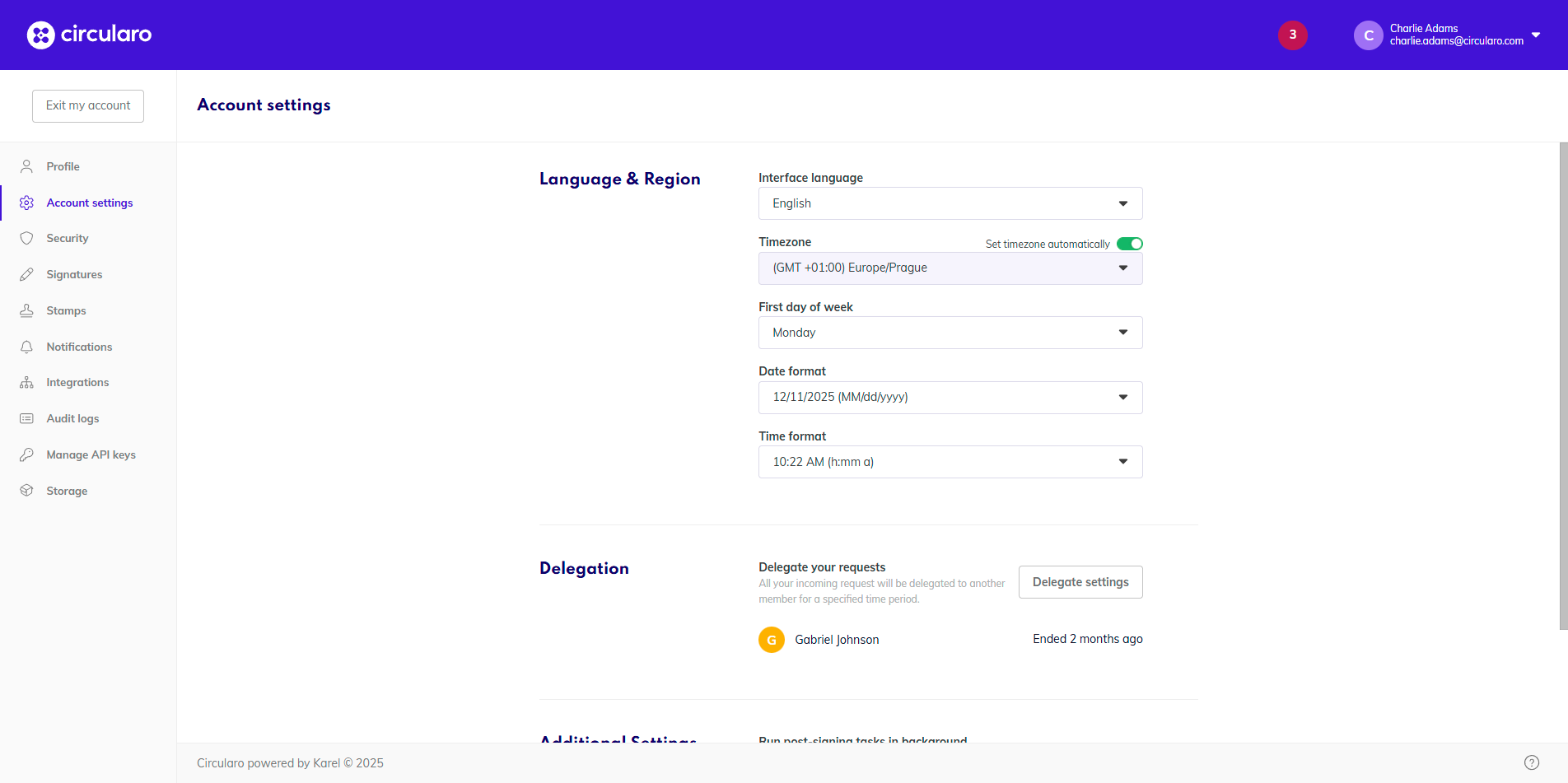
Account settings I
Language & Region
Choose the language of the interface and your notification emails, your timezone, and your preferred formats of time, date, and start of week.
Delegation
Set up a period of delegation, during which any new documents sent to you for processing will be automatically redirected to a person of your choosing, who will be able to process the documents in your stead.

When you have an active delegation, it will show in the top right corner of your Home Page. From there, you can easily adjust or remove it without having to go back to your Account.
Set / change delegation
Click on Delegation Settings
Select the user who will receive documents instead of you during your time off
Pick the First day of delegation and Last day of delegation
Confirm by clicking Delegate settings
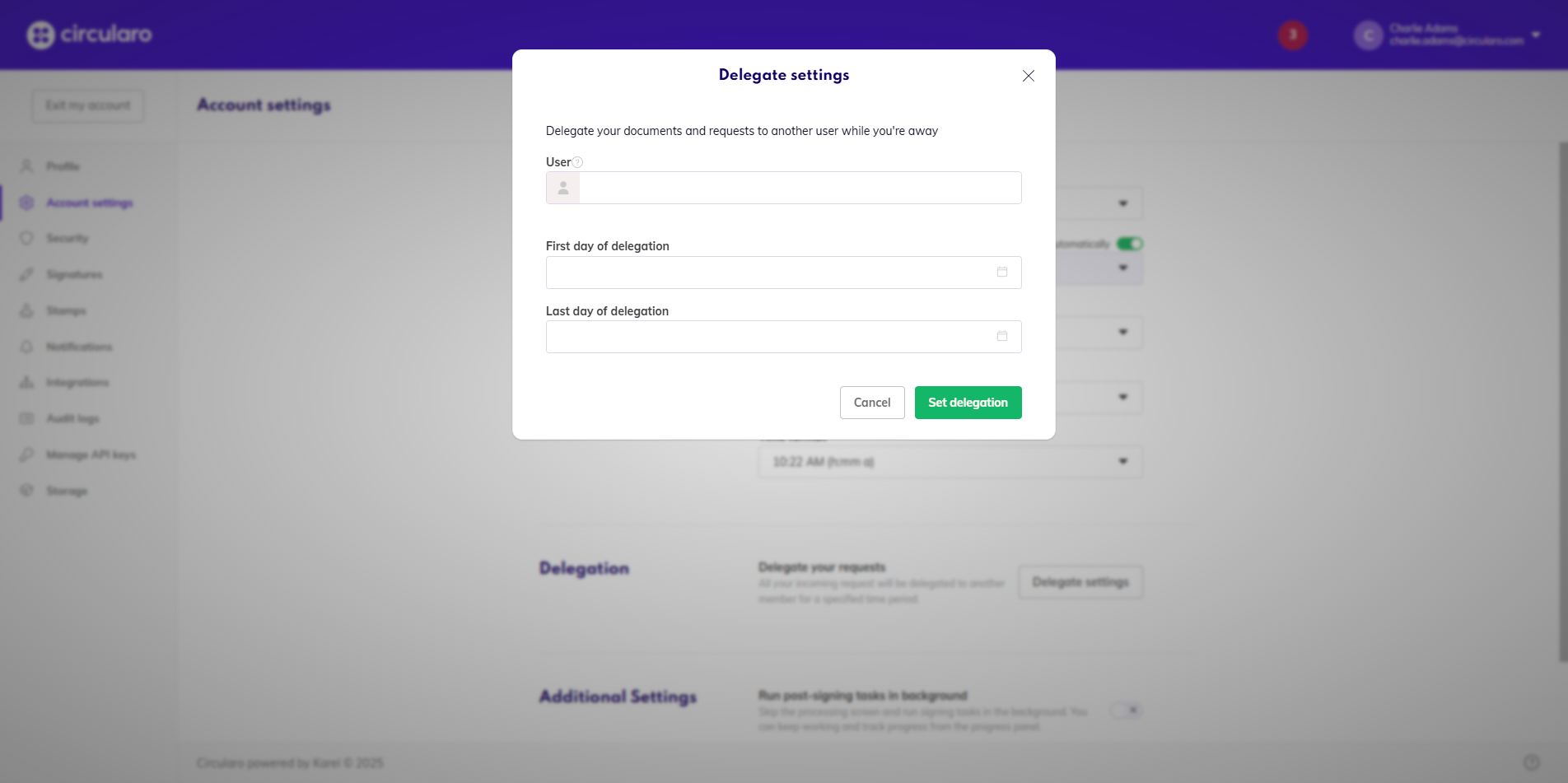
Set delegation
Remove delegation
Click on Delegation Settings
Select Remove delegation
Any documents assigned to another member during the delegation period will remain assigned to them after the delegation ends.
Additional settings
Run post-signing tasks in background
This allows you to skip the processing page shown after you send a document for signing, and immediately lets you work on other documents, while the task runs in the background.
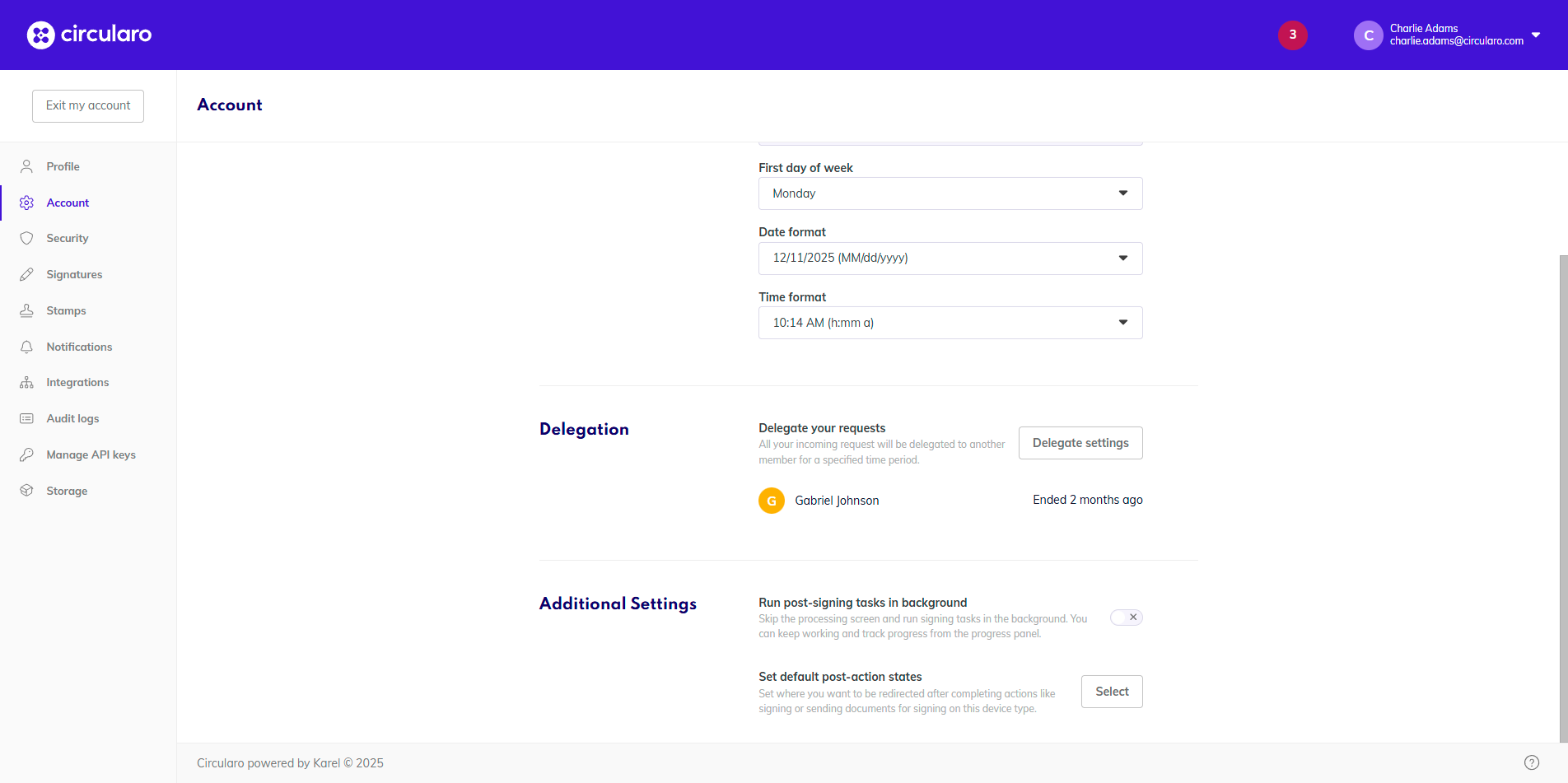
Additional settings
Default post-action states
Here you can customize where the system will take you after specific actions are done.
Choices tagged as “default” are set by your organization’s admin in the Settings of the administration.
Home screen
Choose which screen will open when you login.
Assigned to me tab in Documents
Waiting for others tab in Documents
All tab in Documents
Failed tab in Documents
After signing a document
Where the system redirects you after you create a document and sign it yourself.
All tab in Documents
Completed tab in Documents
Assigned to me tab in Documents
After sending a document for signing
What happens after you prepare a document and send it to other recipients. Your signature can also be part of the document.
Waiting for others tab in Documents
Assigned to me tab in Documents
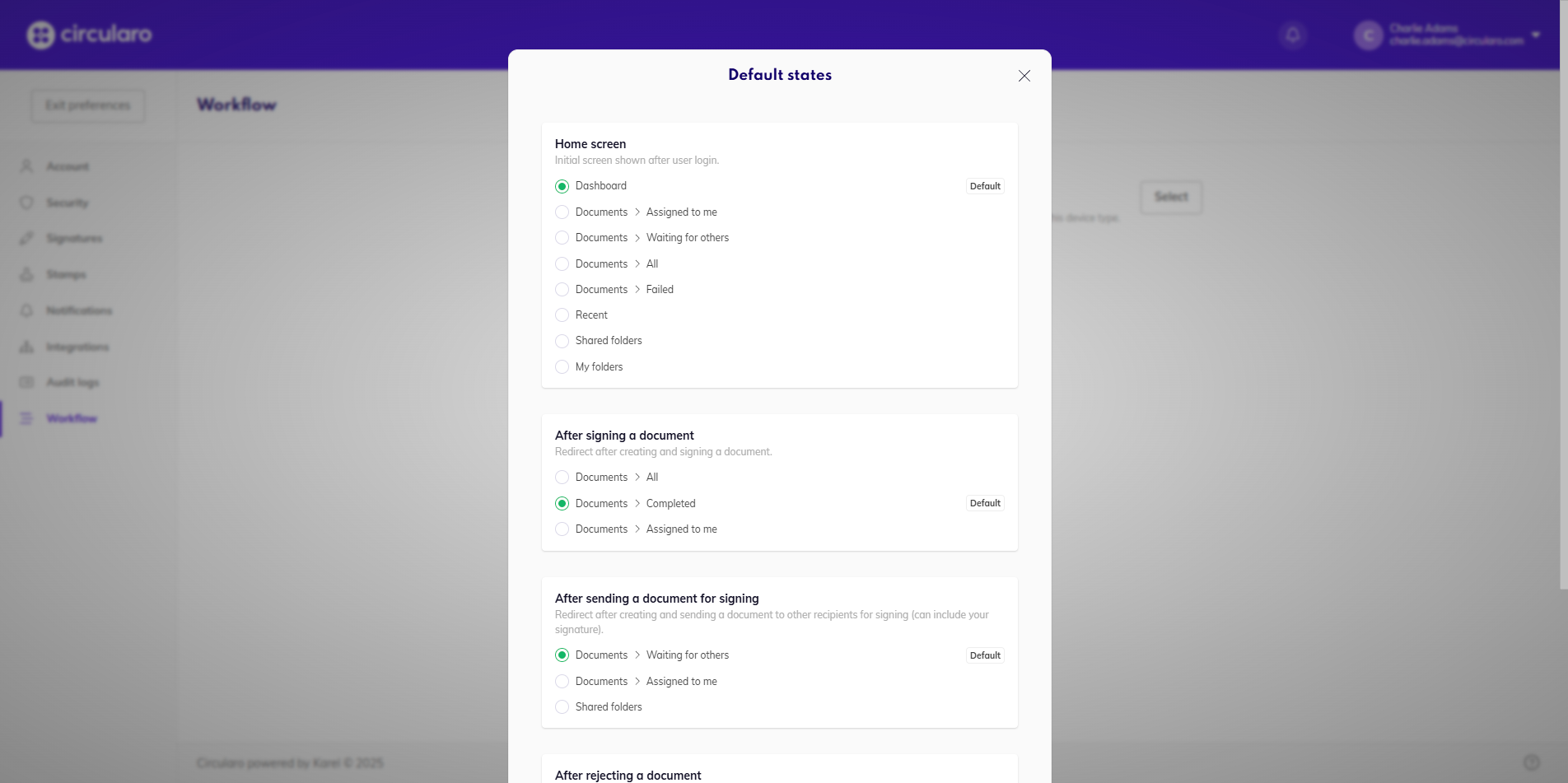
Default states I
After rejecting a document
Where you will be redirected after you reject a document sent to you for signature.
Failed tab in Documents
Assigned to me tab in Documents
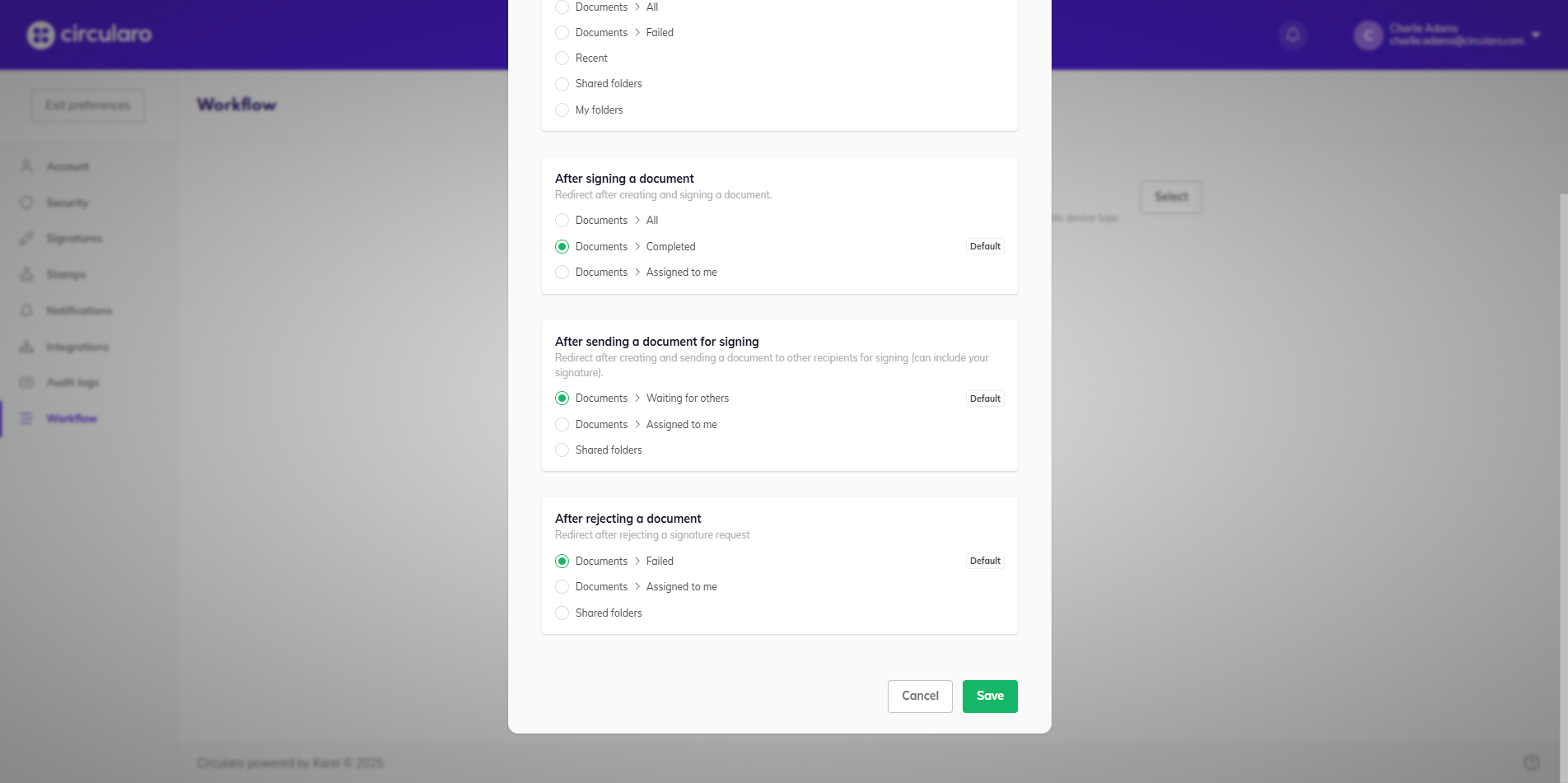
Default states II